STEP #1:
Many of you are jumping over from YouTube, looking to download our Brushes and Resource Folders. Download our Adobe Illustrator Brush Libraries, Comic Halftones, and BMP Textures.
STEP #2:
Once you have downloaded and extracted the folders, Brushes, Halftones, and Textures are ready to be used in Adobe Illustrator. Save all files to an external hard drive or cloud-based storage.
STEP #3:
After downloading, start with our Beginner and Resource Guides to understand how to apply Brush Libraries, Comic Halftones, and T-shirt Textures in Adobe Illustrator.
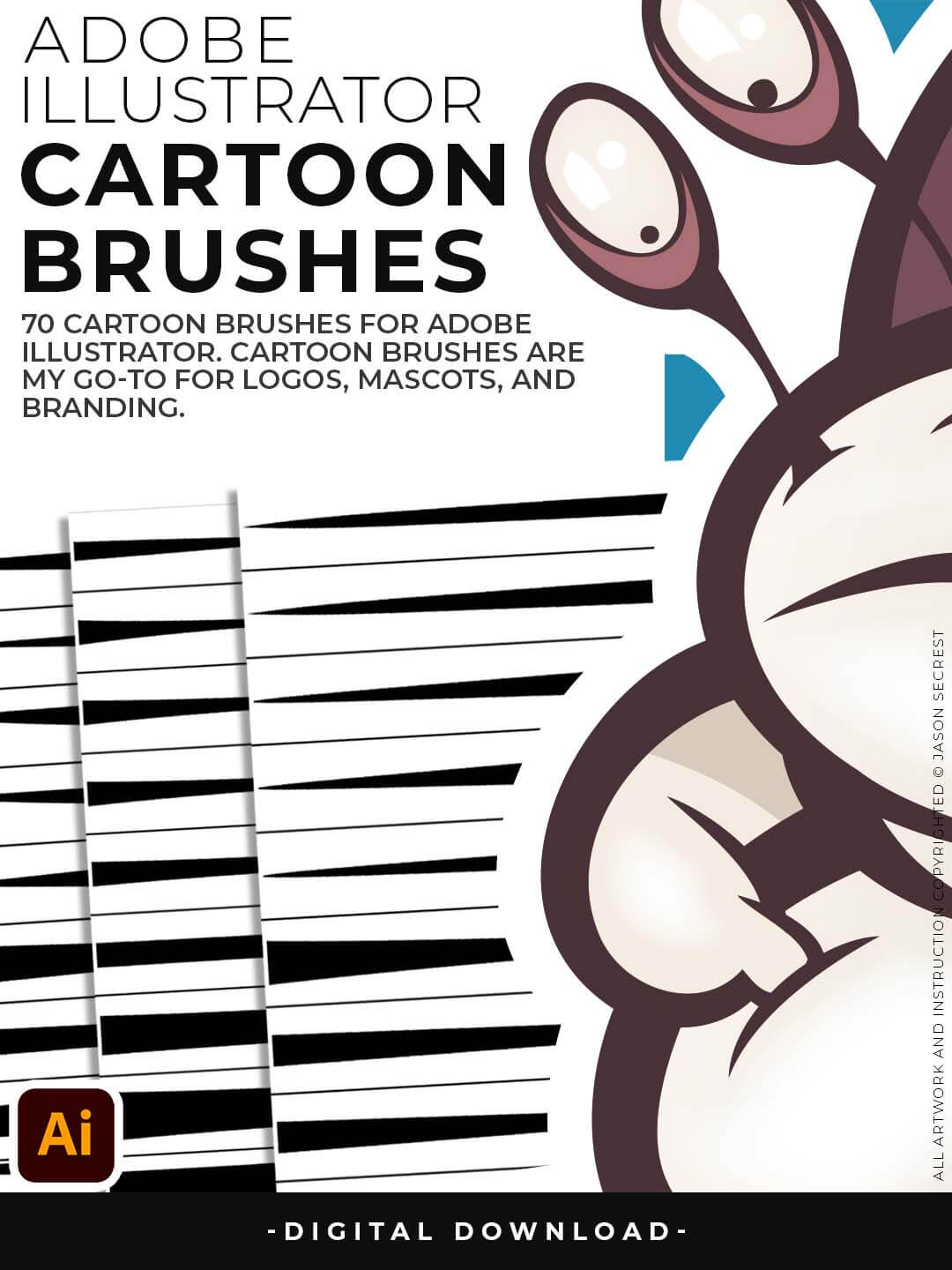
Cartoon Brushes are my go-to brushes for Professional Logos, Cartoons, Mascots, and Branding. Use Cartoon Illustrator Brushes with the Pen, Pencil or Paint Brush Tools to Apply different Line Variation to your Vector Artwork. (Cartoon Brushes include Updated Cartoon, Cartoon 2, and Original Cartoon Brush Libraries).

Hand Painted + Comic Strip Brushes to get a lived-in feel back into your Vector Art. Comic Strips and Hand Painted are painted based on some of my favorite artists and cartoonists. These brushes are designed to look ready for the Sunday Paper. (Comic Brushes include Updated Comic Strip, Hand-Painted, Paintbrush, and Fine Liner Brush Libraries).
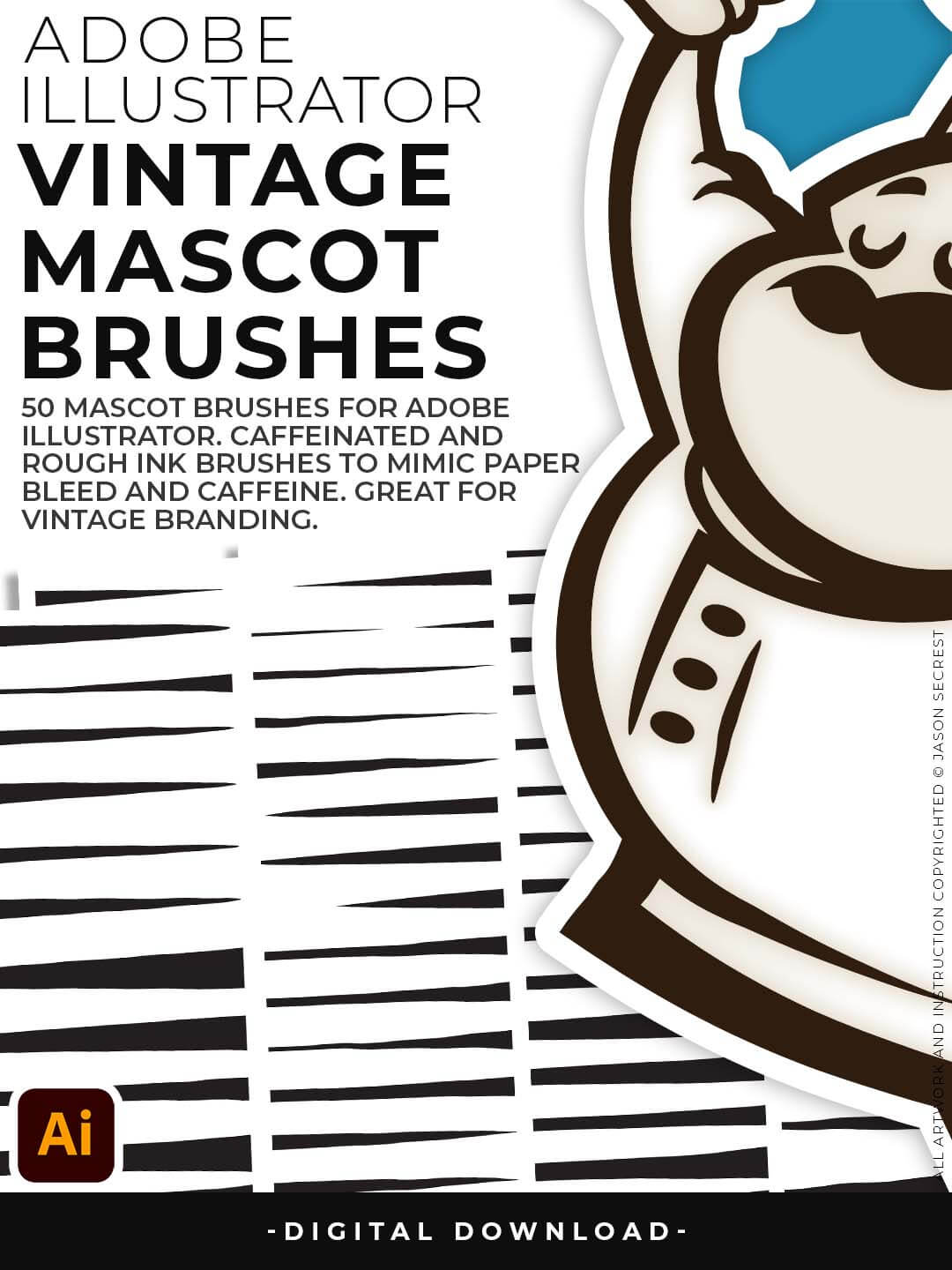
Jittery Hand, Caffeinated Cartoonist + Rough Ink Brushes to Mimic Paper Bleed and Caffeine. Designed to be a little less stiff with your vector art. Use these Brush Libraries to get a distressed or ink bleed style back in your own Vector Artwork. (Mascot Brushes include Updated Caffeinated Cartoonist, Rough Ink, and Jittery Hand Brush Libraries).
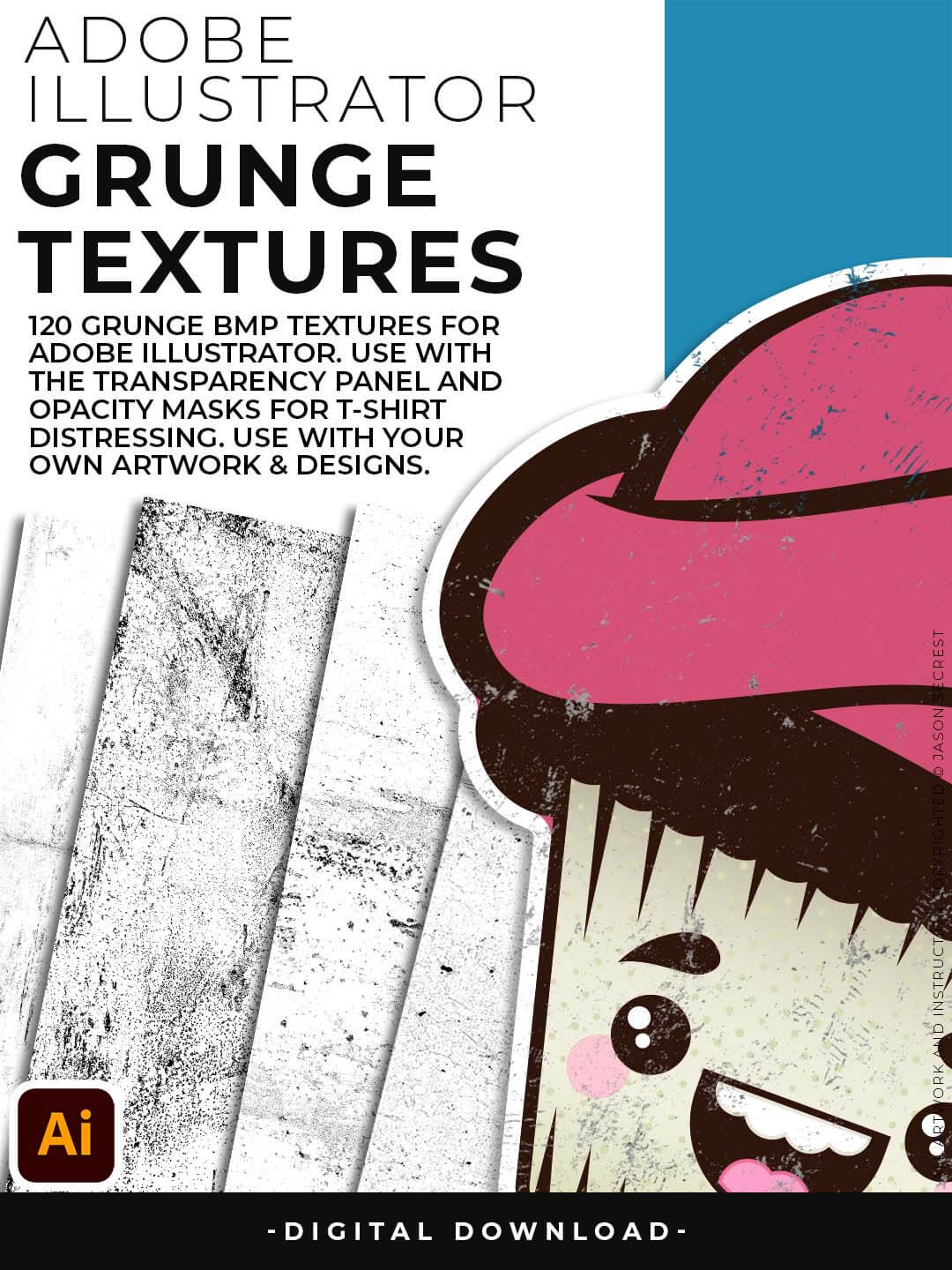
Grunge Distressing Textures to Apply Opacity Masks to your Own Original Artwork and T-shirt Designs. Use BMP Textures to apply Grunge and Distressing Effects to your Artwork and Designs to use with the Transparency Panel and Opacity Masks for Adobe Illustrator. Great for t-shirt distressing using BMP Textures and Opacity Masks to show the garment color on your Own Original Artwork.
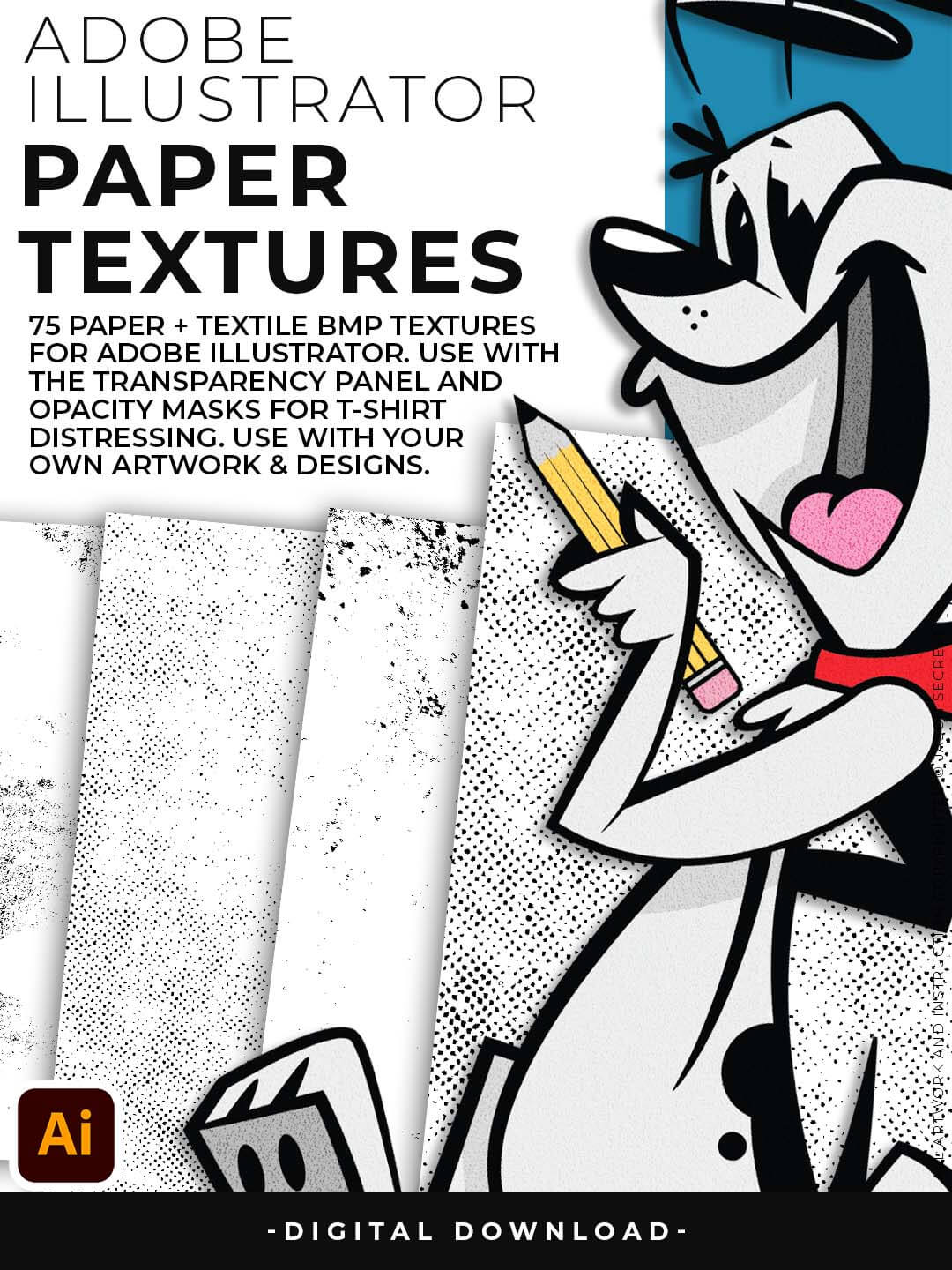
Paper Distressing Textures to use along with the Transparency Panel to create soft texture overlays for your own original artwork. This is great for those of you who are using Textures for Web, Print, and Social Media Sites. Use Textures with a combination of Color Swatches, Transparency, Blending Modes, and Clipping Masks to create a subtle texture overlay on your print or web exports.
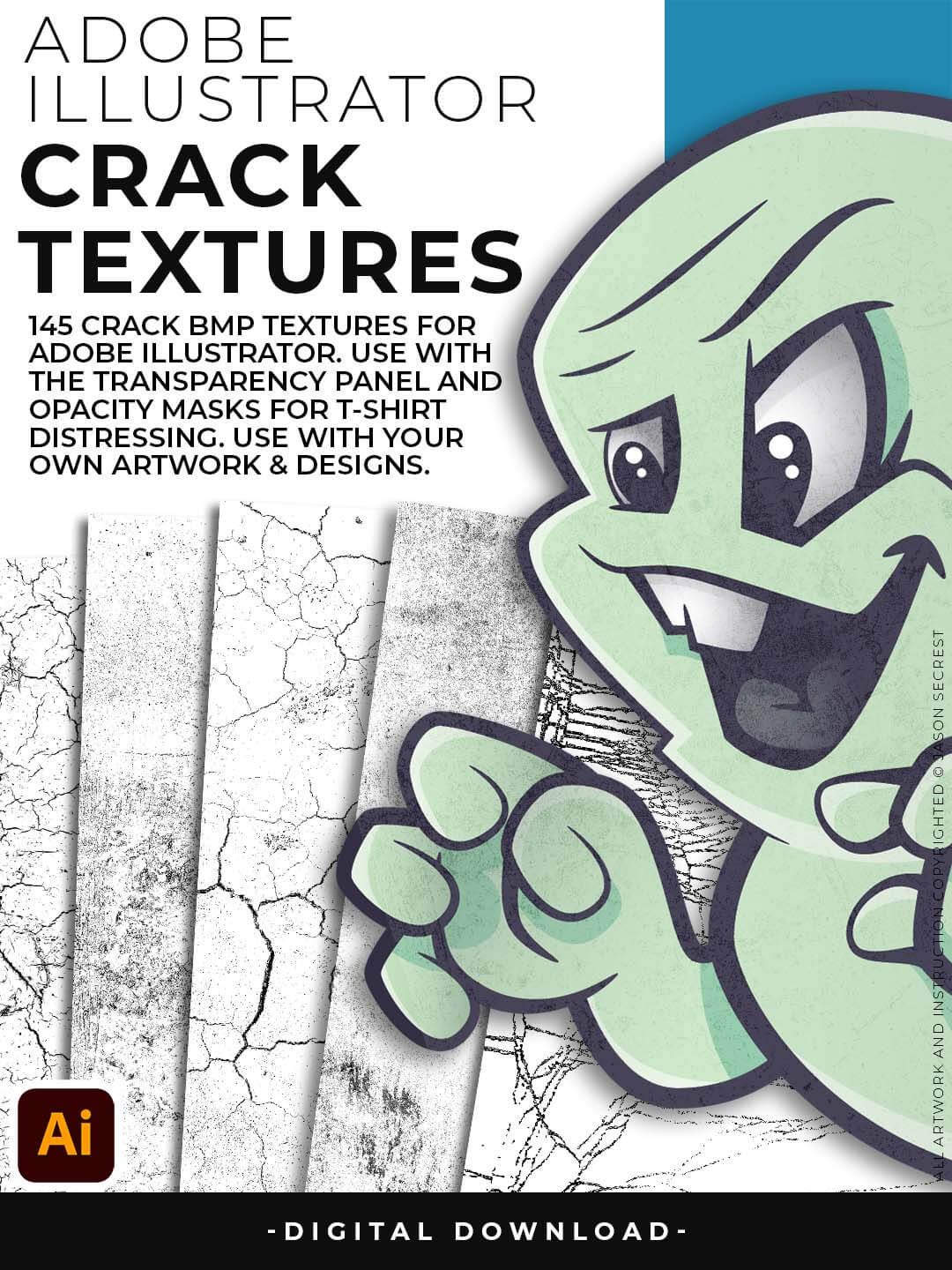
Crack Distressing Textures to Apply Opacity Masks to your Own Original Artwork and T-shirt Designs. Use BMP Textures to apply Cracks and Distressing Effects to your Artwork and Designs by Applying Opacity or Transparency Masks for Adobe Illustrator. Created for T-Shirt distressing using your own Original Artwork and Opacity Masks to show through to the garment color.
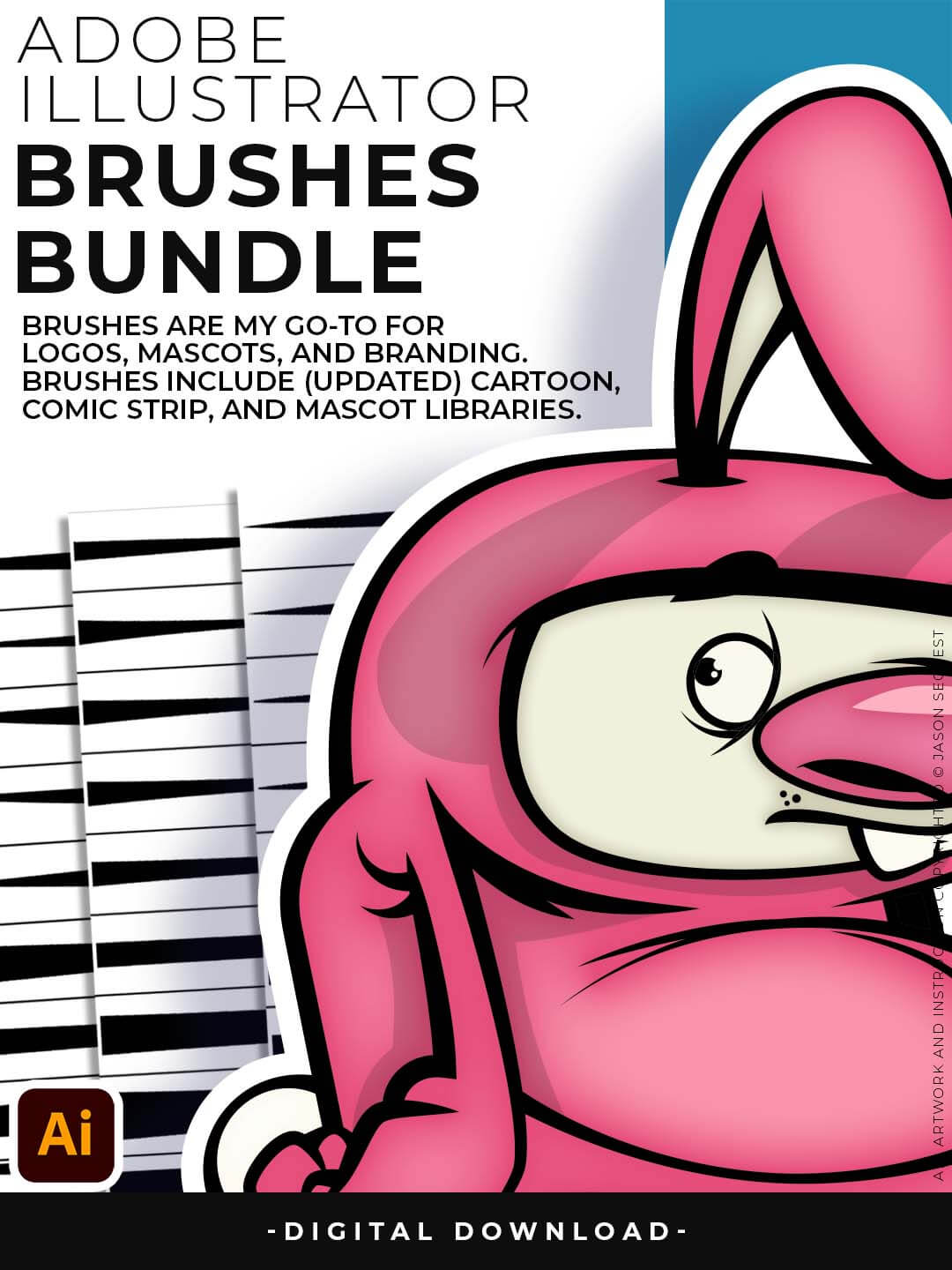
Brushes are specifically designed for Illustrators and Cartoonists to speed up their workflow. Brushes Libraries allow for Pressure Sensitivity if you are using a Tablet for Inking your Line Variation. Apply with Pen, Pencil, Shapes, or Paintbrush Tools. Adobe Illustrator Brush Libraries include our 70 Cartoon, 100 Comic Strip, and 50 Vintage Mascot Brushes.
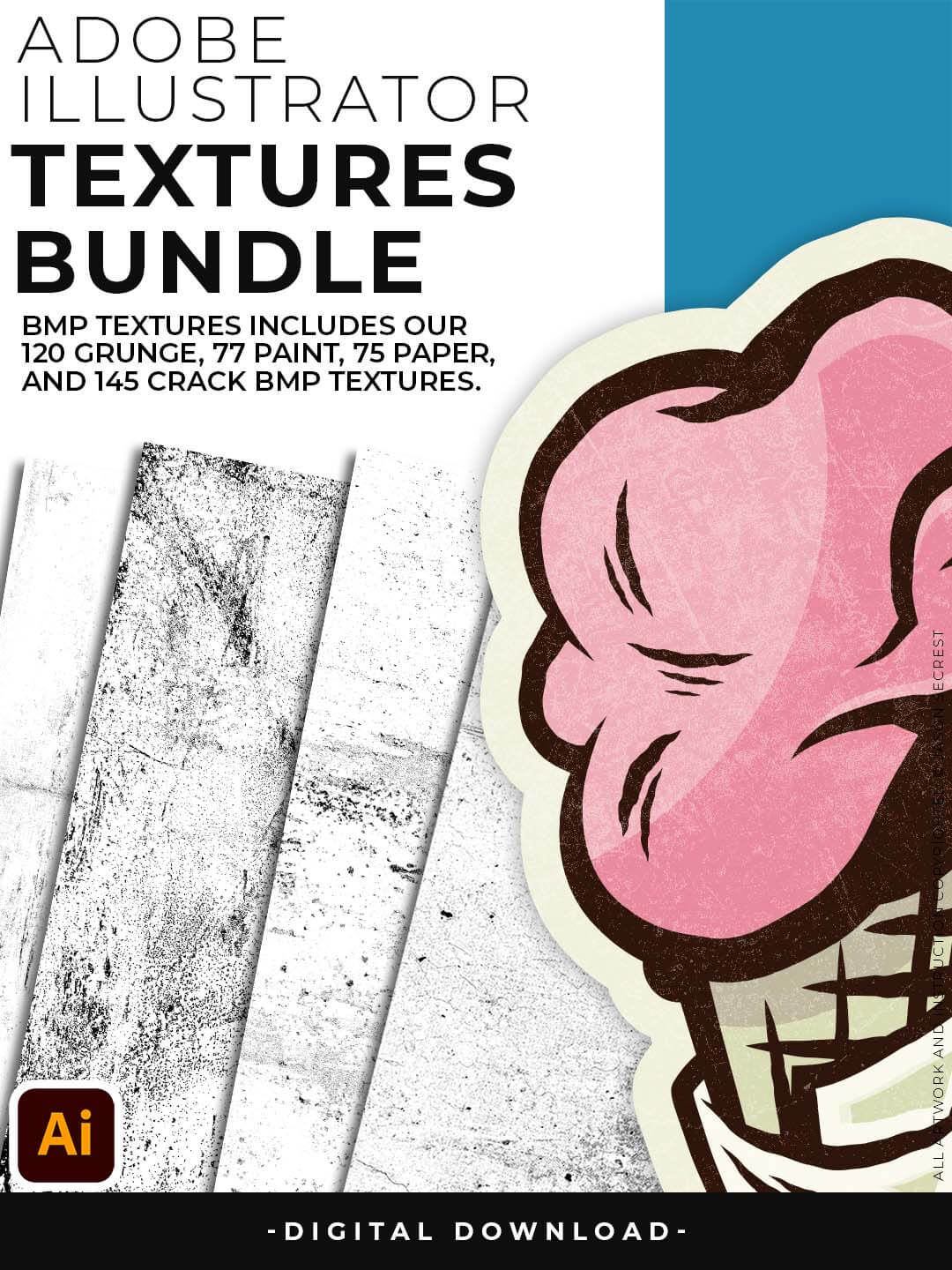
BMP Textures are straightforward to use even if you are a beginner to Adobe Illustrator. Simply File-Place the Textures over your finished artwork to use with the Transparency Panel for soft overlays. Use BMP Textures along with Opacity Masks for T-Shirt Distressing. BMP Textures include our 145 Cracks, 120 Grunge Distressing, 75 Paper, and 77 Paint Splatter Textures.
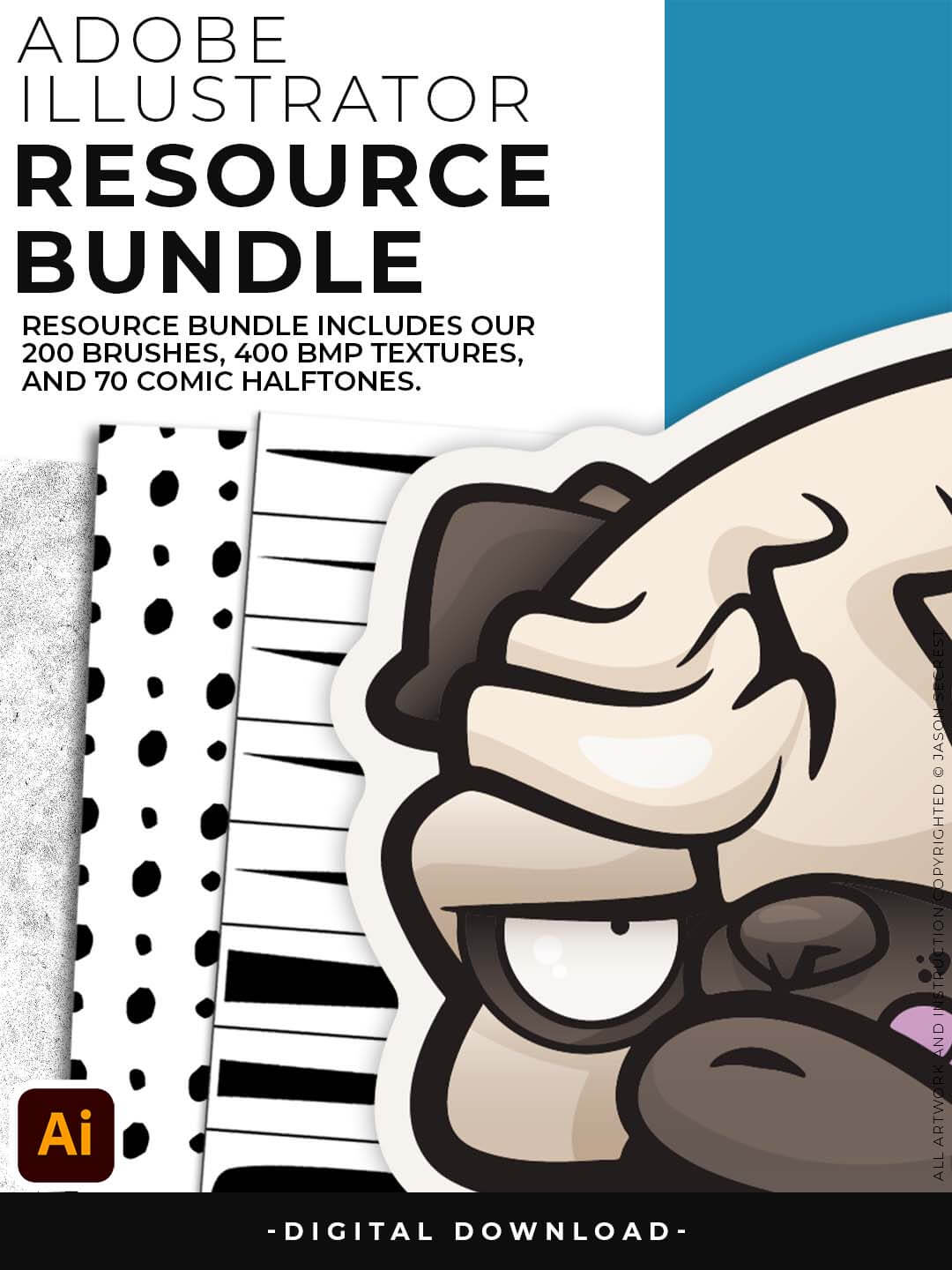
Resource Bundle includes our Brush Libraries, Comic Halftones. and BMP Textures. Brush Libraries: 70 Cartoon, 100 Comic Strip, or 50 Vintage Mascot Brushes. Halftones include our 70 Comic Strip Halftone Fills and Halftone Value Scales. Texture Folders: 145 Cracks, 120 Grunge Distressing, 75 Paper, and 77 Paint Splatter Textures.
"I appreciate your videos. I have been an illustrator user for years and have my own ways of doing things. It's great to see other ways of using tools and learning tricks I didn't know were available! It's also good to see you doing the same thing as me in other instances, confirming I'm on the right track!"
"Brilliant video. So much great info packed in here. I'm just getting started drawing cartoons with my Wacom tablet, and this was a huge help. Thumbs up and thanks!"
"Keep up the good work Jason. I’ve been doing Lynda.com tutorials for a few months now and I got more out of your videos than what I’ve received at Lynda. Keep it up and Thank You!!"
"Thank you loads! Compared to other tutorials, yours are just really well-explained and easy-to-follow. Can totally see that you've got a passion for what you're doing and that's just wonderful! 🙂 Keep it up, you're doing an amazing job."
"You are definitely one of the best teachers I've found dealing with start to finish creative process. Great work!!!"
"Awesome tutorial! I don't think I've picked up something so easily from someone who knows what they are doing. I managed to draw my first vector art and it was a joy! Great work keep it up!"
"Thank you so much man, I loved the way you explain this, I spent days looking for a good tutorial vid, thanks a lot, gonna keep watching your videos!!!"
"thanks a lot you are really one of my favorites, I like the steps you give us, and I'm so thankful for that effort you do for helping us :)"
"These tutorials are amazing. Just started using illustrator and really glad I found your channel. The only videos that explain everything step by step"