


Complete Resource Bundle for Adobe Illustrator
This is the complete creative toolkit for anyone doing serious work in Adobe Illustrator. It combines every brush library, every texture pack, and the full halftone fill system into one organized download.
You get the Cartoon Brush Library (70 brushes), Comic Strip Brush Library (100 brushes), and Mascot Brush Library (50 brushes) for your linework. The halftone pack adds 70 comic-style fills that work like color swatches inside Illustrator. And the Texture Bundle — 417 files across crack, grunge, paper, and paint — handles every distressing and overlay effect you'll ever need.
This is what designers who follow Jason Secrest's tutorials on YouTube have been asking for in one place. Whether you're building mascots, designing t-shirts, creating logos, or developing a whole brand identity, this bundle covers you from first stroke to final export.
Digital Downloads
- After purchase, you’ll receive an email with your download link. (only available through our YouTube Shop powered by Fourthwall).
- If you don’t see the email, please check your spam or promotions folder.
- Digital Downloads will come as Zipped Folders. Extract all before using in Adobe Illustrator.
- Once you download a file, you will have it forever
- Save or back up Digital Downloads to an external hard drive or cloud-based storage service.
- Use with your own artwork and designs.
Buyer Benefits
- 220 brushes, 70 halftone fills, and 417 textures — the full toolkit in a single purchase
- Stop hunting for resources mid-project — everything works together inside Illustrator
- Covers cartoon illustration, comic-strip shading, vintage distressing, and print-ready apparel
- Built and tested by a 10-year Illustrator educator — not random internet files
- Saves $30+ vs buying each pack individually — and you get everything, including future updates
STEP #1:
Download our Brush Libraries, Comic Halftones, and BMP Textures. Adobe Illustrator Halftones and Textures will come to you as Zipped Folders. Extract All before using in Adobe Illustrator.
STEP #2:
Once you have downloaded and extracted the folders, Brushes, Halftones, and Textures are ready to be used in Adobe Illustrator. Save all files to an external hard drive or cloud-based storage.
STEP #3:
After downloading, start with our Beginner and Resource Guides to understand how to apply Brush Libraries, Comic Halftones, and T-shirt Textures in Adobe Illustrator.
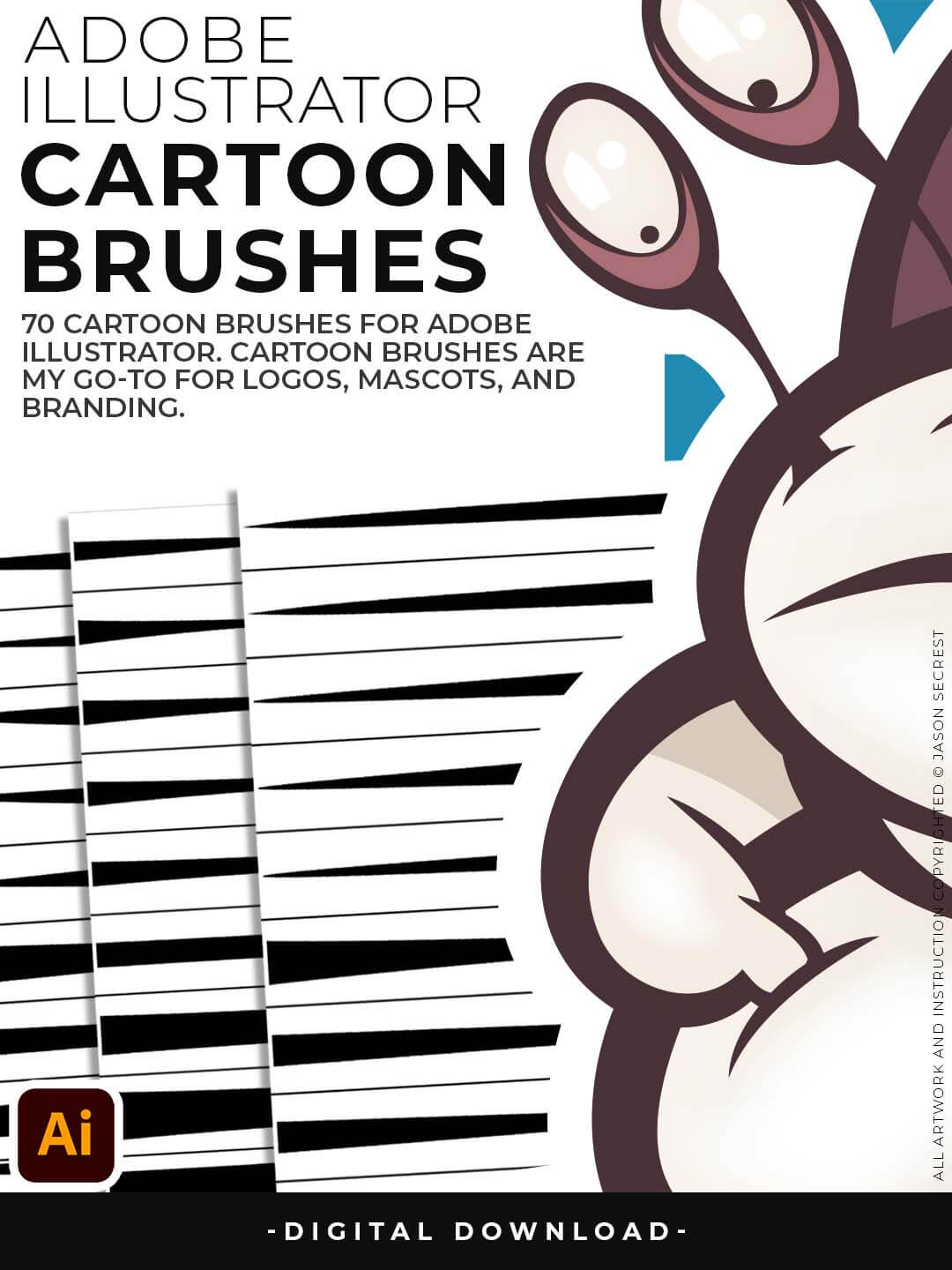
Cartoon Brushes are my go-to brushes for Professional Logos, Cartoons, Mascots, and Branding. Use Cartoon Illustrator Brushes with the Pen, Pencil or Paint Brush Tools to Apply different Line Variation to your Vector Artwork. (Cartoon Brushes include Updated Cartoon, Cartoon 2, and Original Cartoon Brush Libraries).

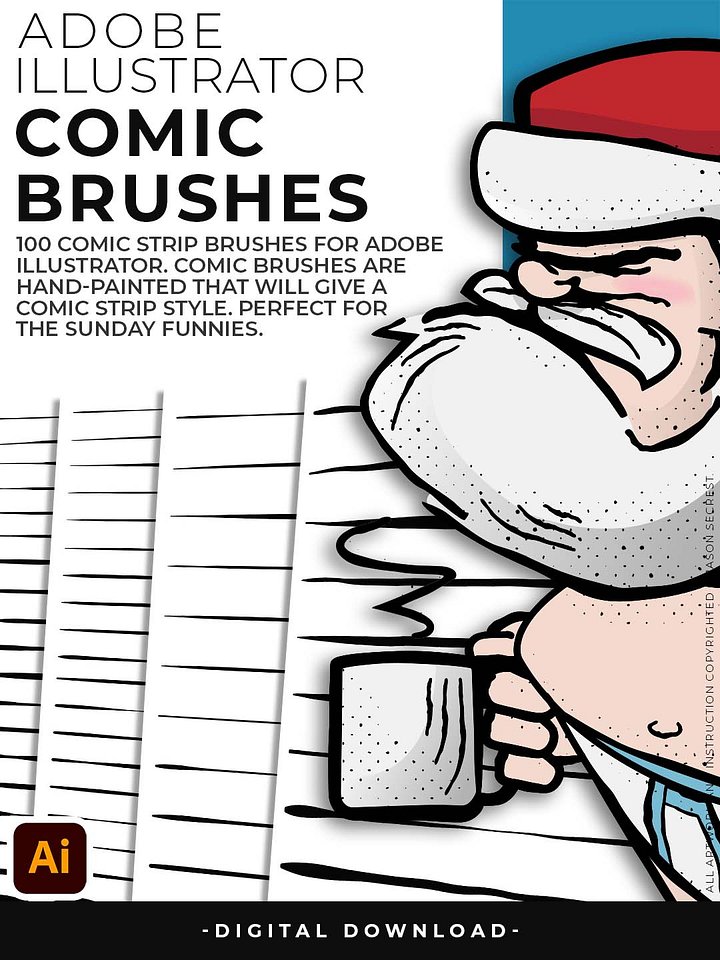
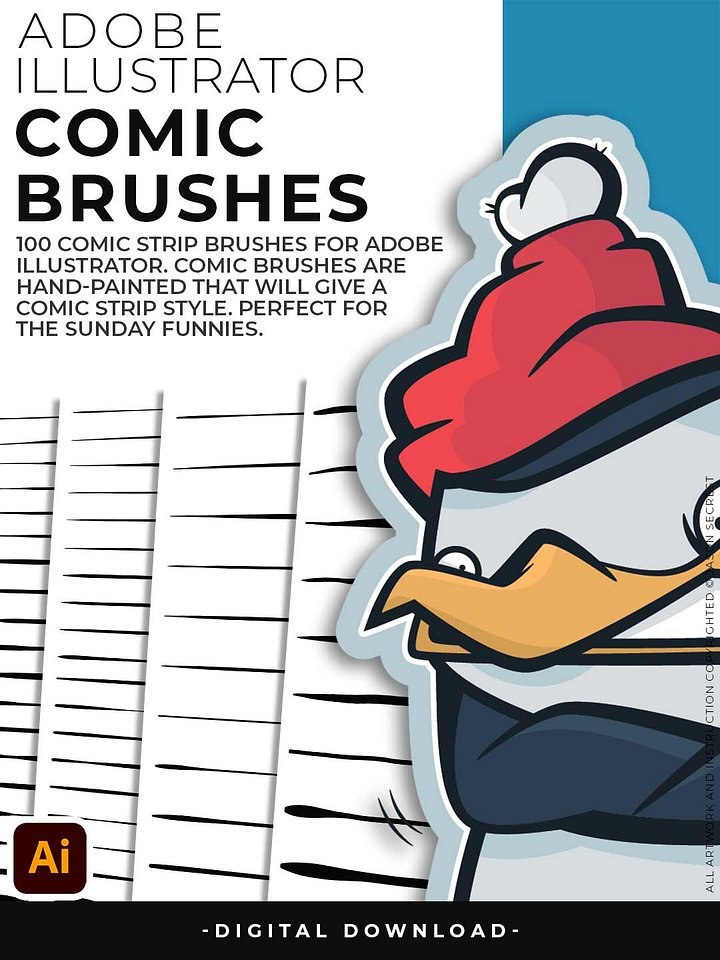
Hand Painted + Comic Strip Brushes to get a lived-in feel back into your Vector Art. Comic Strips and Hand Painted are painted based on some of my favorite artists and cartoonists. These brushes are designed to look ready for the Sunday Paper. (Comic Brushes include Updated Comic Strip, Hand-Painted, Paintbrush, and Fine Liner Brush Libraries).
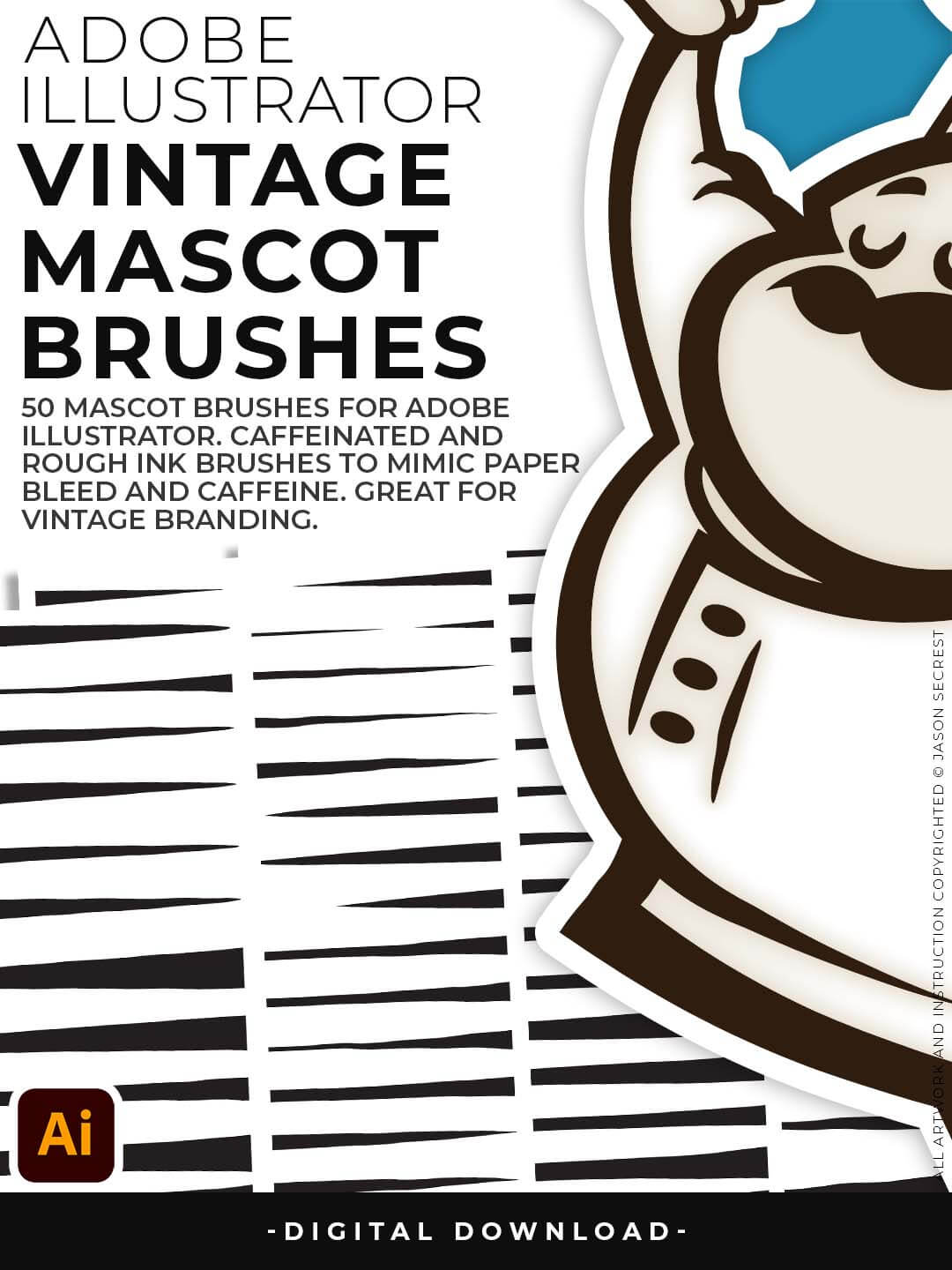
Jittery Hand, Caffeinated Cartoonist + Rough Ink Brushes to Mimic Paper Bleed and Caffeine. Designed to be a little less stiff with your vector art. Use these Brush Libraries to get a distressed or ink bleed style back in your own Vector Artwork. (Mascot Brushes include Updated Caffeinated Cartoonist, Rough Ink, and Jittery Hand Brush Libraries).
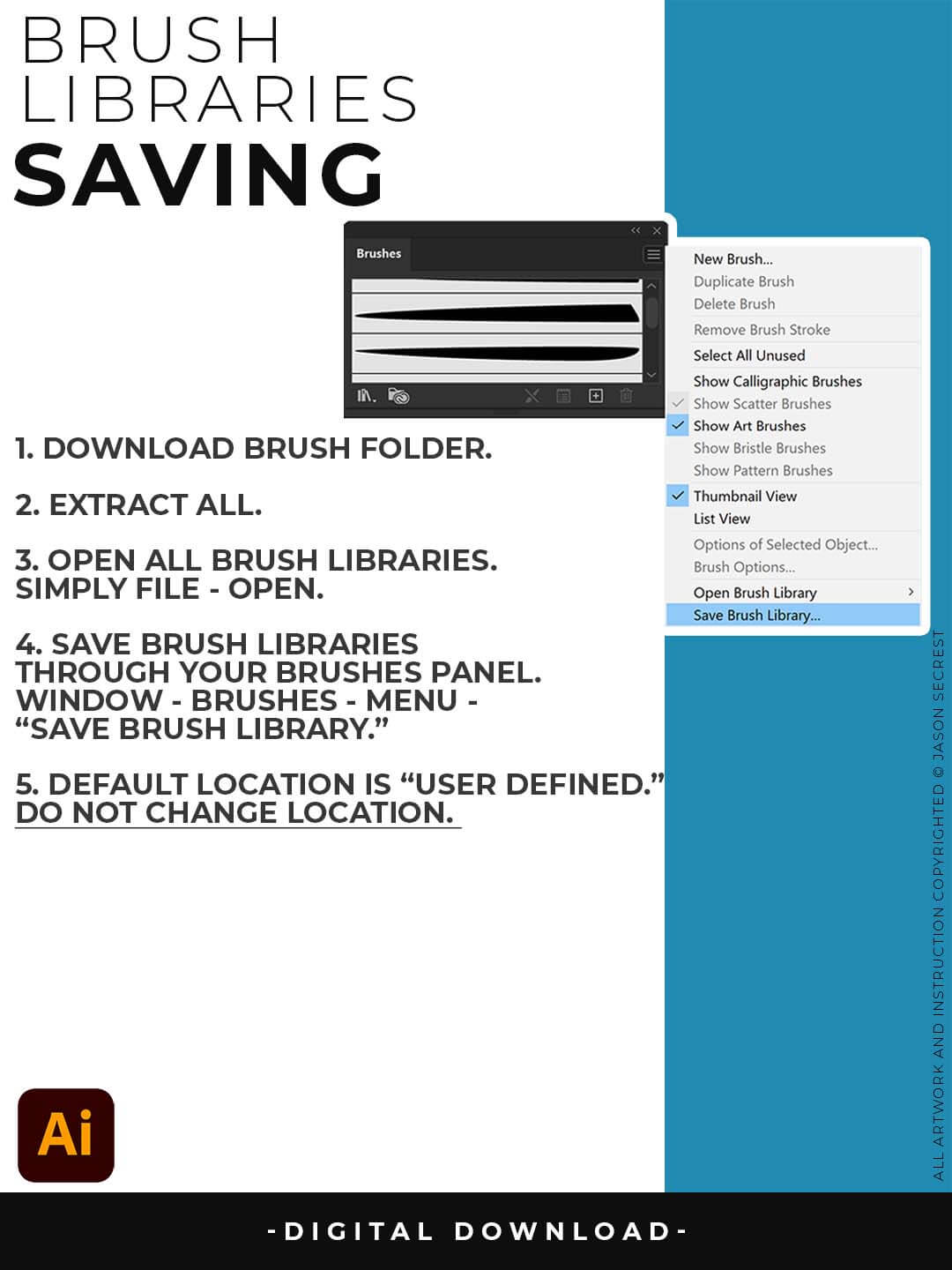
SAVING BRUSHES: Open All of the Brushes Libraries in Adobe Illustrator. (File - Open). Have your Brushes Panel Open. Under Window - Brushes. Click on Each Illustrator Document and Open the Brushes Menu in the Brushes Panel. Scroll down to Click on Save Brush Library. Default Location = User Defined.
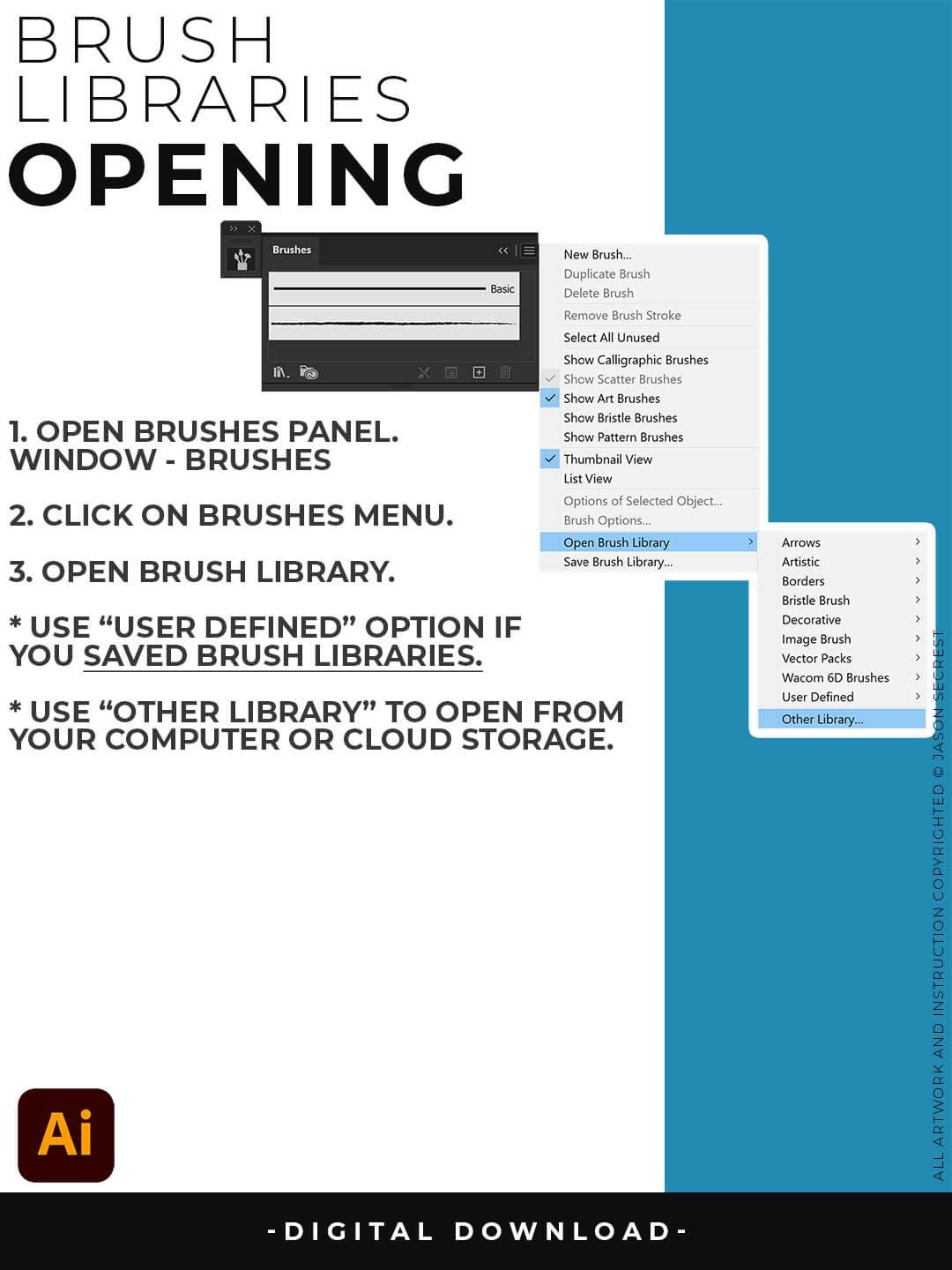
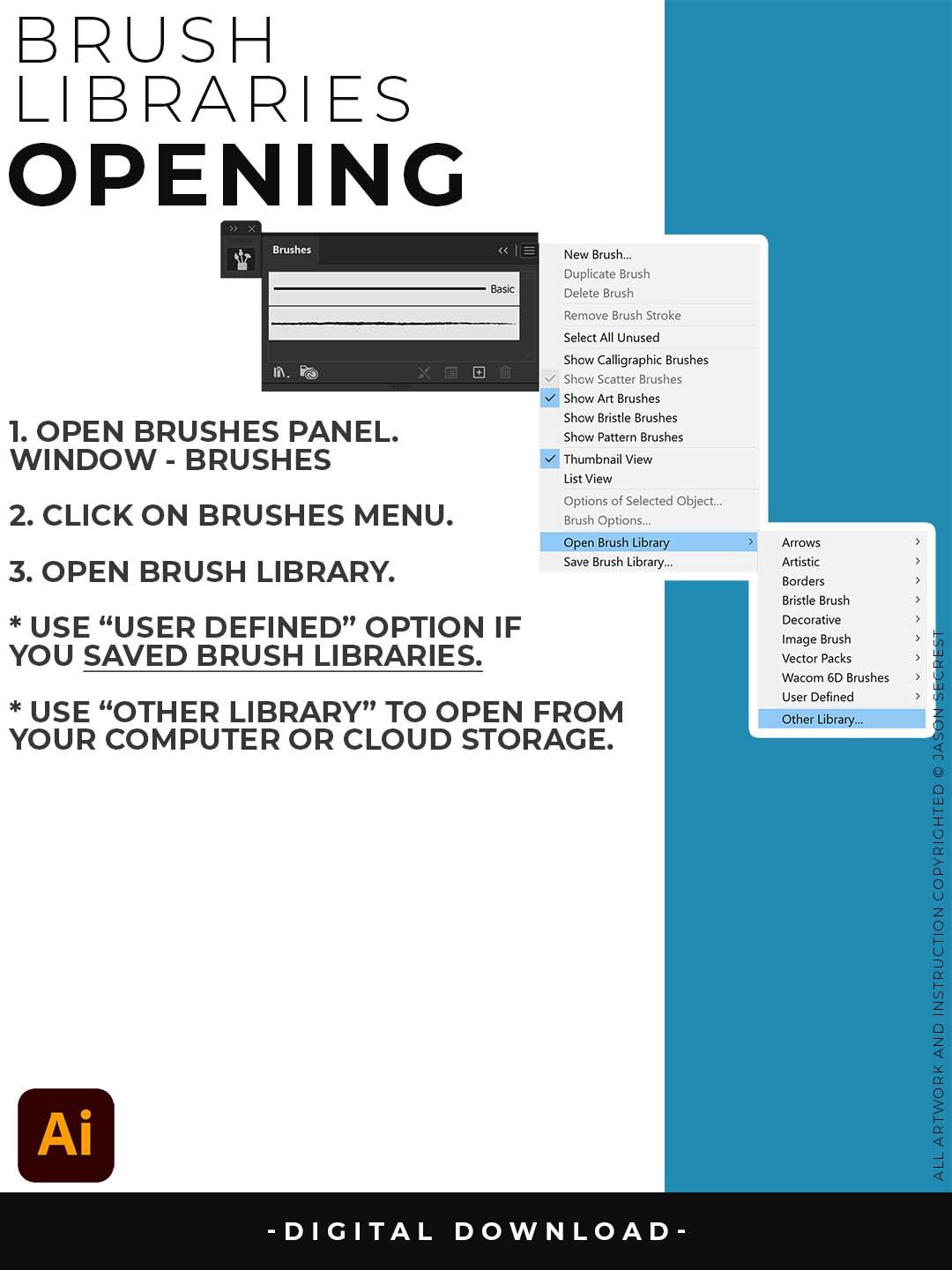
OPENING BRUSHES: Under Window - Select Brushes. In the Brushes Menu, drop-down to Open Brush Library. Hover over it and select "Other Library." A Normal Open Dialogue Box will appear to select any Brush Library to use in Illustrator. Almost all of our step-by-step tutorials on YouTube use this method.
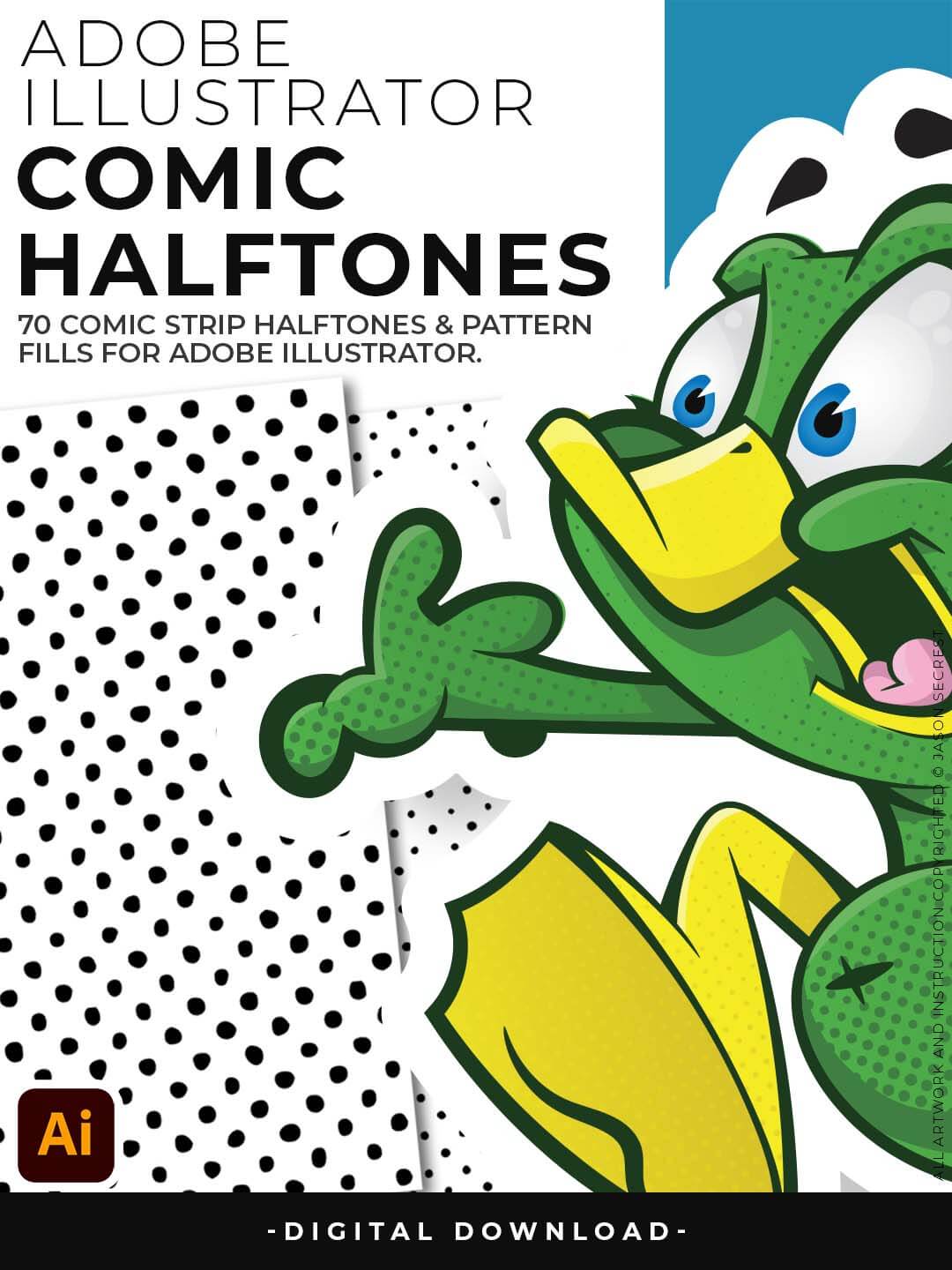
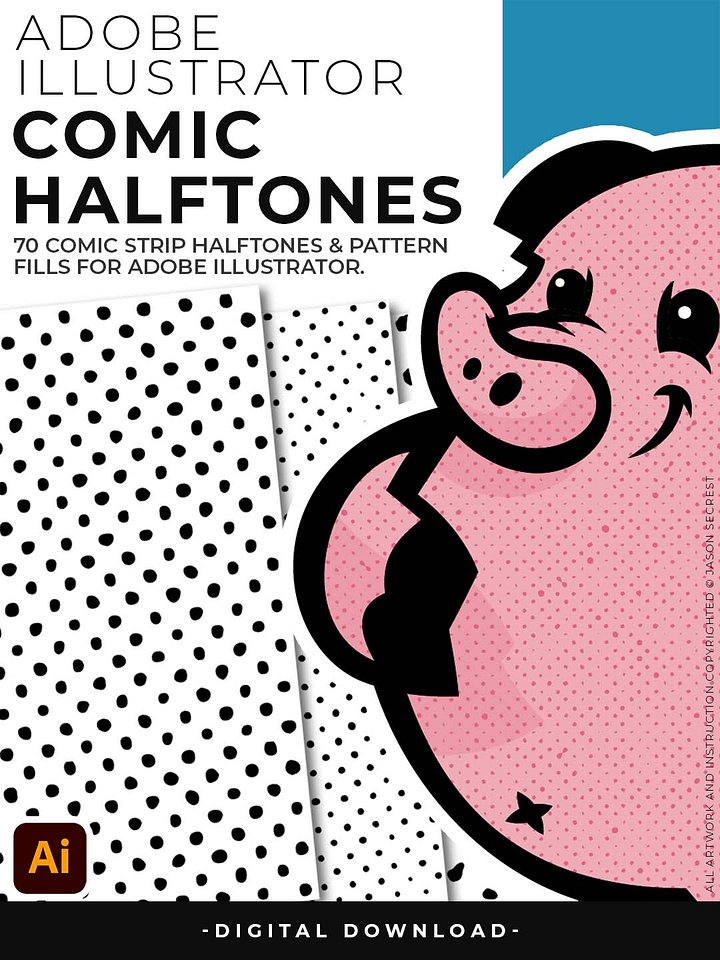
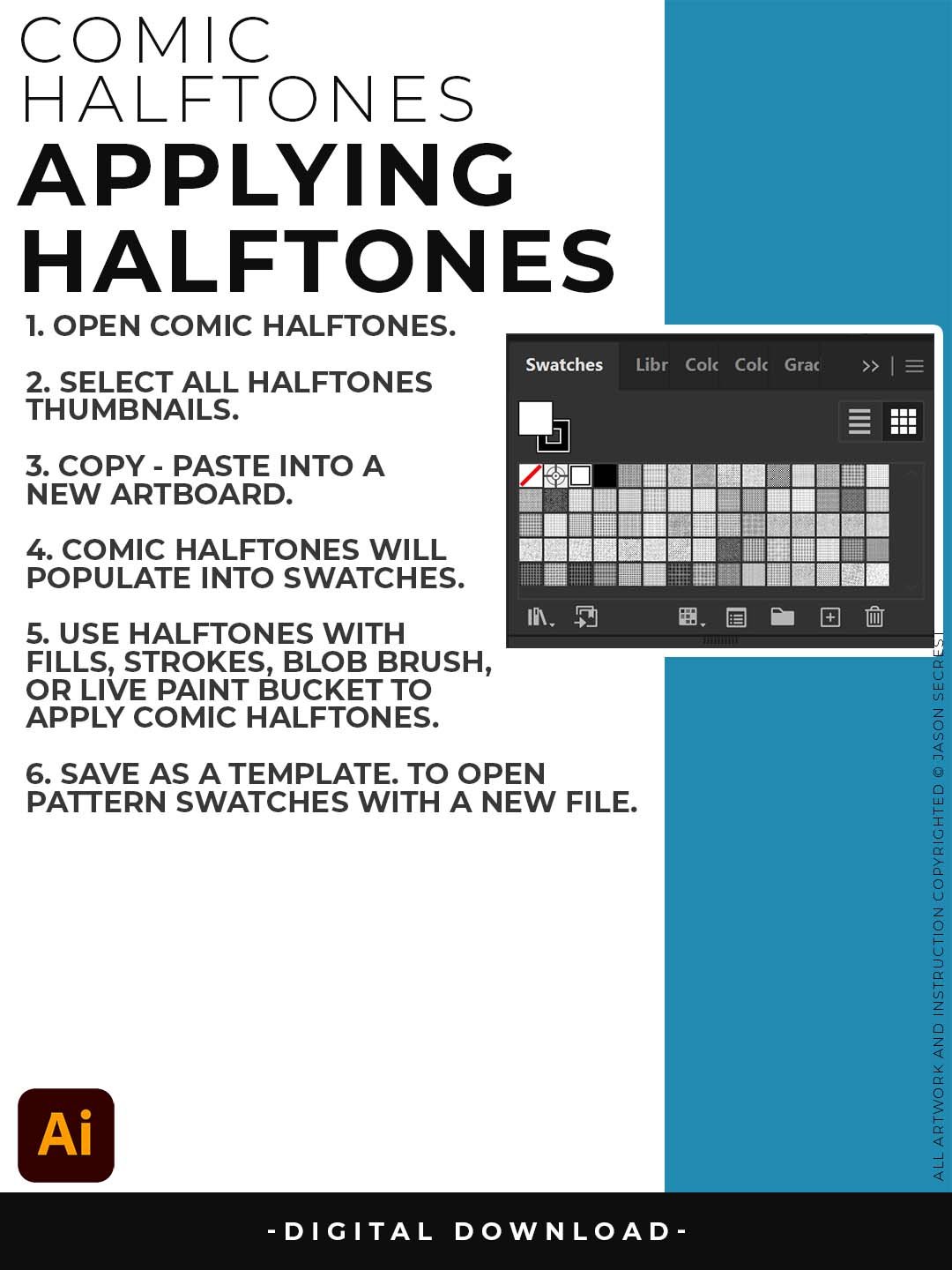
Use for spot textures within your artwork or comics. If you are new to Adobe Illustrator, Halftones and Pattern Fills are extremely easy to use. They are designed for easy application just like any basic color fill but they have Halftones. Halftones are seamless and scaleable. Each Halftone can be recolored or scaled up or down to fit your own artwork or to change the scale of the pattern itself.
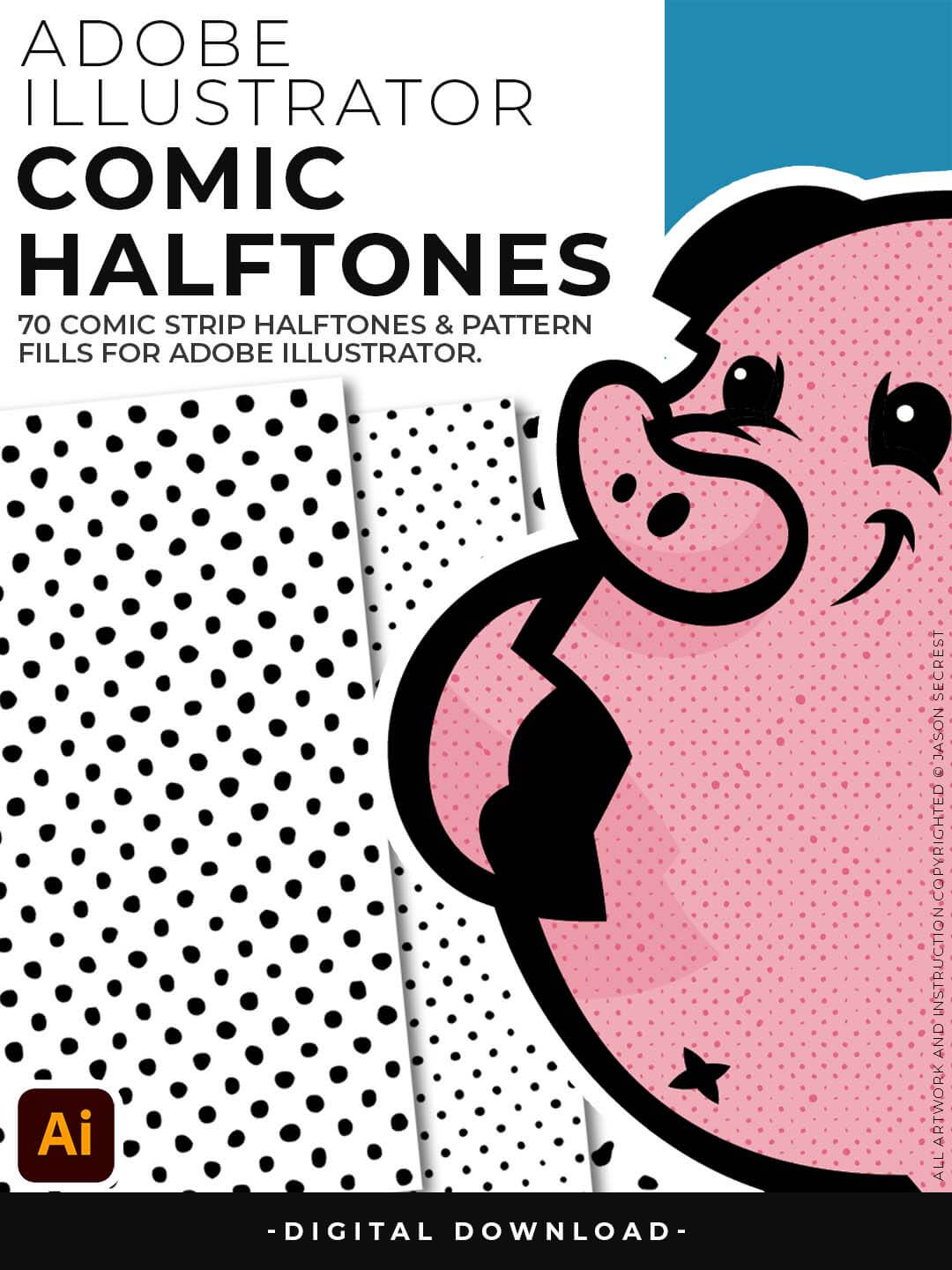
They are designed for easy application by simply clicking on a Halftones Pattern Fills just like you would on a regular Color Swatch. Apply the Halftones using the Blob Brush and Live Paint on your Designs or Comics. Halftones are very flexible since they are Pattern Fills, you can scale them up to get more Chunky Halftones or shrink them down to get a more Subtle Texture.
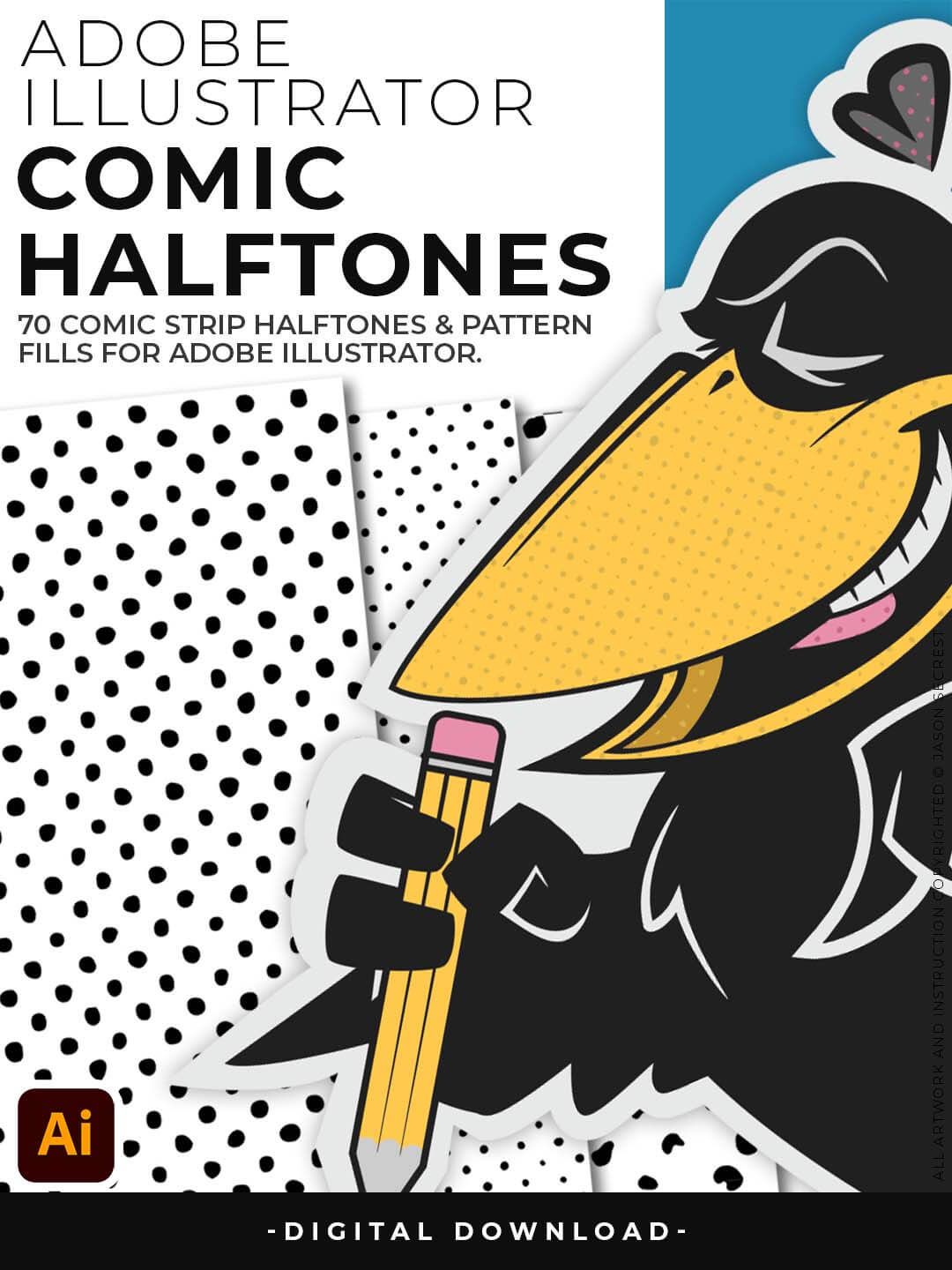
If you already have a value layer you can simply duplicate the Layer and Click on a Halftone Fill to apply Textures. The Halftones and Pattern Fills do have a transparent background. Patterns can be recolored in the Patterns Panel to match the desired look of your artwork. The Halftones and Pattern Fills do have a transparent background so that you can layer them with your Flat Color and Cast Shadow Layers.
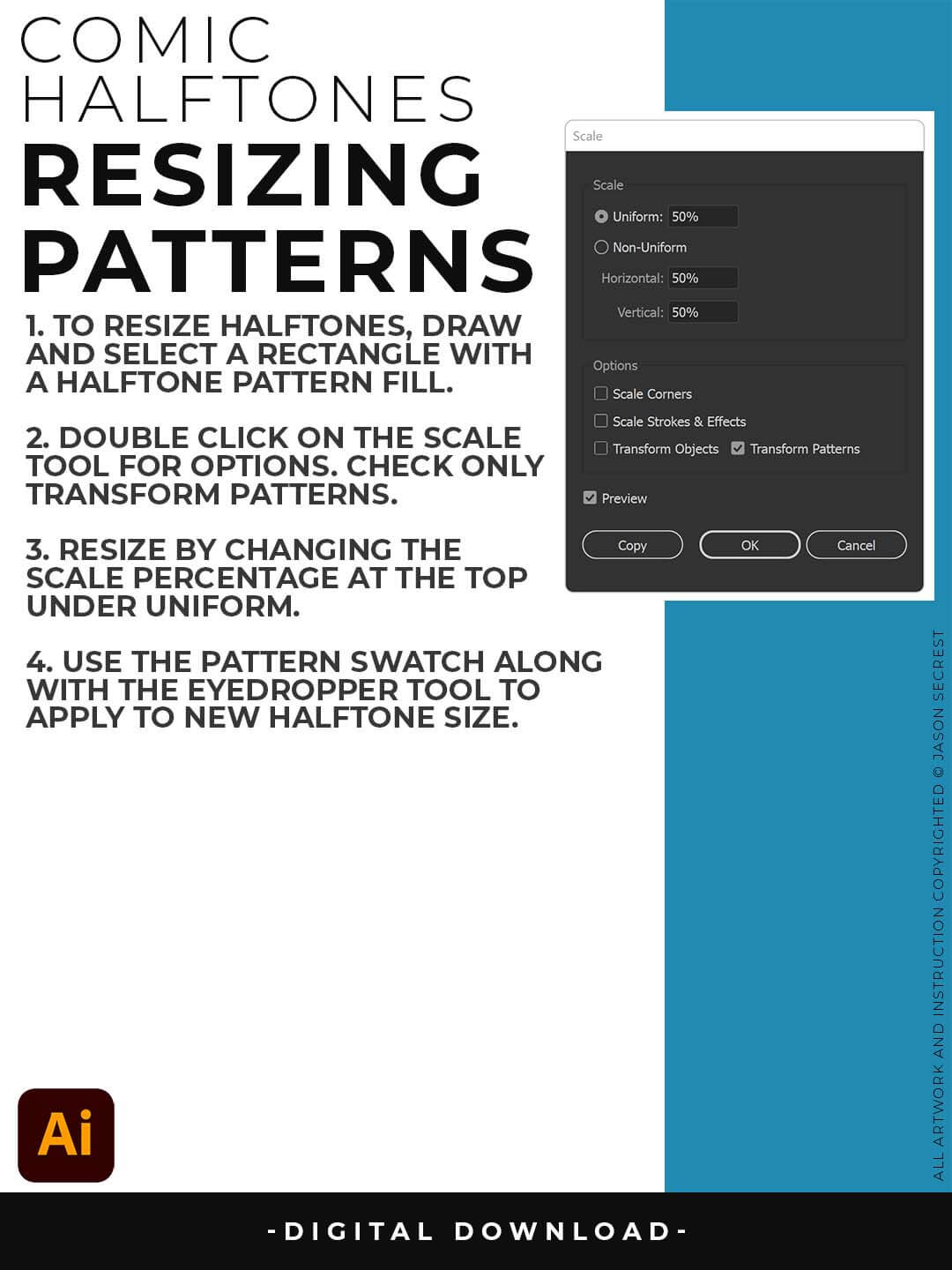
RESIZING HALFTONES: Draw out a rectangle and select a Halftone Pattern Fill from the Swatches Panel. With the Shape Selected, double click on the Scale Tool. Check Transform Patterns Only and adjust the Scale up or down under Uniform %.
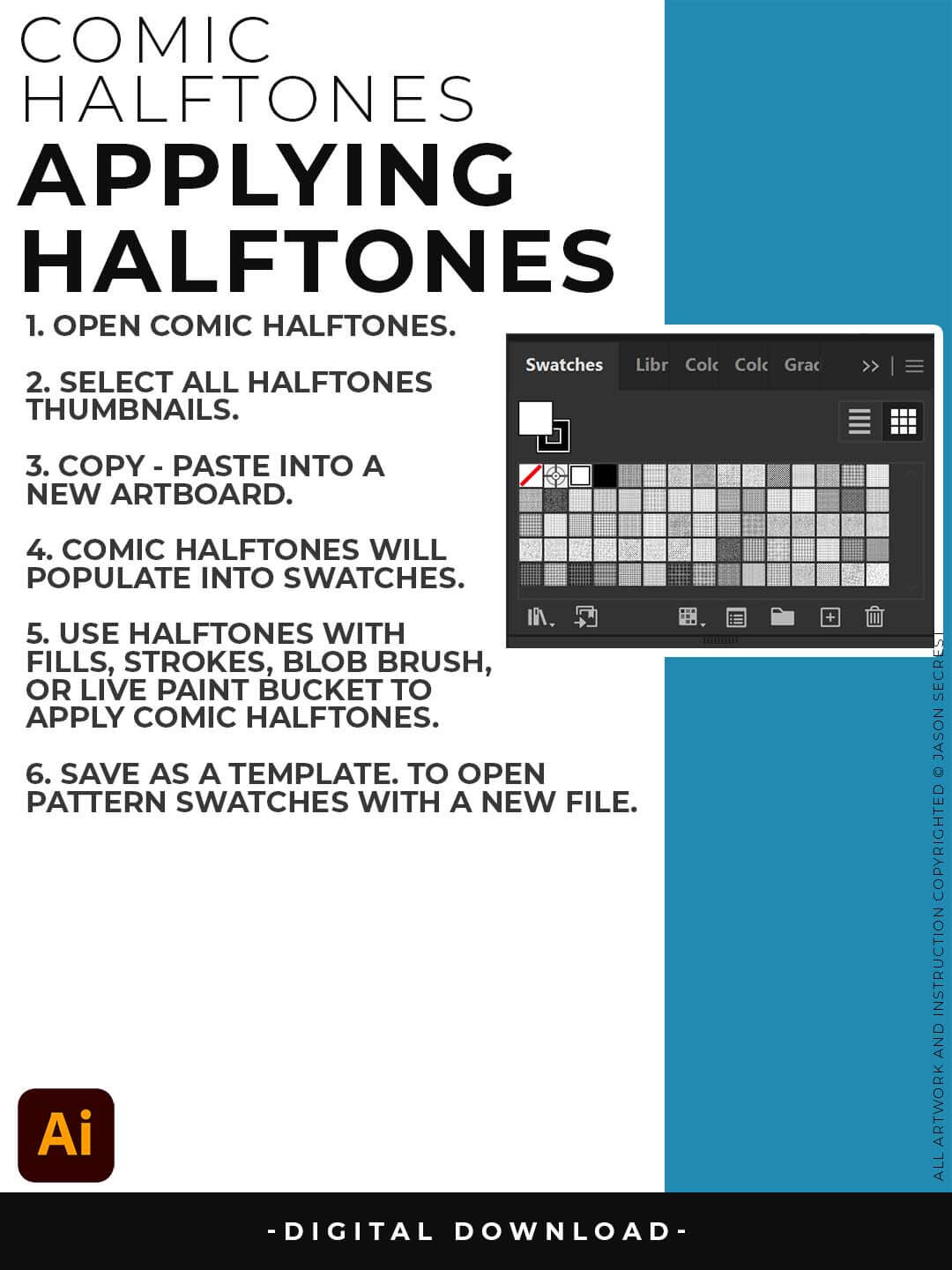
OPENING HALFTONES: Pattern Fills and Halftones are Adobe Illustrator Files. The goal is to Open + Copy + Paste the Swatches into the Working Artboard. The Pattern Fills (Swatches) will automatically populate into your Swatches once you Copy - Paste.
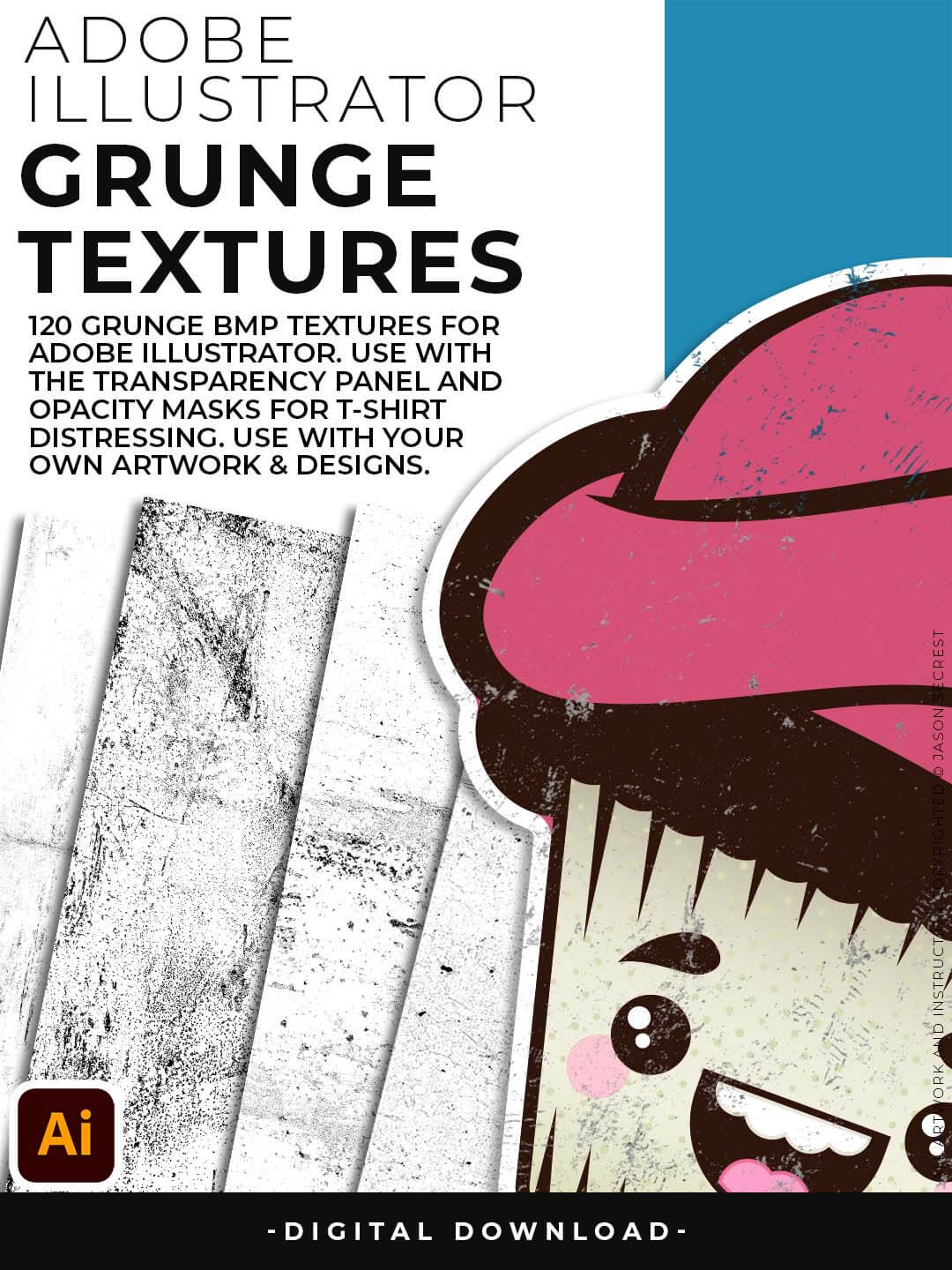
Grunge Distressing Textures to Apply Opacity Masks to your Own Original Artwork and T-shirt Designs. Use BMP Textures to apply Grunge and Distressing Effects to your Artwork and Designs to use with the Transparency Panel and Opacity Masks for Adobe Illustrator. Great for t-shirt distressing using BMP Textures and Opacity Masks to show the garment color on your Own Original Artwork.
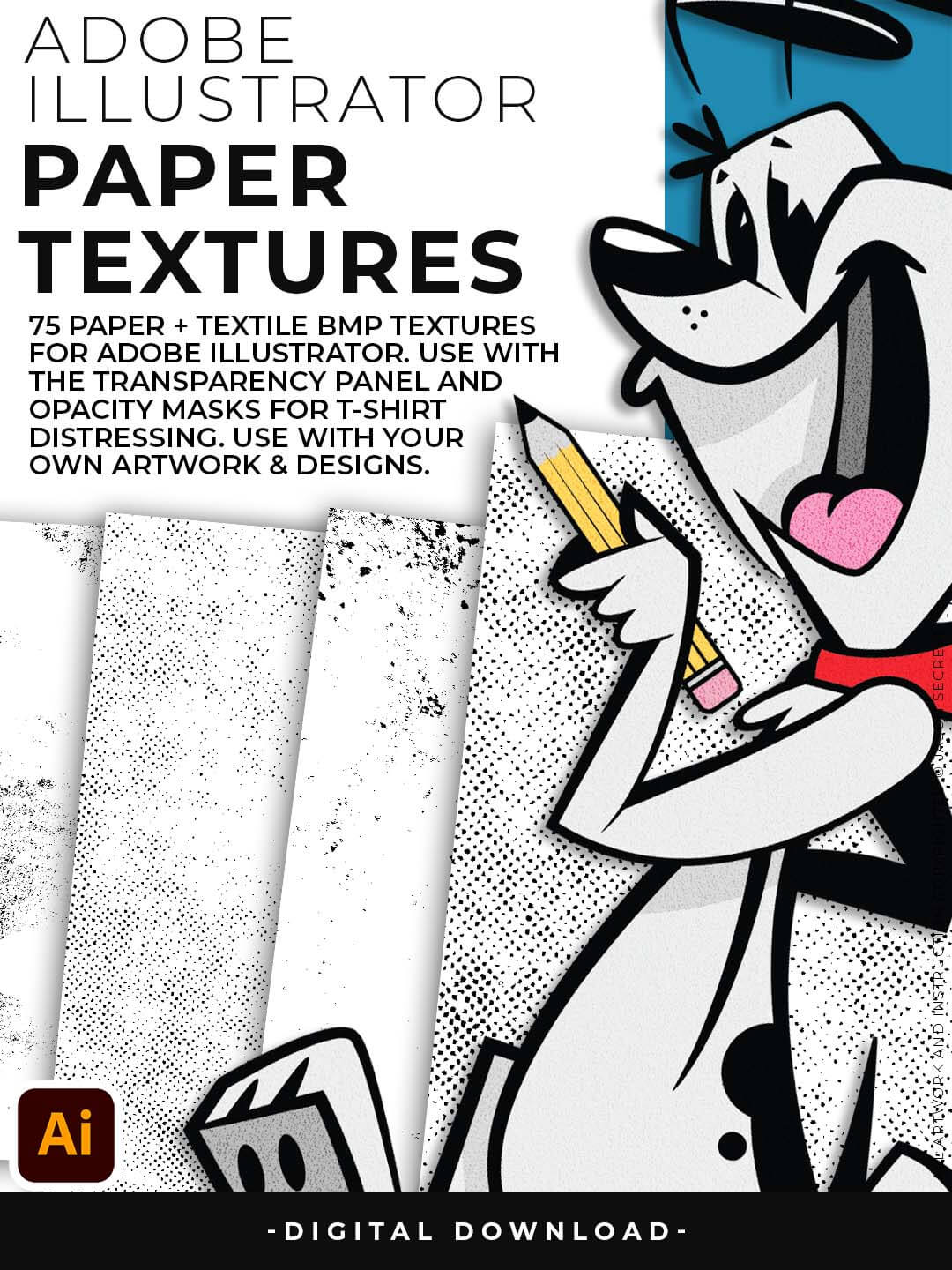
Paper Distressing Textures to use along with the Transparency Panel to create soft texture overlays for your own original artwork. This is great for those of you who are using Textures for Web, Print, and Social Media Sites. Use Textures with a combination of Color Swatches, Transparency, Blending Modes, and Clipping Masks to create a subtle texture overlay on your print or web exports.
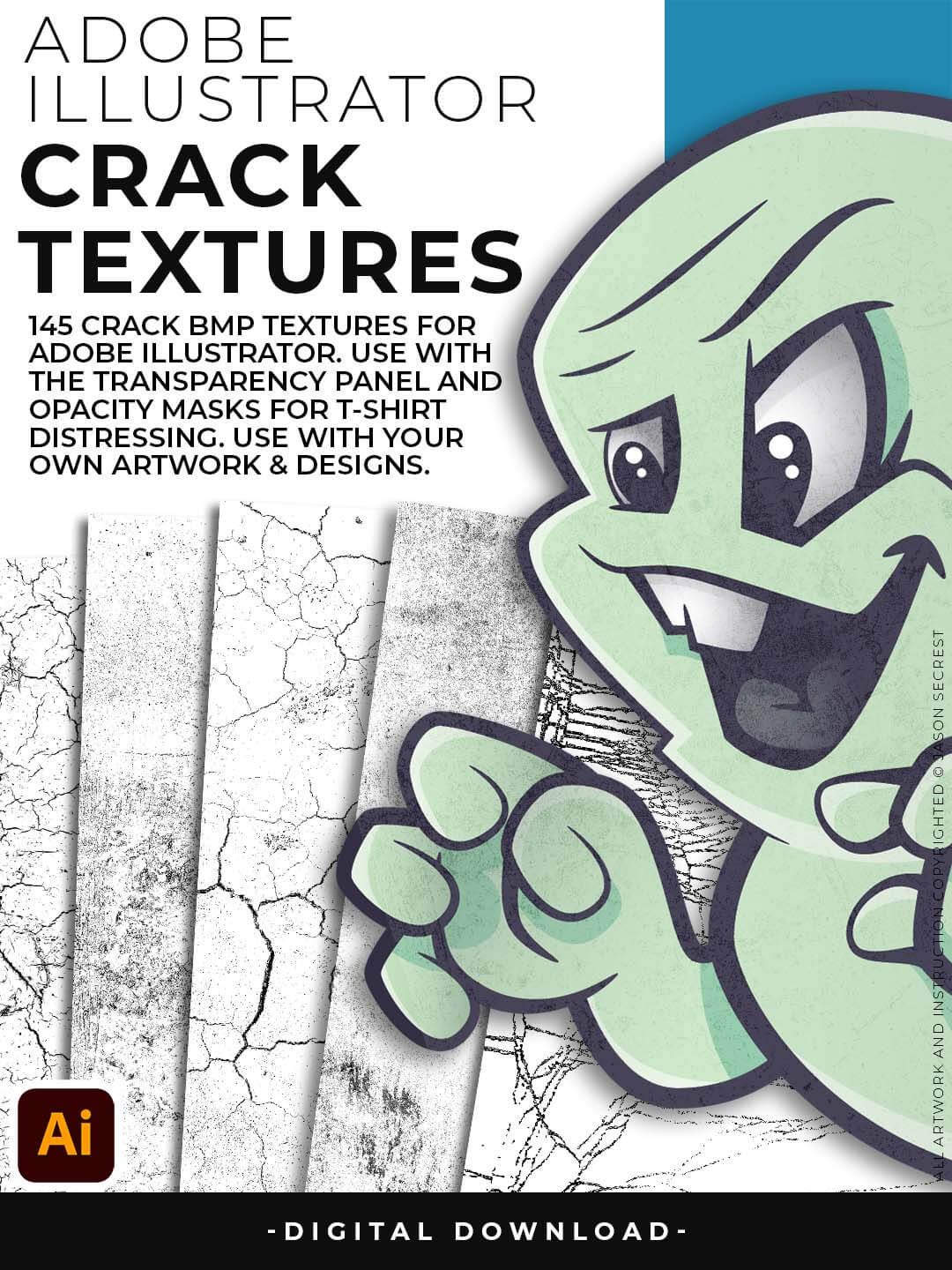
Crack Distressing Textures to Apply Opacity Masks to your Own Original Artwork and T-shirt Designs. Use BMP Textures to apply Cracks and Distressing Effects to your Artwork and Designs by Applying Opacity or Transparency Masks for Adobe Illustrator. Created for T-Shirt distressing using your own Original Artwork and Opacity Masks to show through to the garment color.
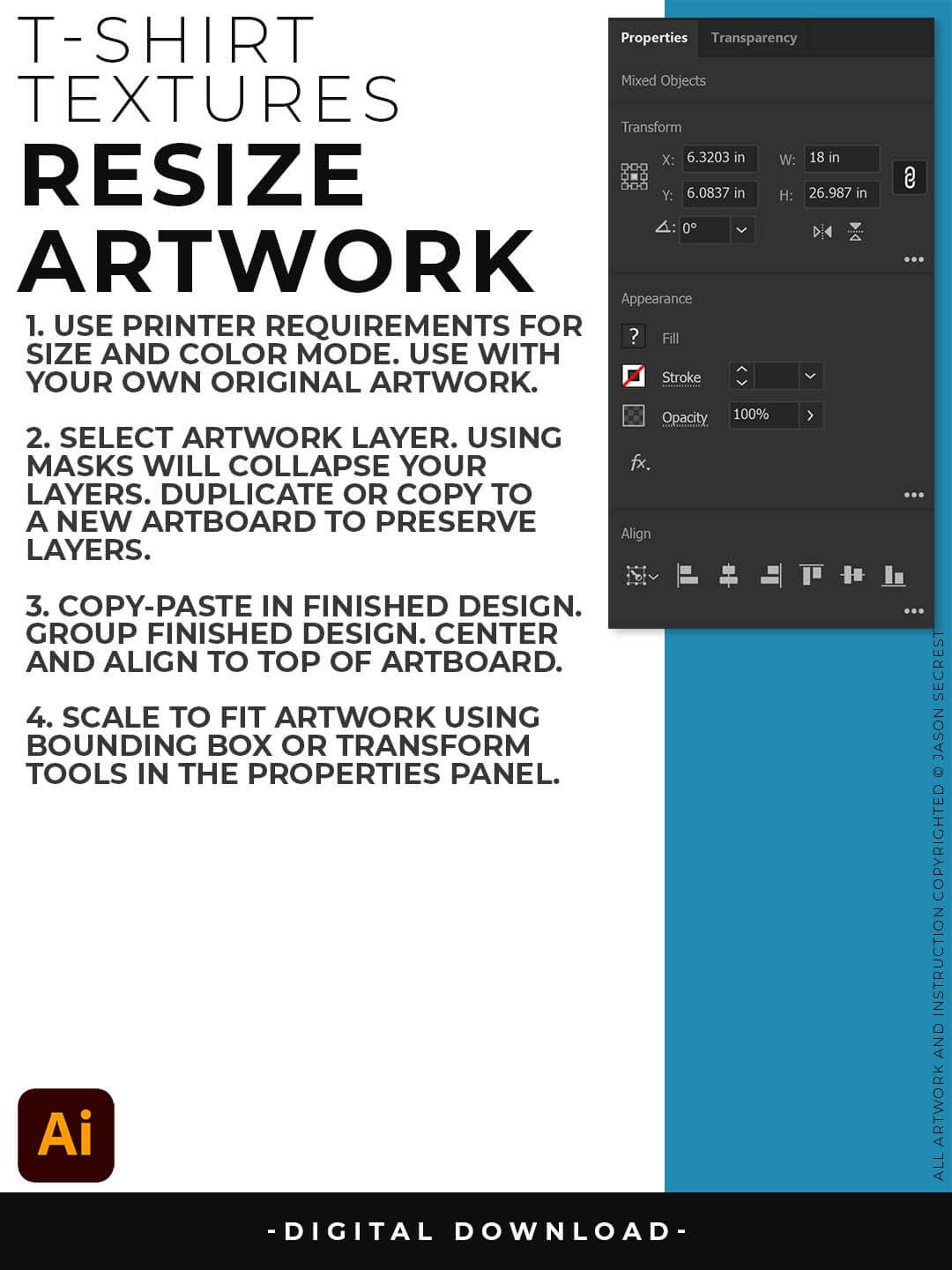
RESIZE ARTWORK: If you are building in a smaller scale you will need to resize your artwork before applying textures. I recommend duplicating the layer or copying and pasting to a new artboard. Select All - Group. Use the Properties Panel to transform your original Artwork or Design to fit Printer Requirements.

FILE - PLACE: Once you have grouped and resized (if needed) your own finished original artwork, you are ready to bring in the BMP Textures. Under File - Place Textures into your working Artboard. Scale to Fit over your entire design. To use Textures with Opacity Masks you will need to Group and Scale your Finished Artwork before Applying.