

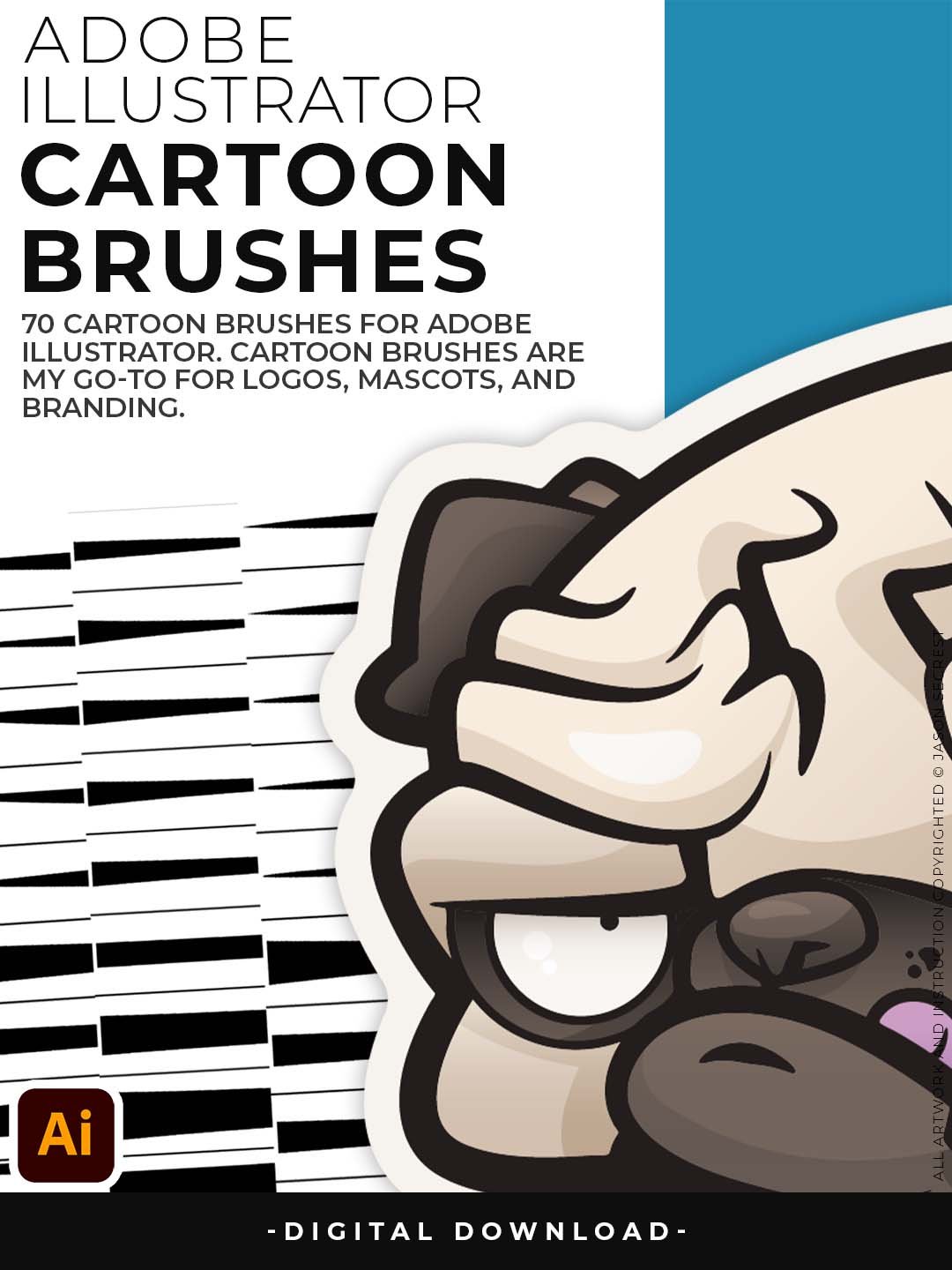
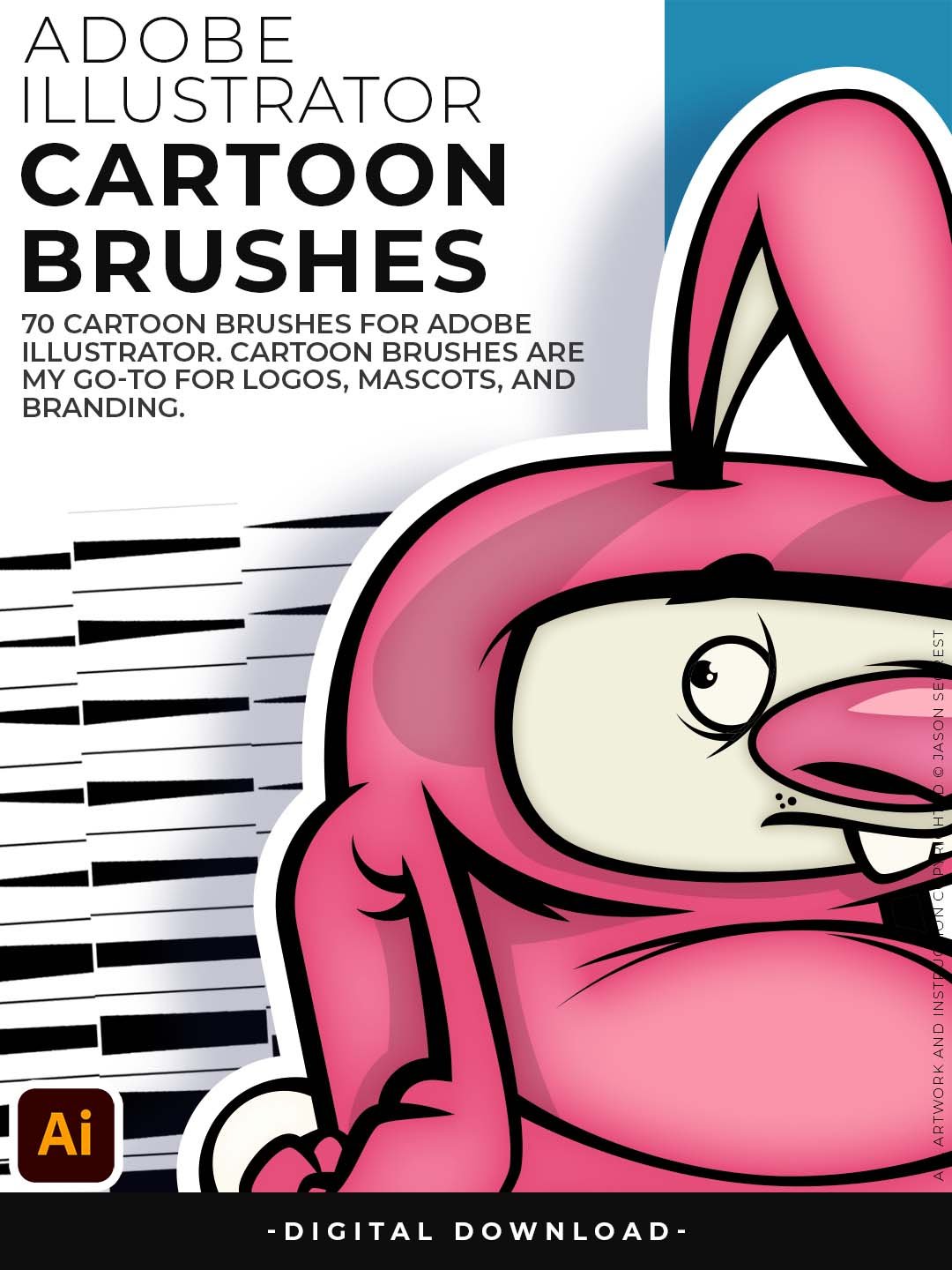
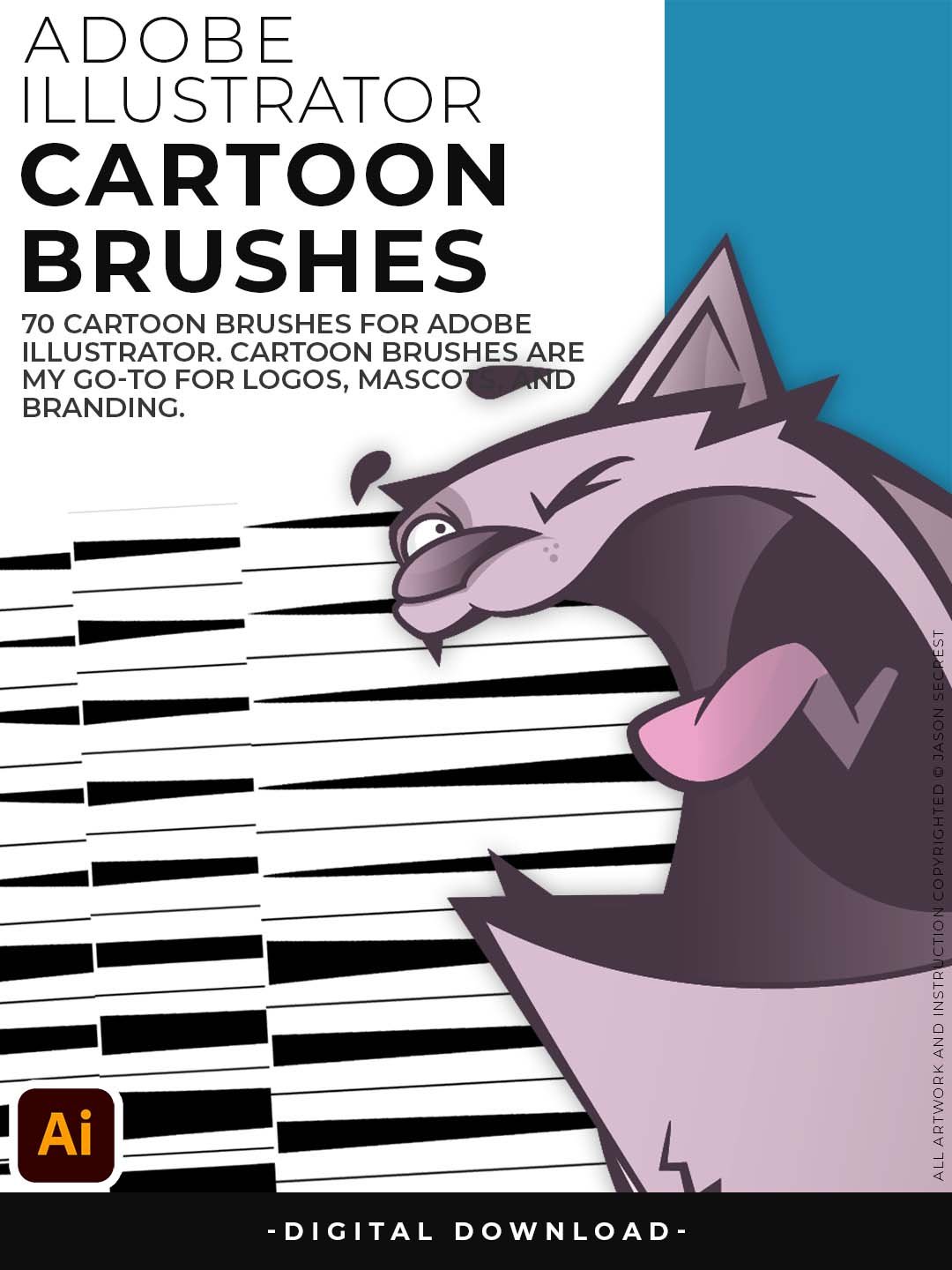
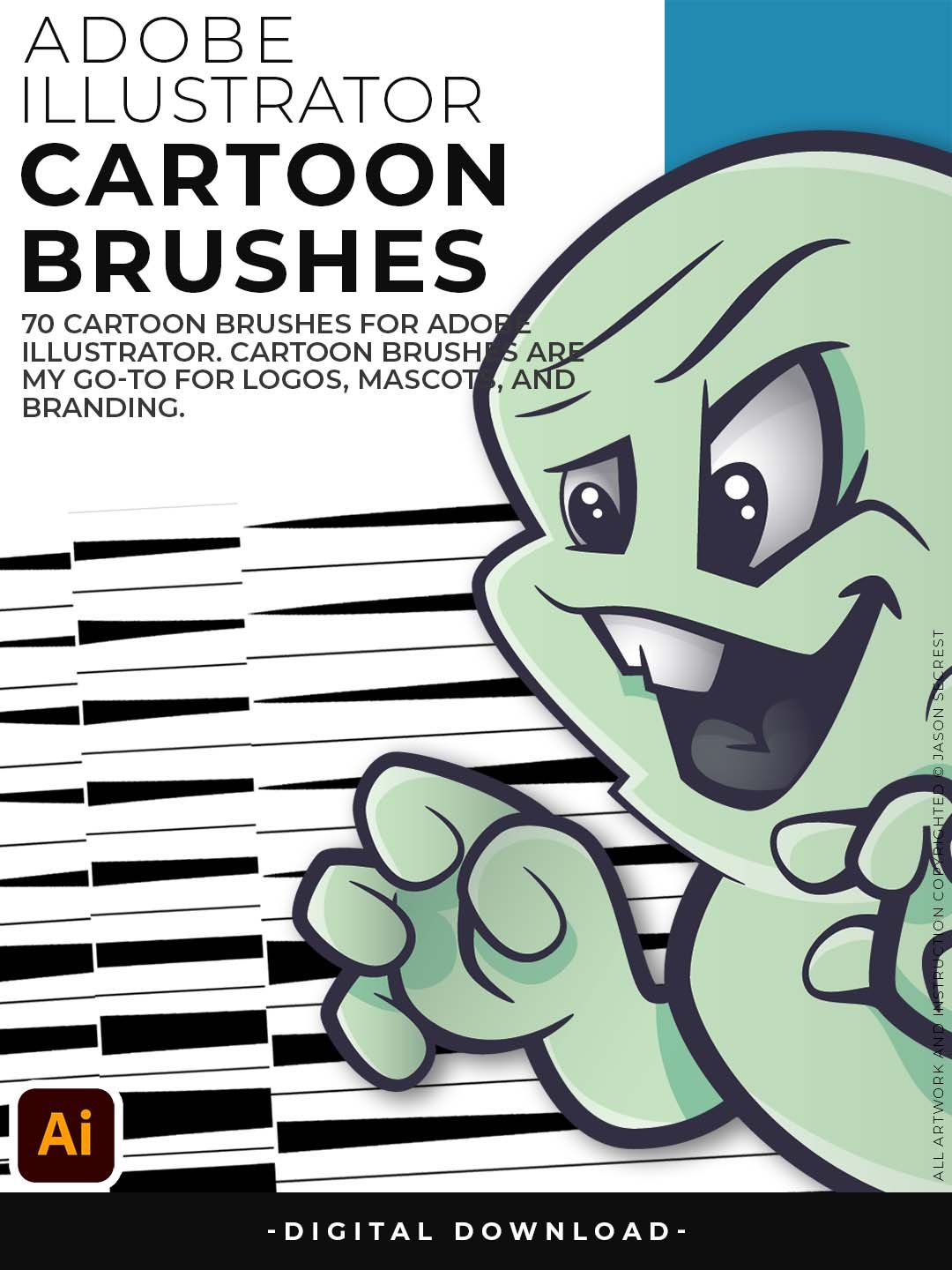

Cartoon Brush Library for Adobe Illustrator
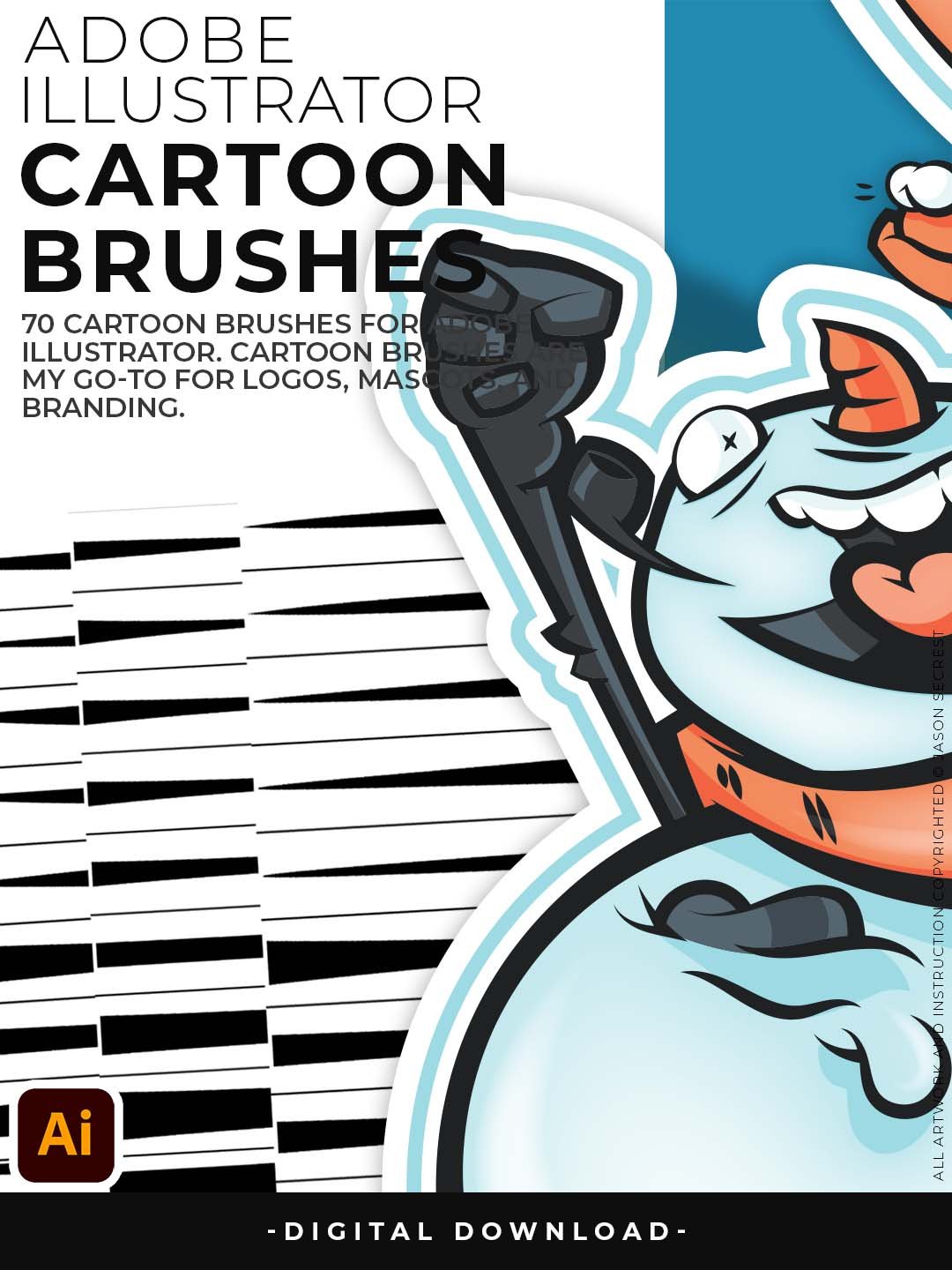
— 70 Professional Brushes for Mascots, Logos, and Illustration. If you've ever watched a cartoon illustration tutorial and wondered why your lines never look as clean — this is the answer. These 70 brushes were developed over 10 years of teaching Adobe Illustrator to cartoonists, logo designers, and brand creators. They're not random presets. Every brush was tested against real client work: mascots, t-shirt graphics, YouTube thumbnails, and brand characters.
You get three full libraries — Updated Cartoon, Cartoon 2, and the original Cartoon set — covering bold outlines, tapered strokes, expressive line variation, and the subtle imperfections that make cartoon art feel alive. Compatible with Pen Tool, Pencil Tool, and Paintbrush workflows. Plug them in and draw.
Cartoon Brushes
- Stop fighting Illustrator's defaults — these brushes make clean cartoon lines feel effortless from the first stroke
- Works with Pen, Pencil, and Paintbrush tools so your whole workflow stays inside your comfort zone
- 70 brushes spanning three full libraries (Updated Cartoon, Cartoon 2, Original Cartoon) — every style covered
- Built for logos, mascots, branding, and character work — not just doodles
- Backed by a step-by-step tutorial so you're drawing with them in minutes, not hours
Digital Downloads
- After purchase, you’ll receive an email with your download link. (only available through our YouTube Shop powered by Fourthwall).
- If you don’t see the email, please check your spam or promotions folder.
- Digital Downloads will come as Zipped Folders. Extract all before using in Adobe Illustrator.
- Once you download a file, you will have it forever
- Save or back up Digital Downloads to an external hard drive or cloud-based storage service.
- Use with your own artwork and designs.
STEP #1:
Download our Cartoon, Comic Strip, and Vintage Mascot Brush Libraries. Adobe Illustrator Brushes will come to you as Zipped Folders. Extract All before using in Adobe Illustrator.
STEP #2:
Once you have downloaded and extracted the Brush Libraries, they are ready to be used in Adobe Illustrator. Save all files to an external hard drive or cloud-based storage.
STEP #3:
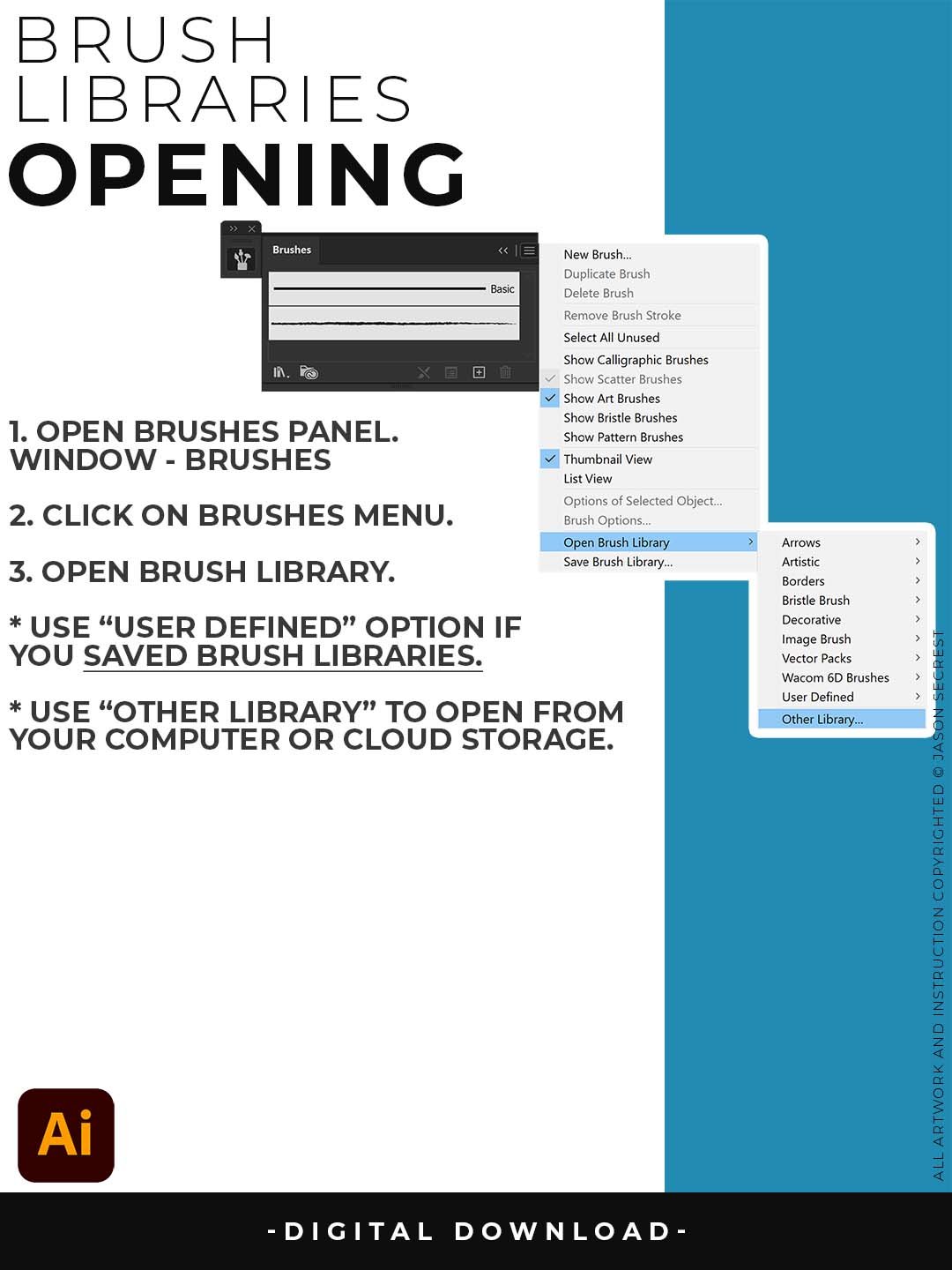
Open Brush Libraries through the “Other Library” Option in the Brushes Panel in Adobe Illustrator. Adobe Illustrator Brushes have been organized into Brush Libraries for easy application.
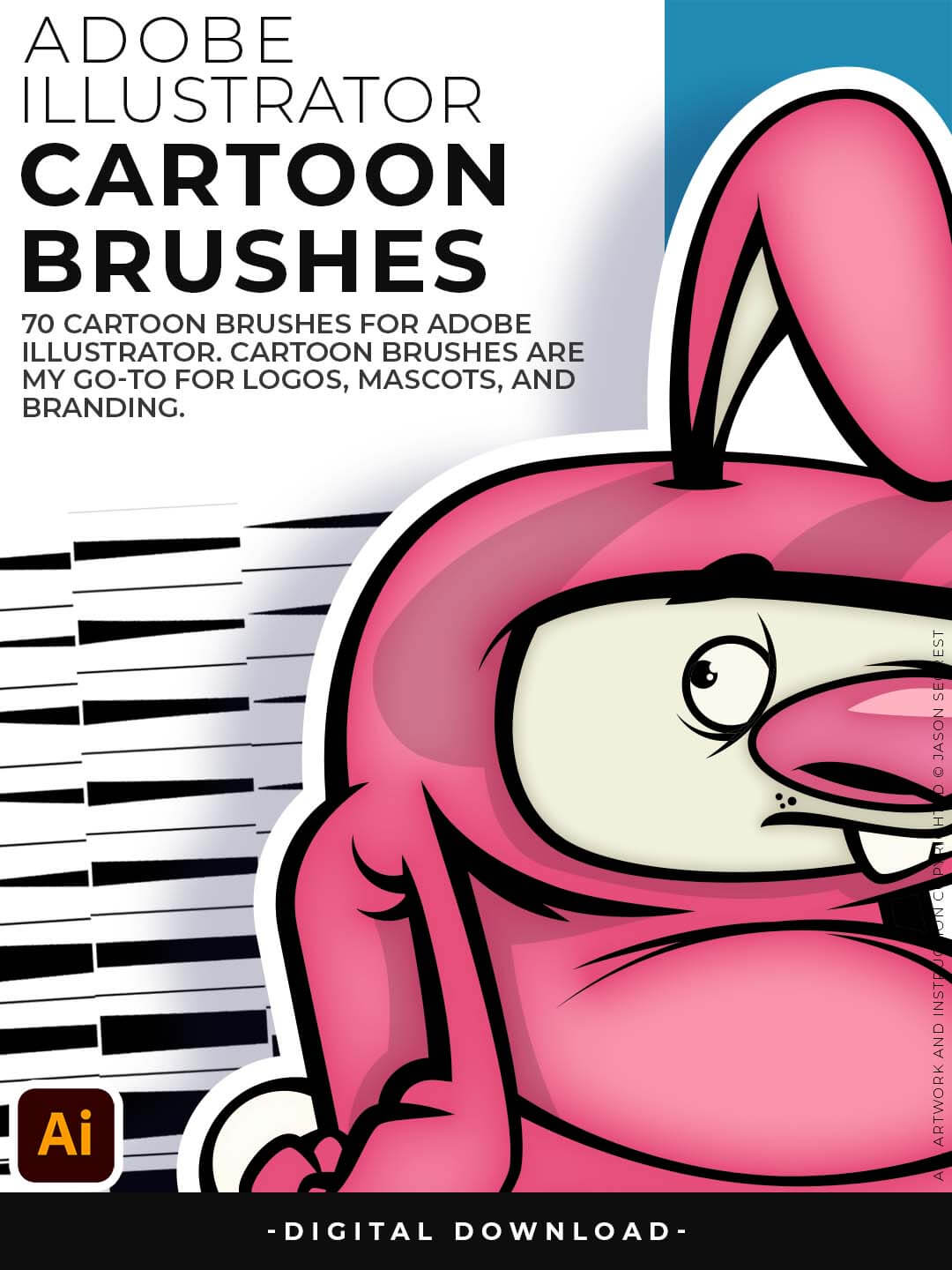
Cartoon Brushes are my go-to for Professional Logos, Cartoons, Mascots, and Branding.
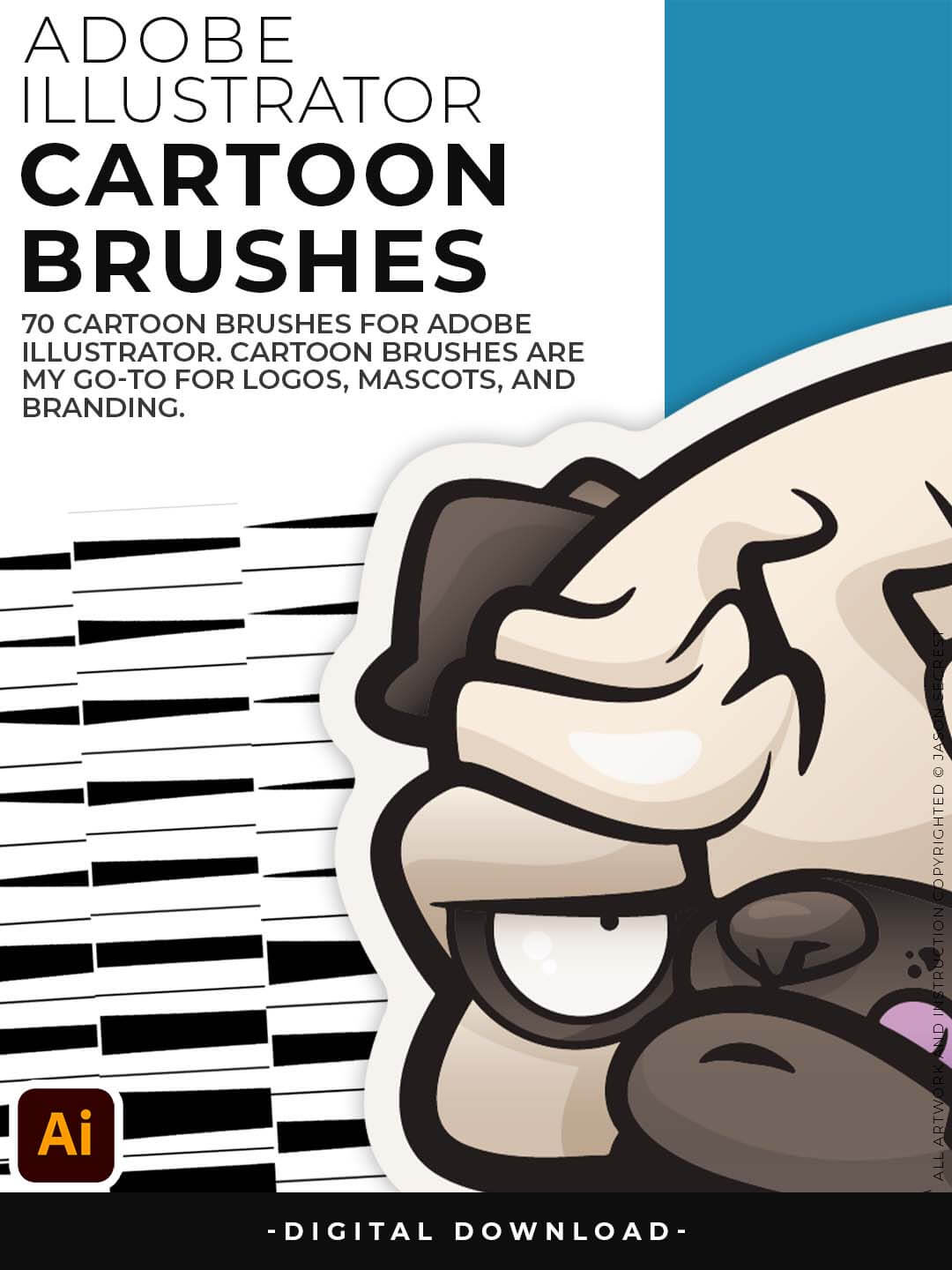
(Updated) Libraries are Pressure Sensitive for those of you looking to apply brushes use with your tablet.
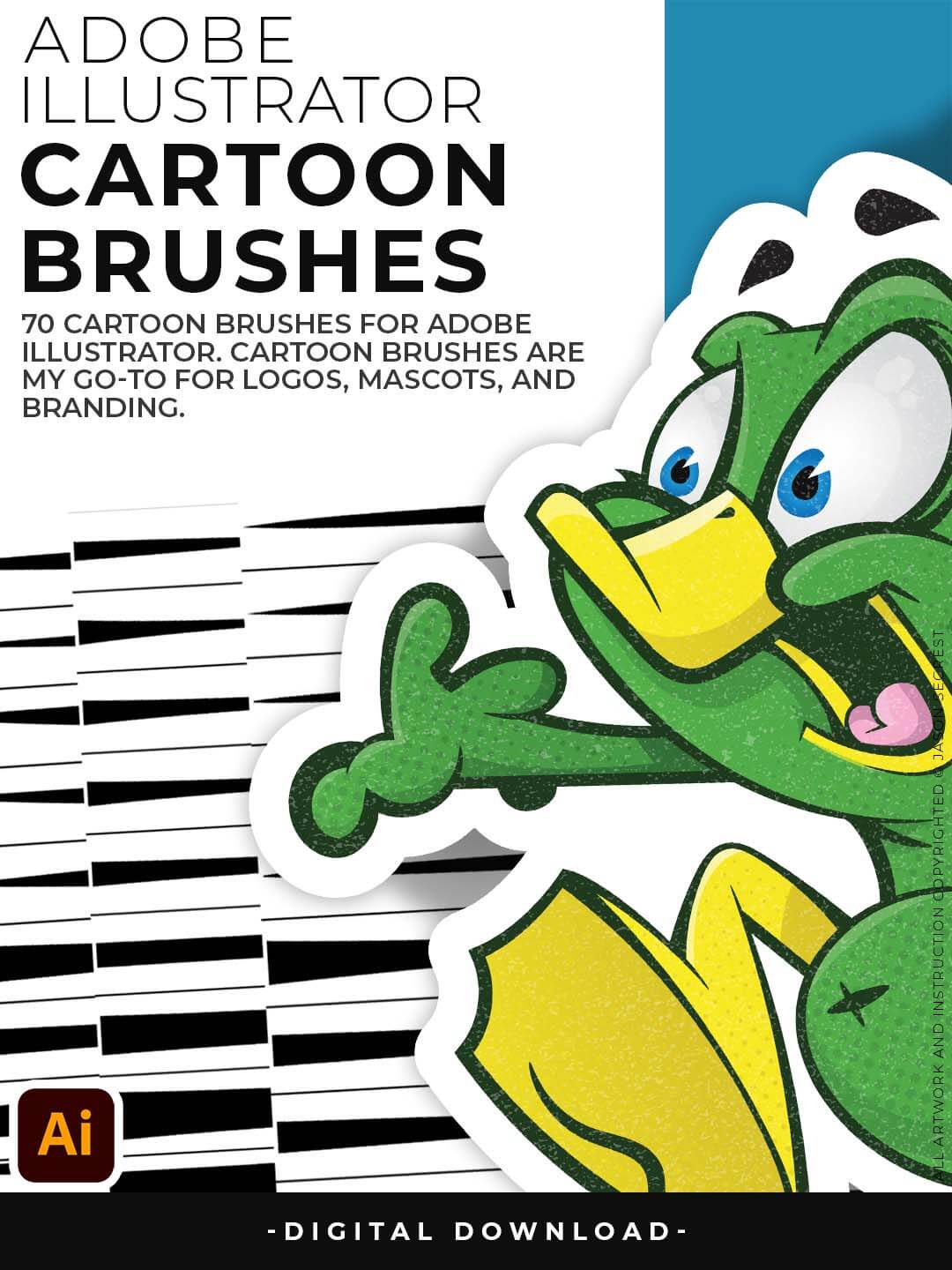
Includes Updated Cartoon, Cartoon 2, and Original Cartoon Brush Libraries.
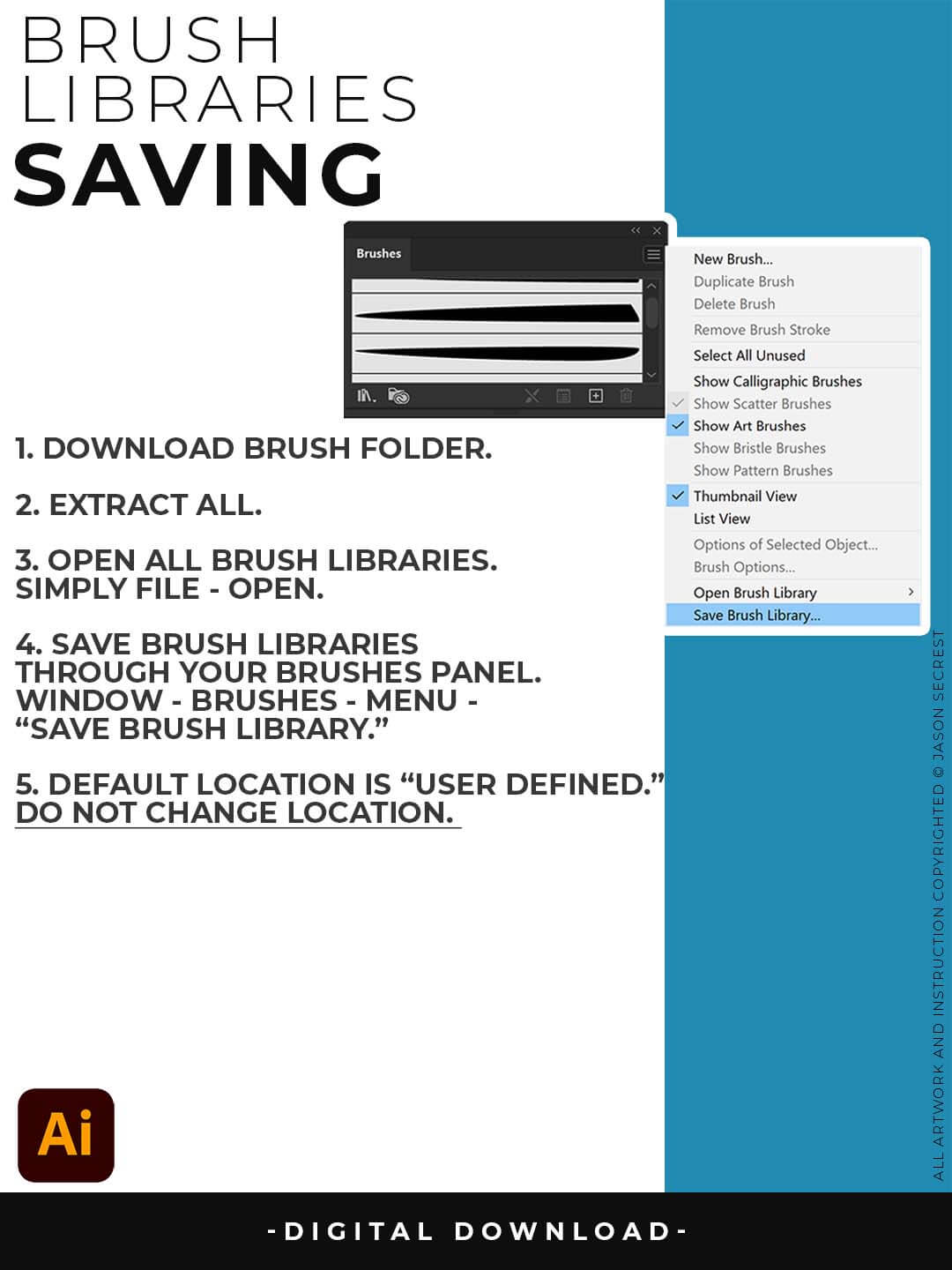
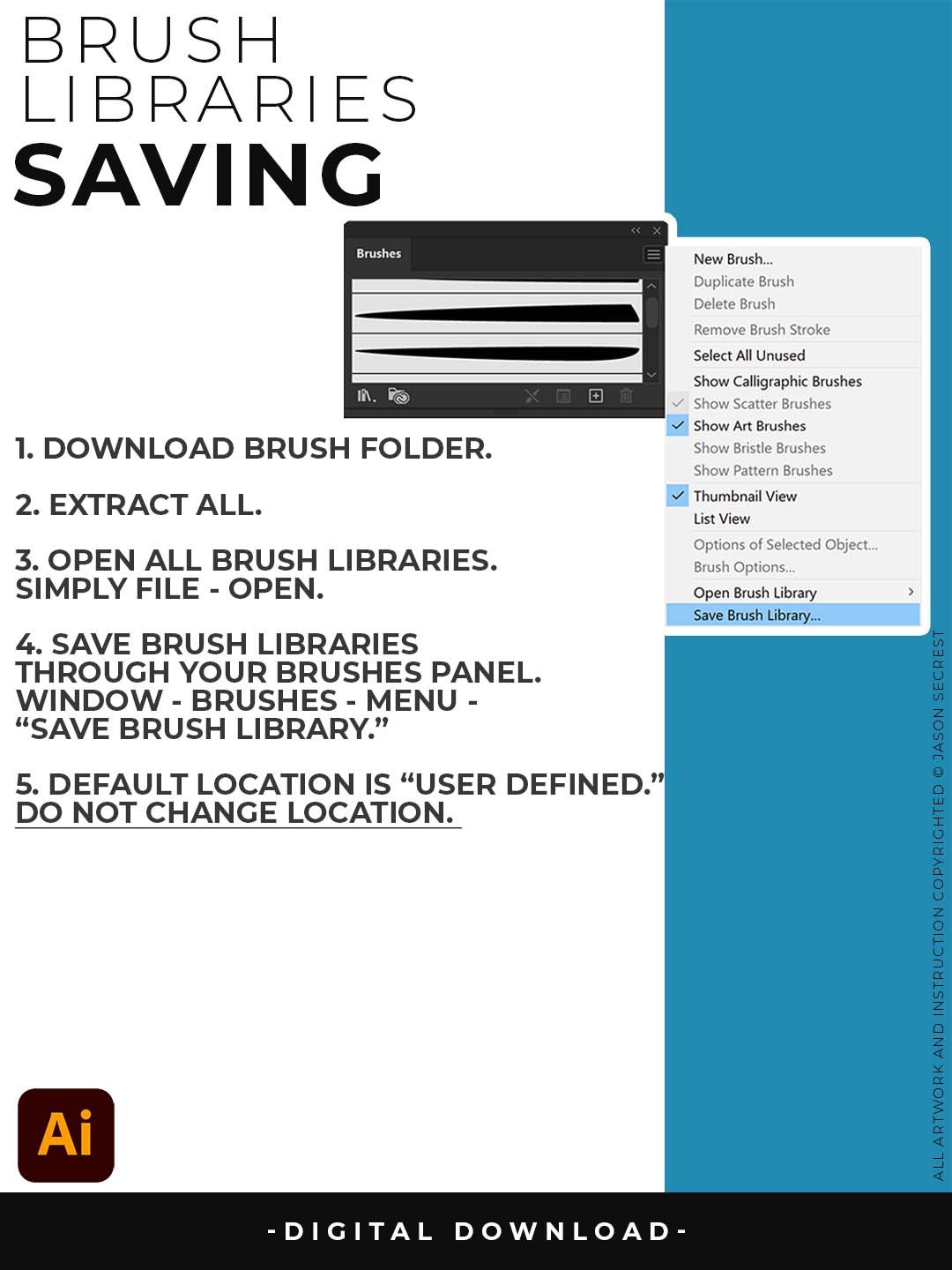
SAVING BRUSHES: Open All of the Brushes Libraries in Adobe Illustrator. (File - Open). Have your Brushes Panel Open. Under Window - Brushes. Click on Each Illustrator Document and Open the Brushes Menu in the Brushes Panel. Scroll down to Click on Save Brush Library. Default Location = User Defined.
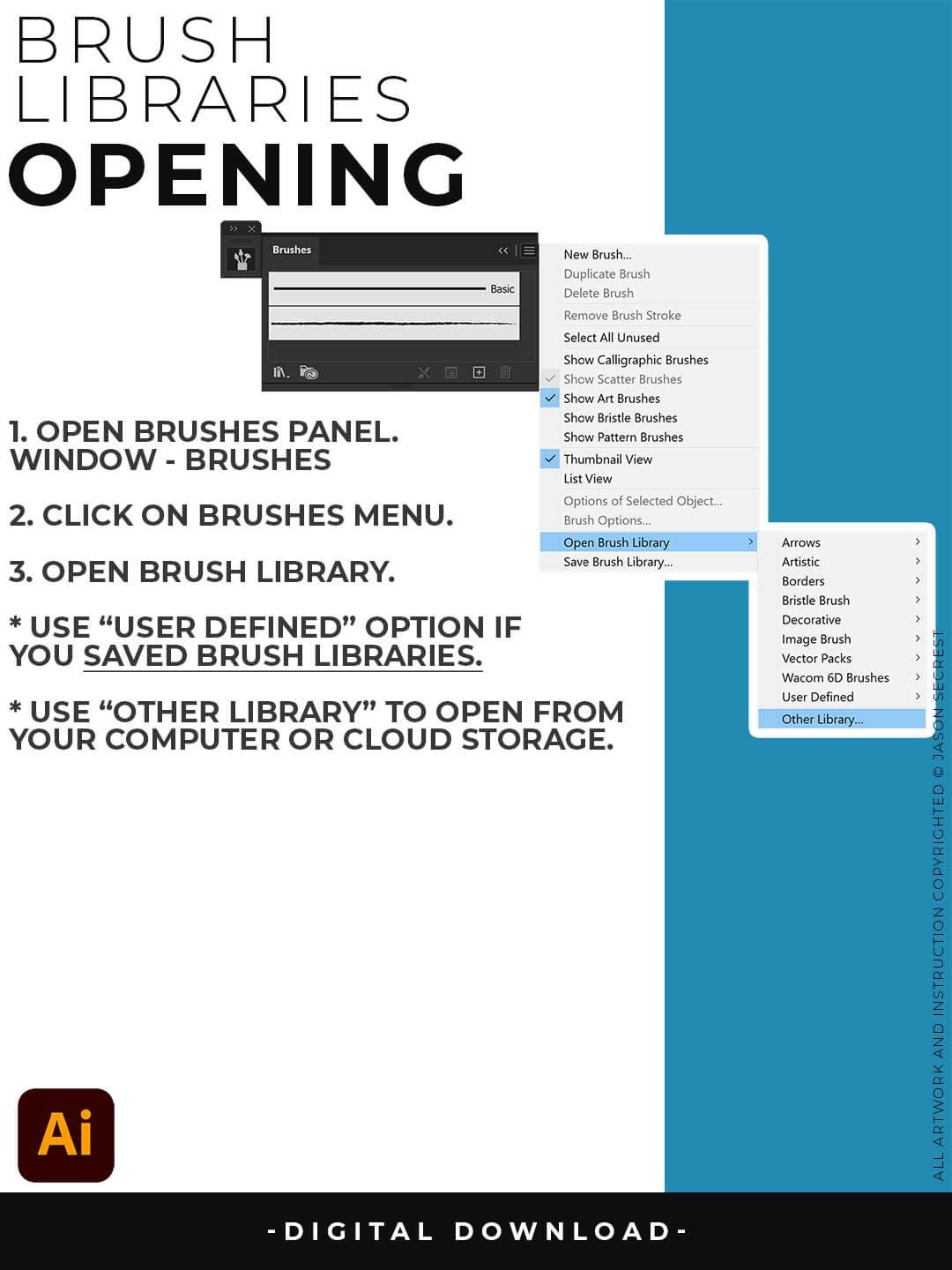
OPENING BRUSHES: Under Window - Select Brushes. In the Brushes Menu, drop-down to Open Brush Library. Hover over it and select "Other Library." A Normal Open Dialogue Box will appear to select any Brush Library to use in Illustrator. Almost all of our step-by-step tutorials on YouTube use this method.
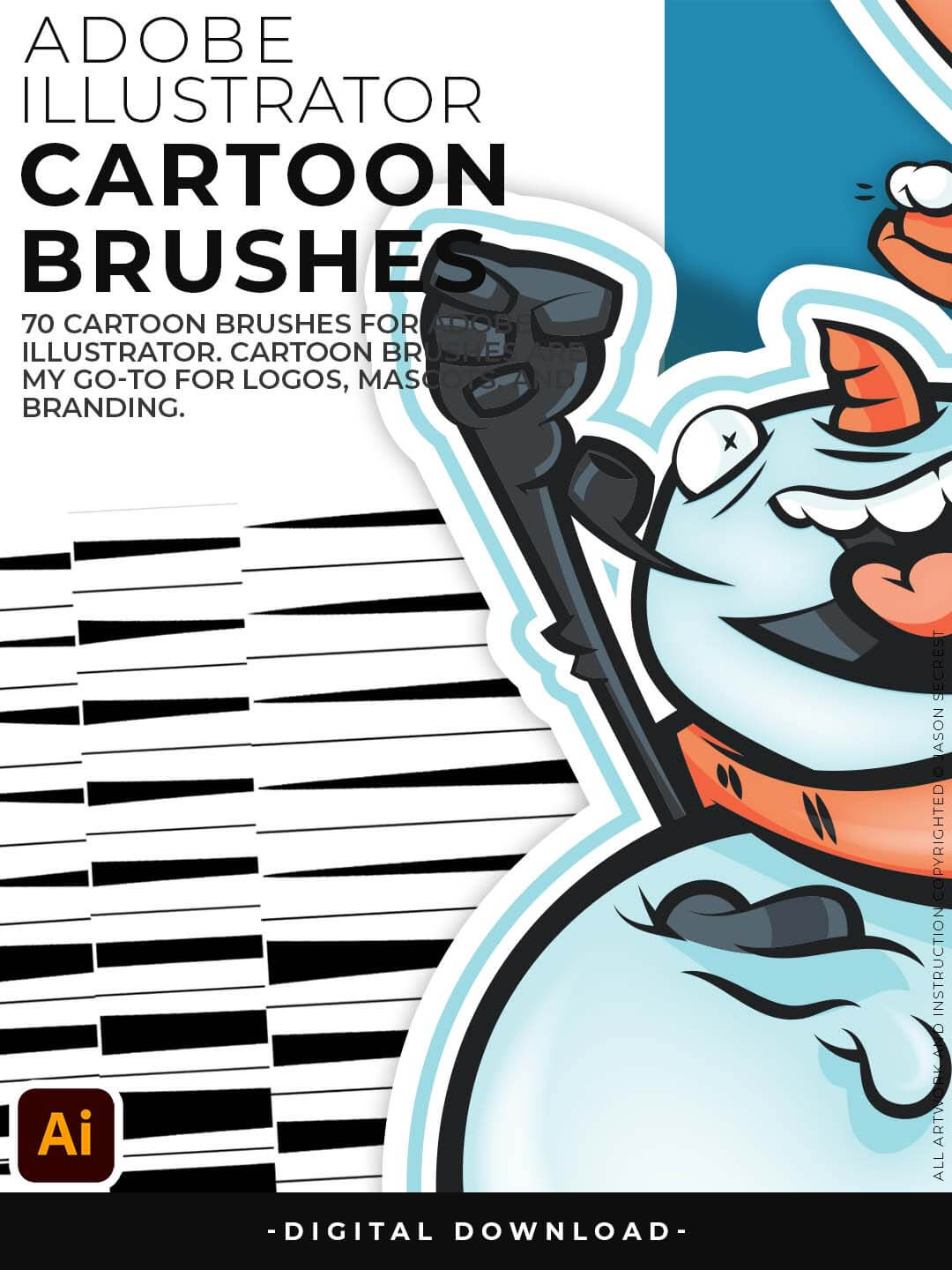
Cartoon Brushes are my go-to for Professional Logos, Cartoons, Mascots, and Branding.
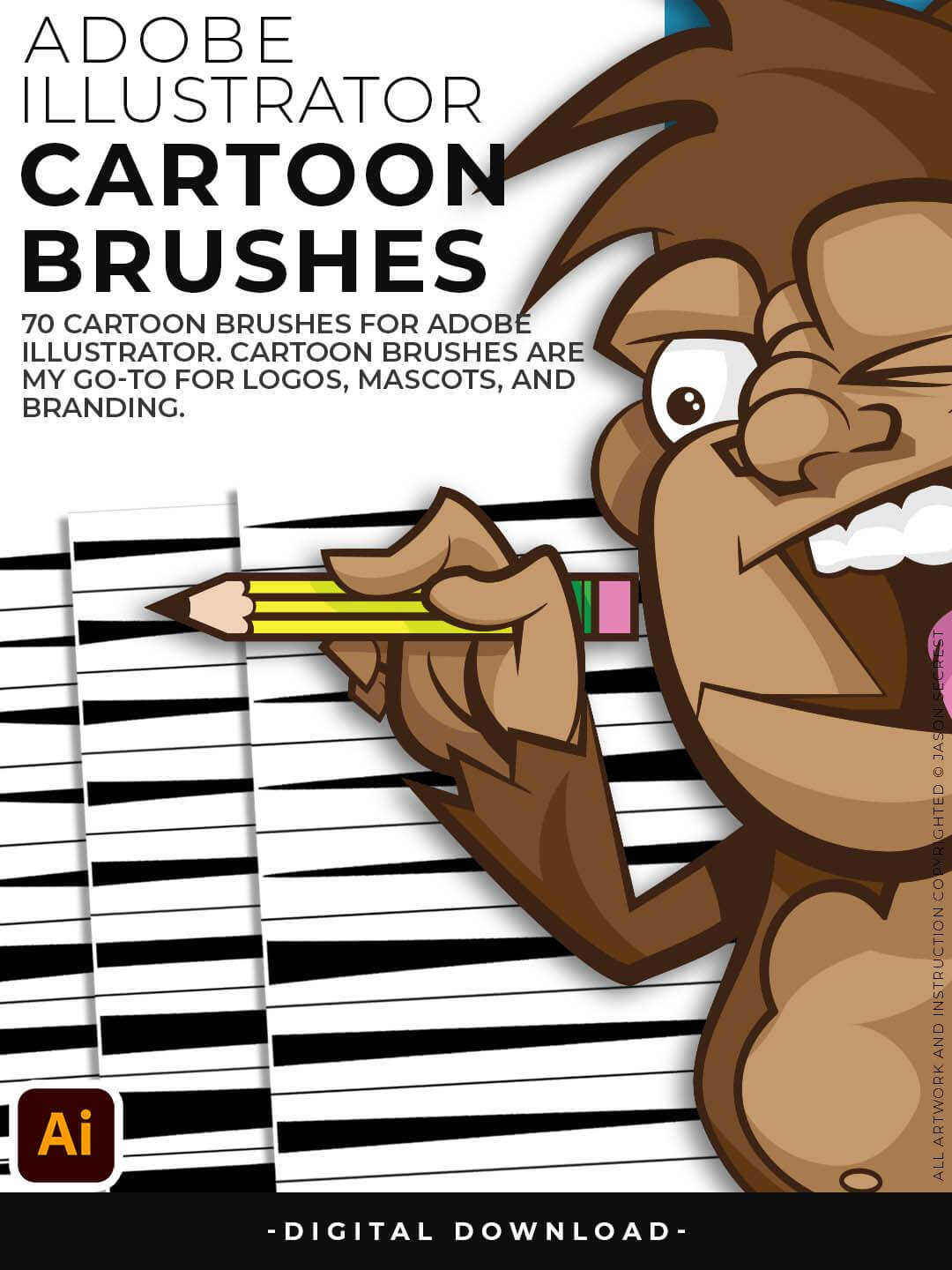
(Updated) Libraries are Pressure Sensitive for those of you looking to apply brushes use with your tablet.
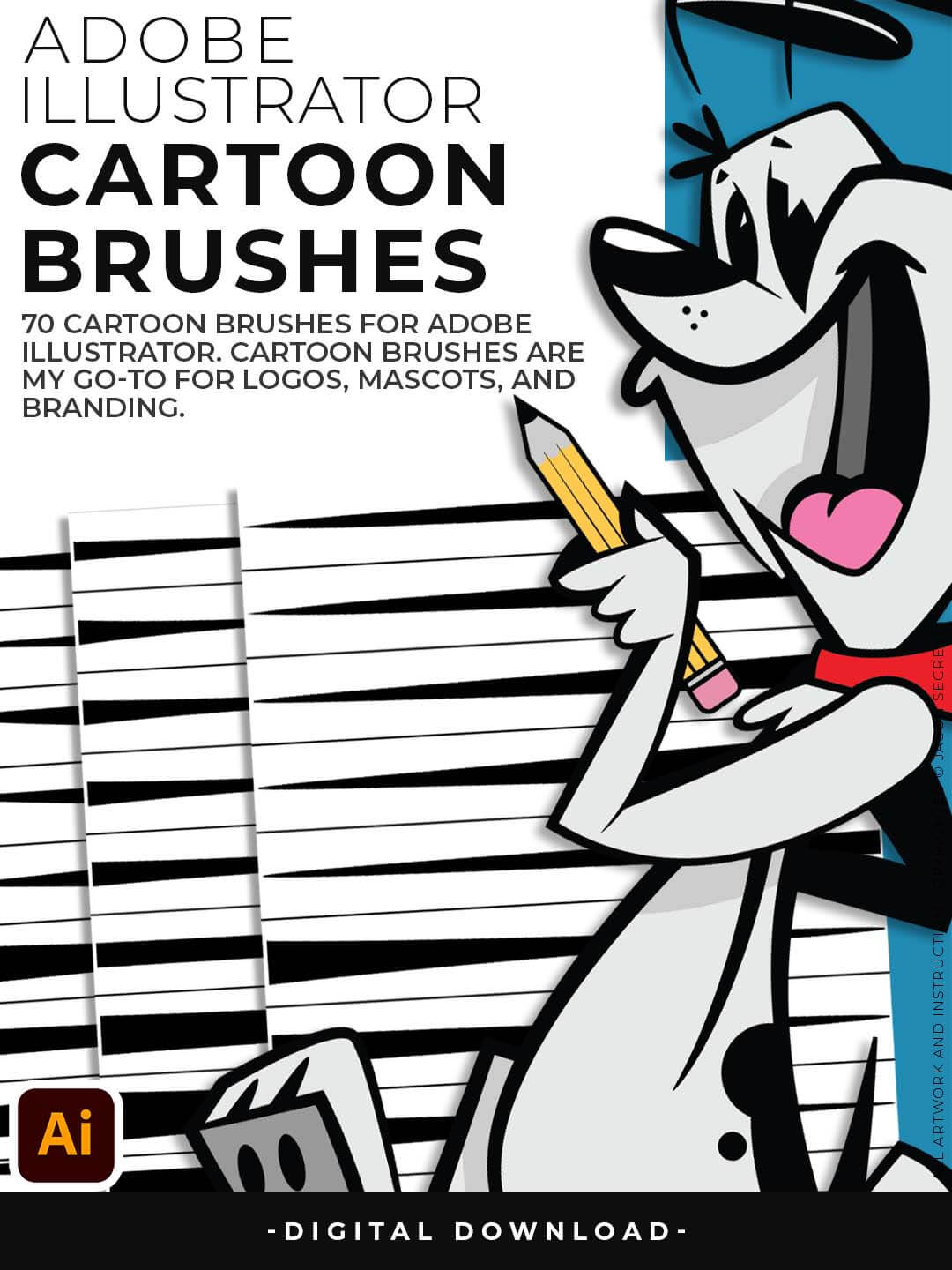
Includes Updated Cartoon, Cartoon 2, and Original Cartoon Brush Libraries.
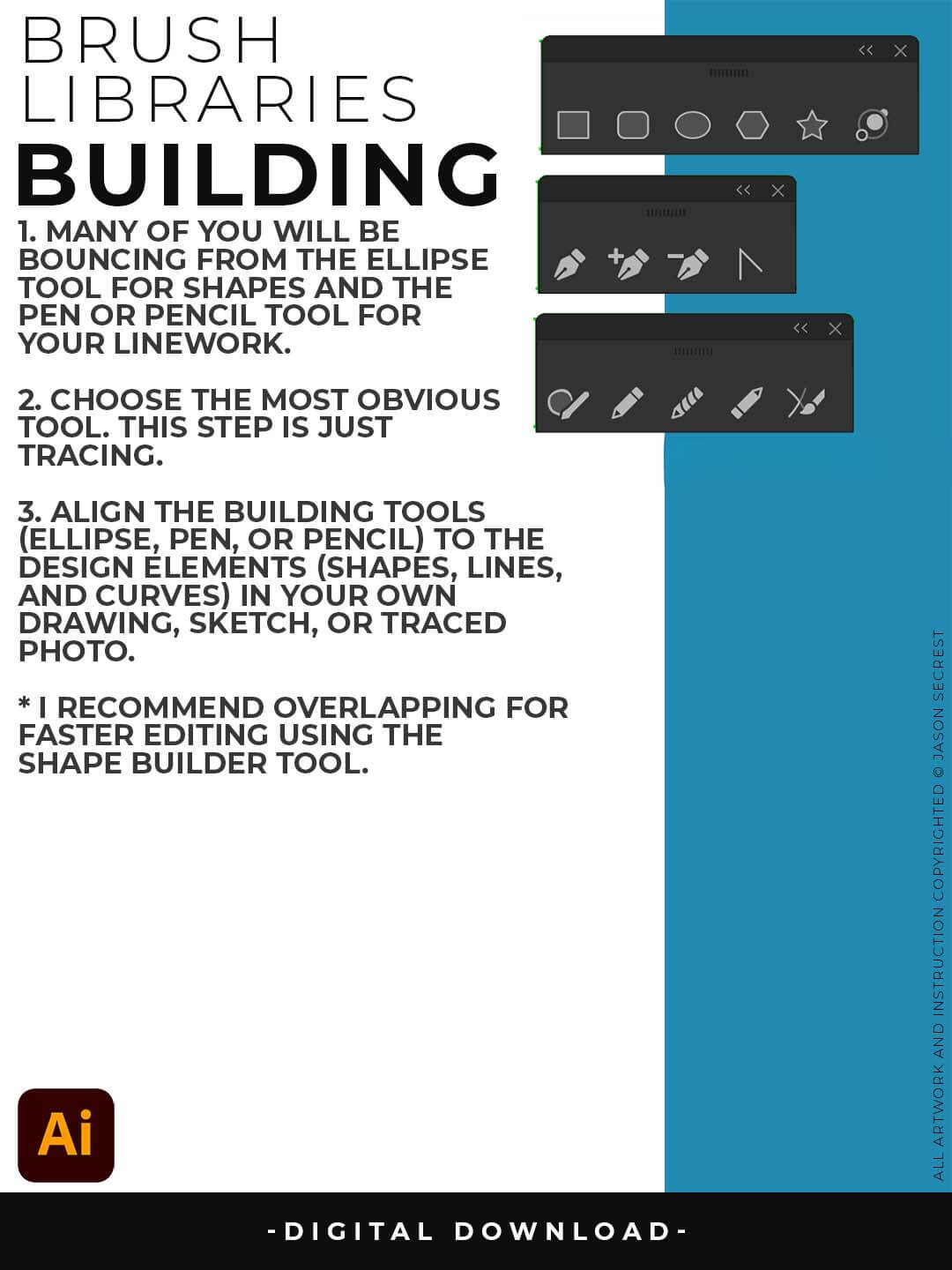
PRIMARY BUILDING: Many of you will use Shape, Pencil, and Pen Tools as your Primary Building Tools. Understand the Building Tools and Options in Adobe Illustrator. Align the Building Tools (Ellipse, Pen, and Curvature Tools) to the Design Elements (Shapes, Lines, and Curves) in your own drawing or sketch.
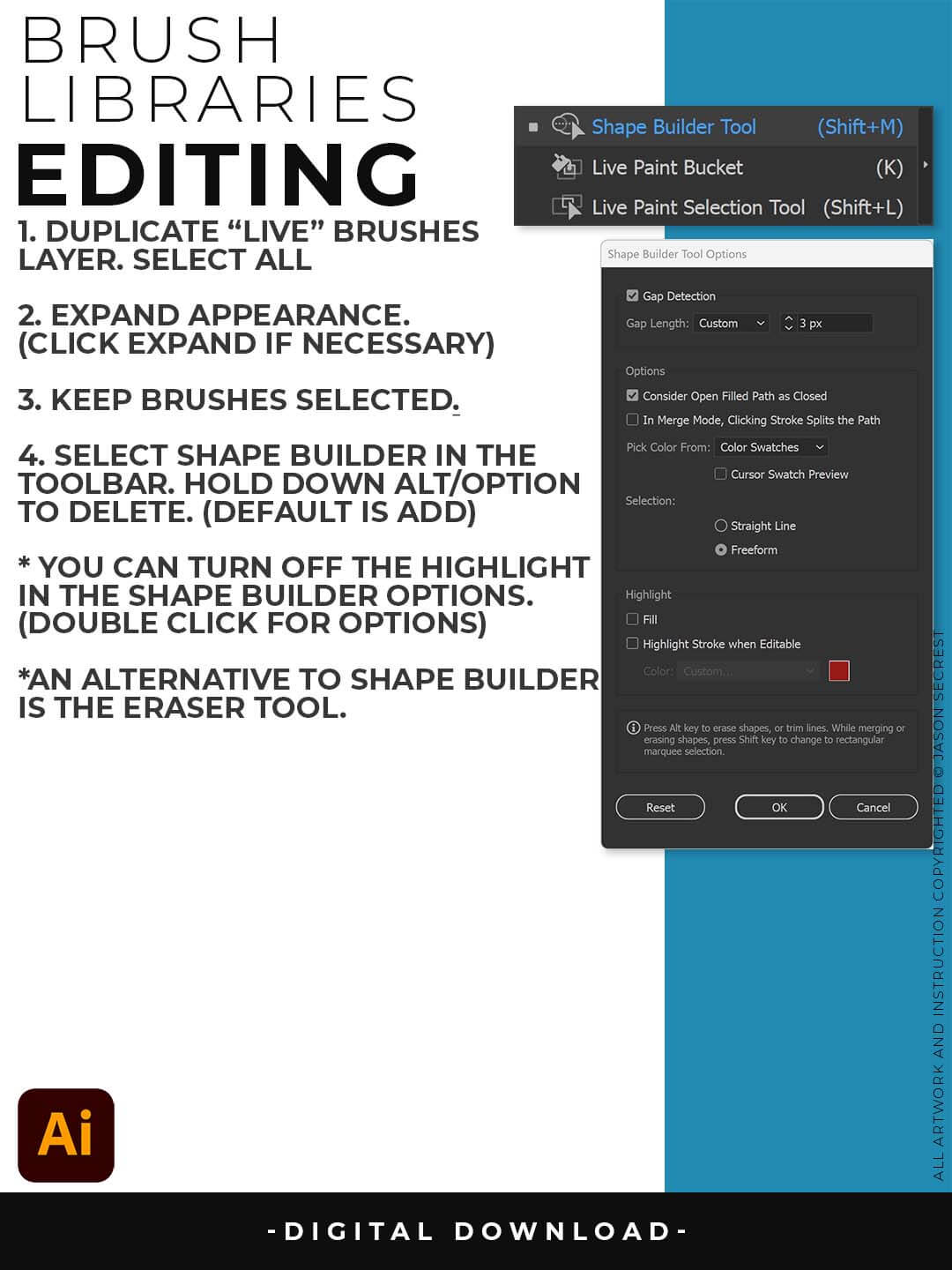
EXPANDED EDITING: To use Shape Builder, you must Duplicate and Expand the Brush Layer. Select All - Expand (Expand Appearance). I recommend duplicating the Brushes Layer to preserve a Live Brush Layer for future edits. Go long with your initial paths to create a larger target for editing with Shape Builder.