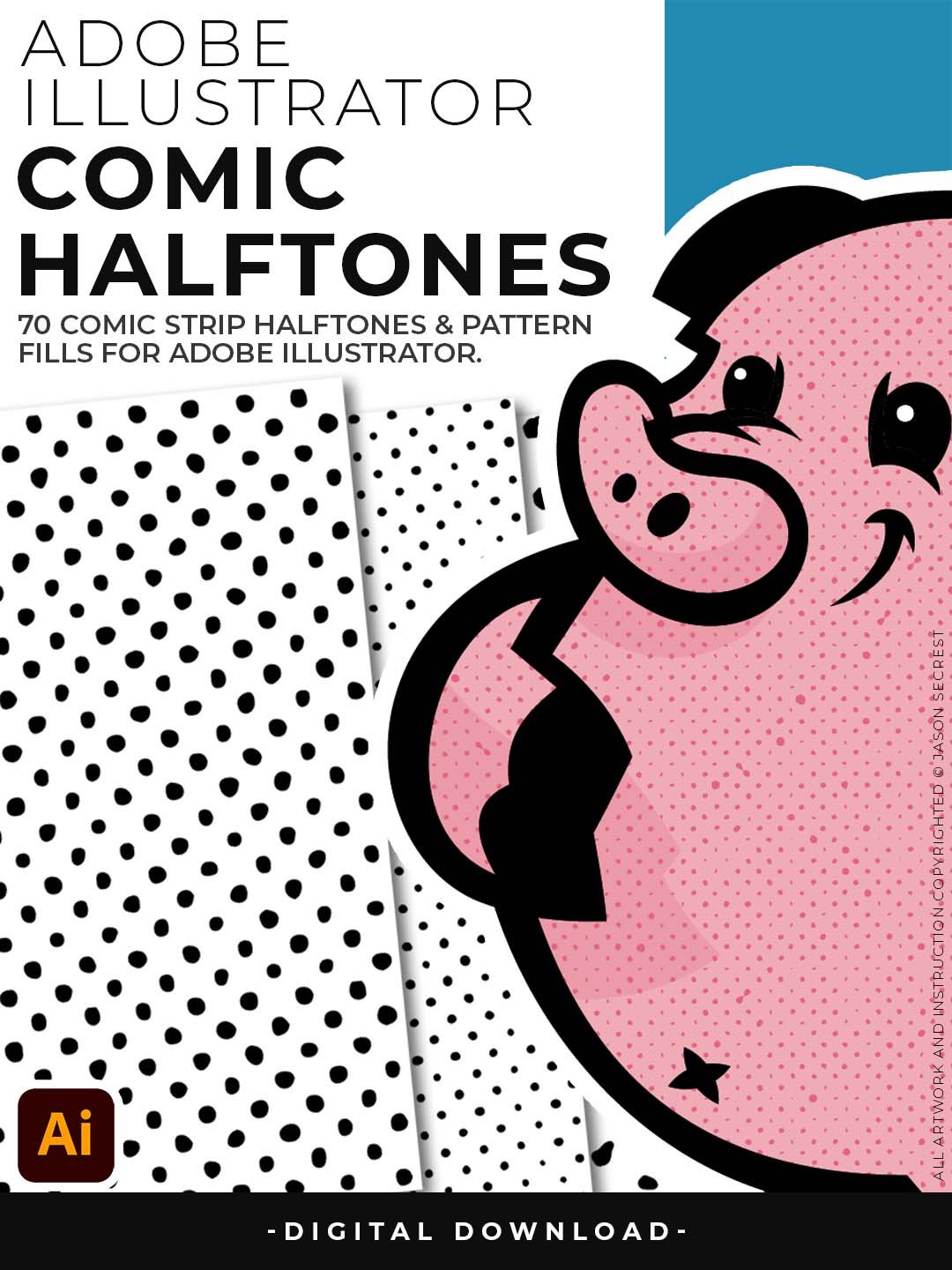
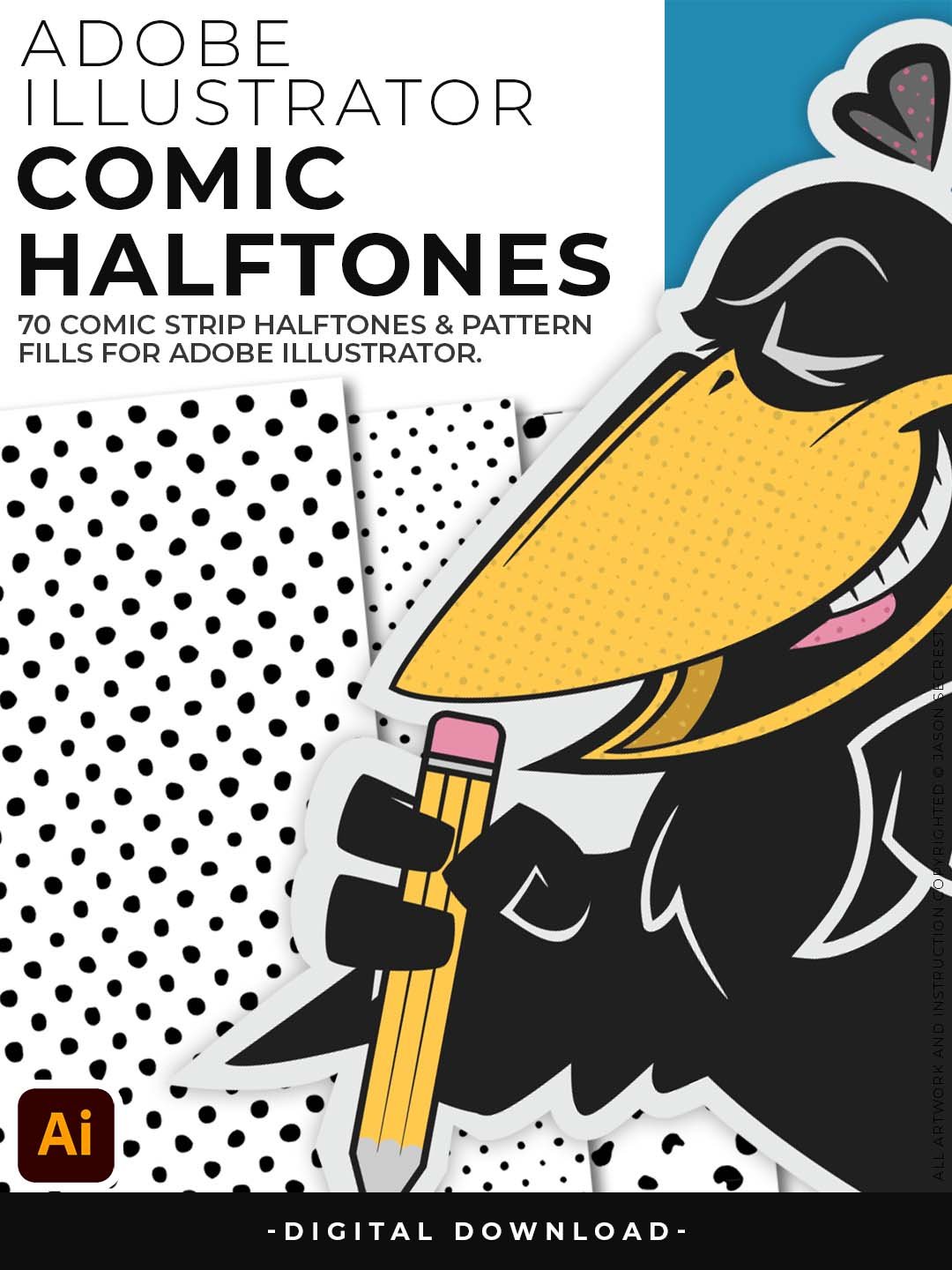
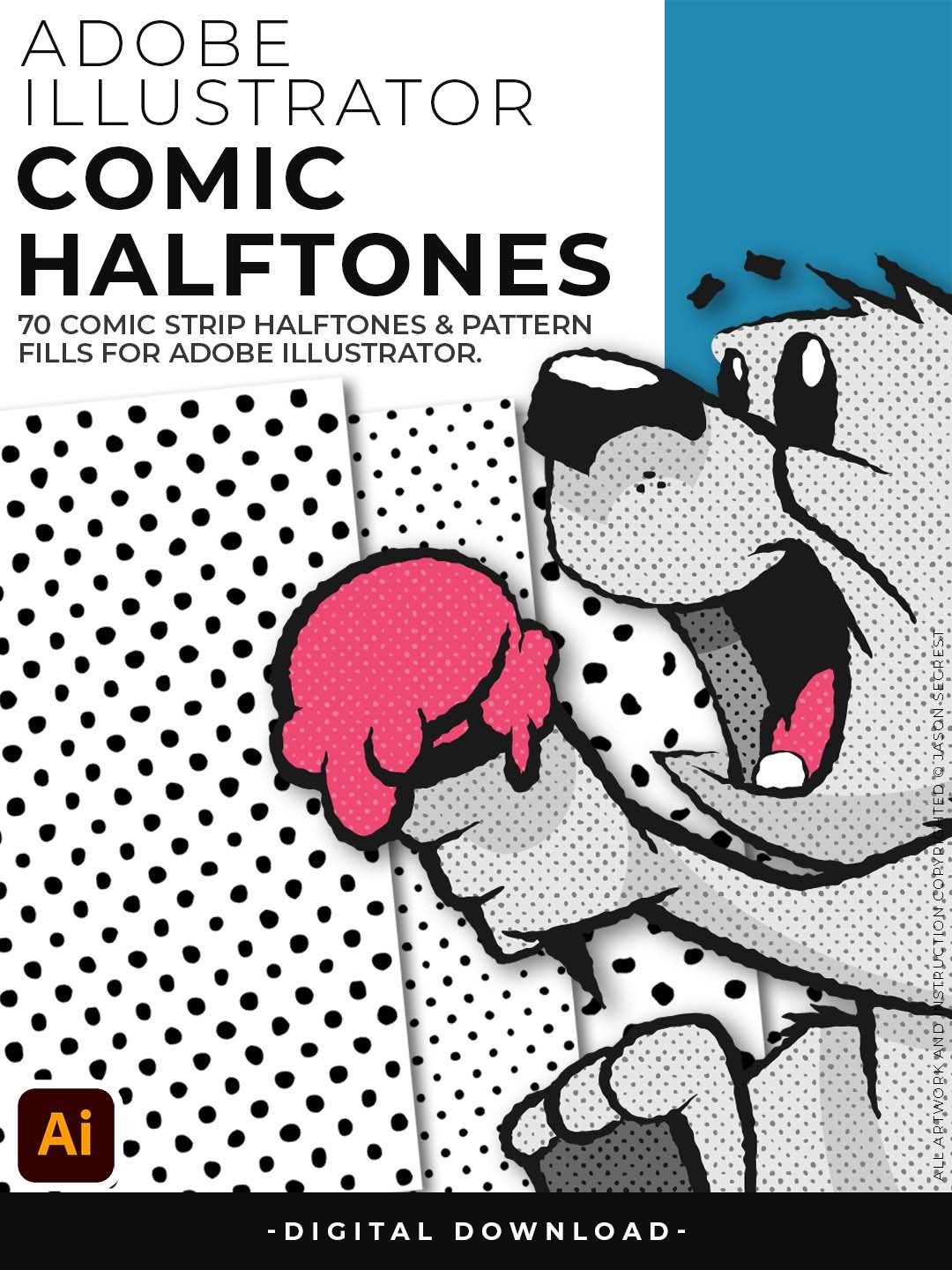



Comic Halftones for Adobe Illustrator
Shade your comic and cartoon artwork the way the pros do — directly inside Illustrator, no plugins needed. Halftone shading is what separates flat cartoon art from illustration that has real depth and dimension. In classic comic books and newspaper strips, those dot patterns did all the shading work — and they still do. The problem is getting them into Illustrator without rasterizing everything or fighting with plugin settings.
This pack solves that completely. All 70 halftone fills are built as native Illustrator swatches, so they behave exactly like a color fill. Select a shape, open your swatches panel, click the halftone you want. That's it. No effects panel, no raster conversion, no resolution concerns at print time.
The value scales are the real workhorse here — a complete range of dot densities from barely-there highlights to near-solid shadows, all matching in dot size and pattern style. Use them to shade a character consistently from head to toe, or build out a full comic panel with proper tonal range. Whether you're doing retro cartoon illustration, comic strip work, vintage logo shading, or t-shirt graphics that need that classic print feel, this pack gives you the shading system that makes it look right.
Comic Halftones
- 70 comic-style halftone fills that work like color swatches — select any shape in Illustrator and apply in one click
- Includes full value scales so you can shade from light to dark with consistent dot patterns across your whole illustration
- 100% vector — scales to any size without losing quality, and prints clean at any resolution
- No plugins, no raster effects, no Photoshop — everything lives inside native Illustrator swatches
- Pairs perfectly with the Comic Strip Brush Library for a complete vintage comic workflow from line art to shading
Digital Downloads
- After purchase, you’ll receive an email with your download link. (only available through our YouTube Shop powered by Fourthwall).
- If you don’t see the email, please check your spam or promotions folder.
- Digital Downloads will come as Zipped Folders. Extract all before using in Adobe Illustrator.
- Once you download a file, you will have it forever
- Save or back up Digital Downloads to an external hard drive or cloud-based storage service.
- Use with your own artwork and designs.
STEP #1:
Halftones Folder will come to you as a Zipped Folder. Once you have downloaded and extracted the Folder, Halftones are ready to be used in Adobe Illustrator. Comic Halftones include our Halftone Pattern Fills.
STEP #2:
Once you have downloaded and extracted the Comic Halftones, they are ready to be used in Adobe Illustrator. Save all files to an external hard drive or cloud-based storage.
STEP #3:
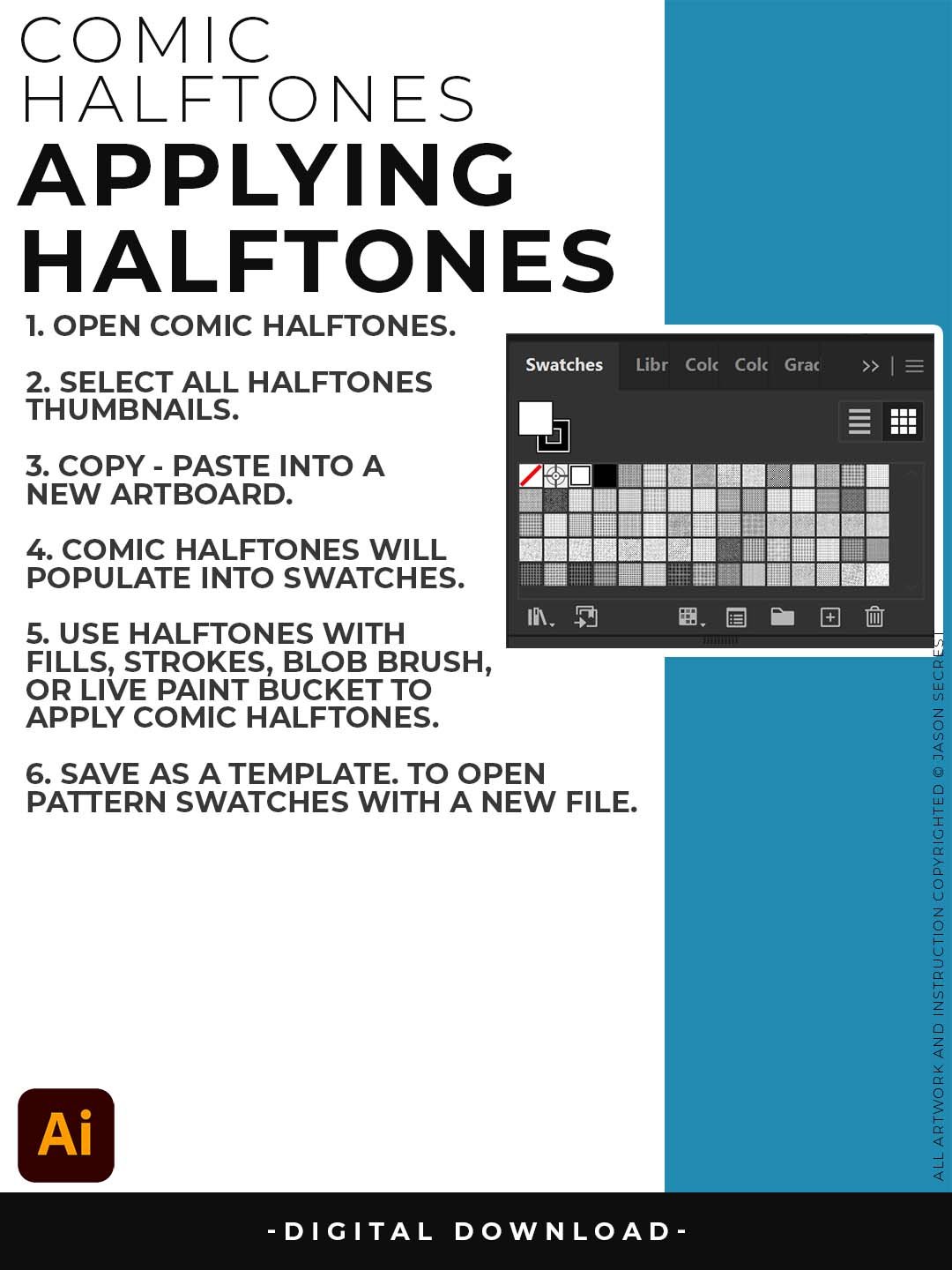
The Halftones will act just like any other Color Swatch. You can simply Select a Shape to apply a basic Fill. Start with our Resource Guides to learn how to apply Halftones.
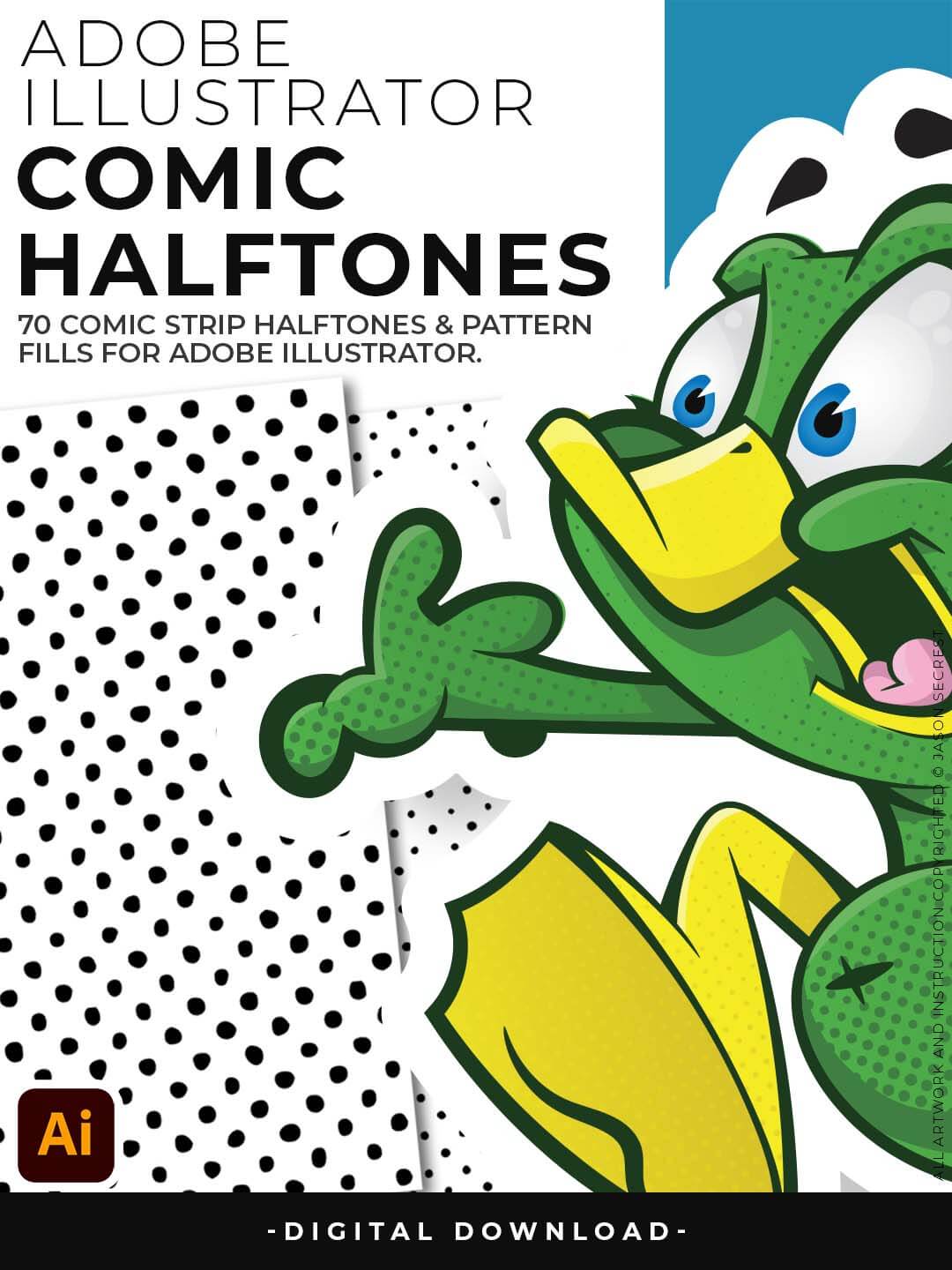
Use for spot textures within your artwork or comics. If you are new to Adobe Illustrator, Halftones and Pattern Fills are extremely easy to use. They are designed for easy application just like any basic color fill but they have Halftones. Halftones are seamless and scaleable. Each Halftone can be recolored or scaled up or down to fit your own artwork or to change the scale of the pattern itself.
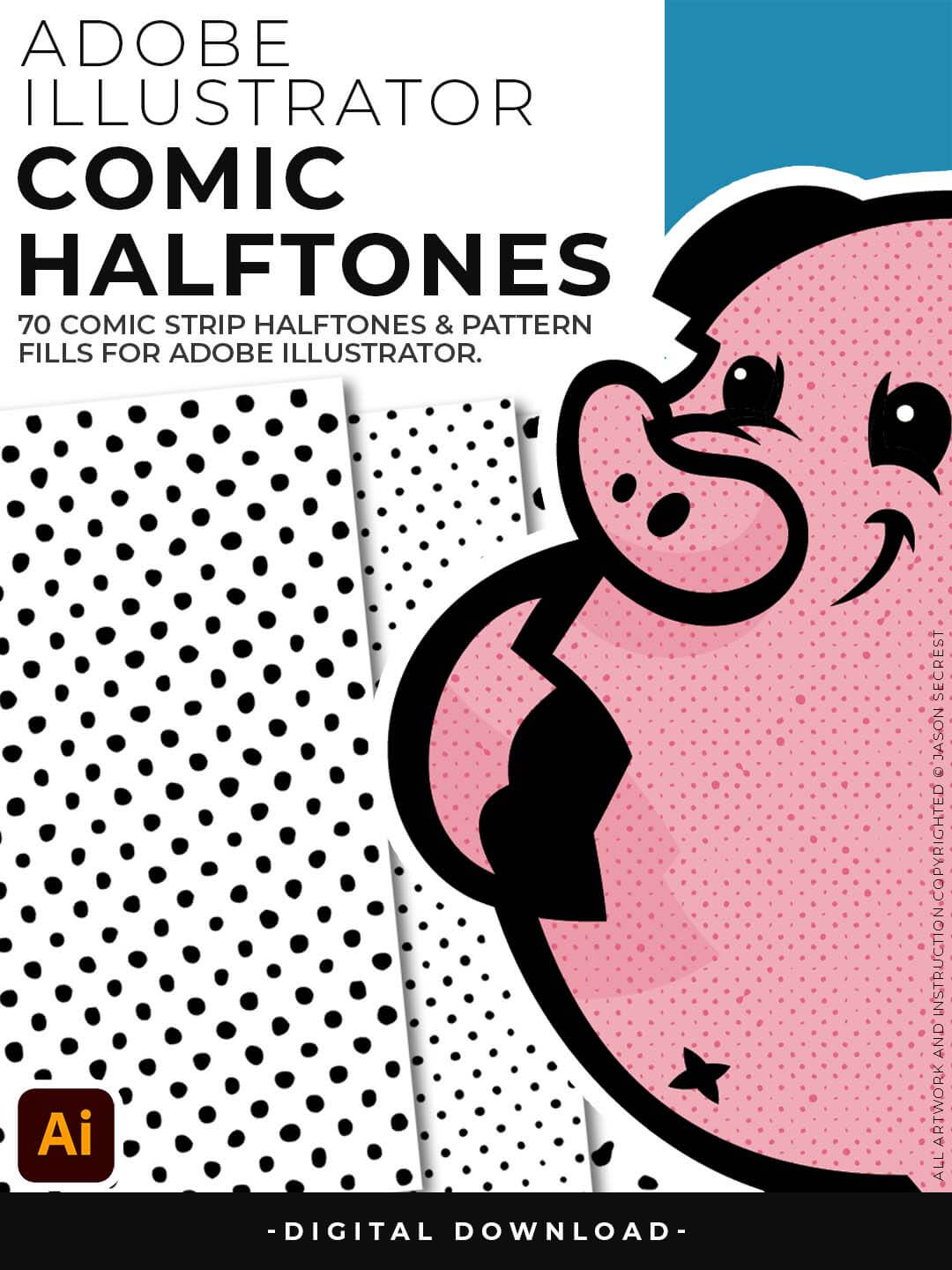
They are designed for easy application by simply clicking on a Halftones Pattern Fills just like you would on a regular Color Swatch. Apply the Halftones using the Blob Brush and Live Paint on your Designs or Comics. Halftones are very flexible since they are Pattern Fills, you can scale them up to get more Chunky Halftones or shrink them down to get a more Subtle Texture.
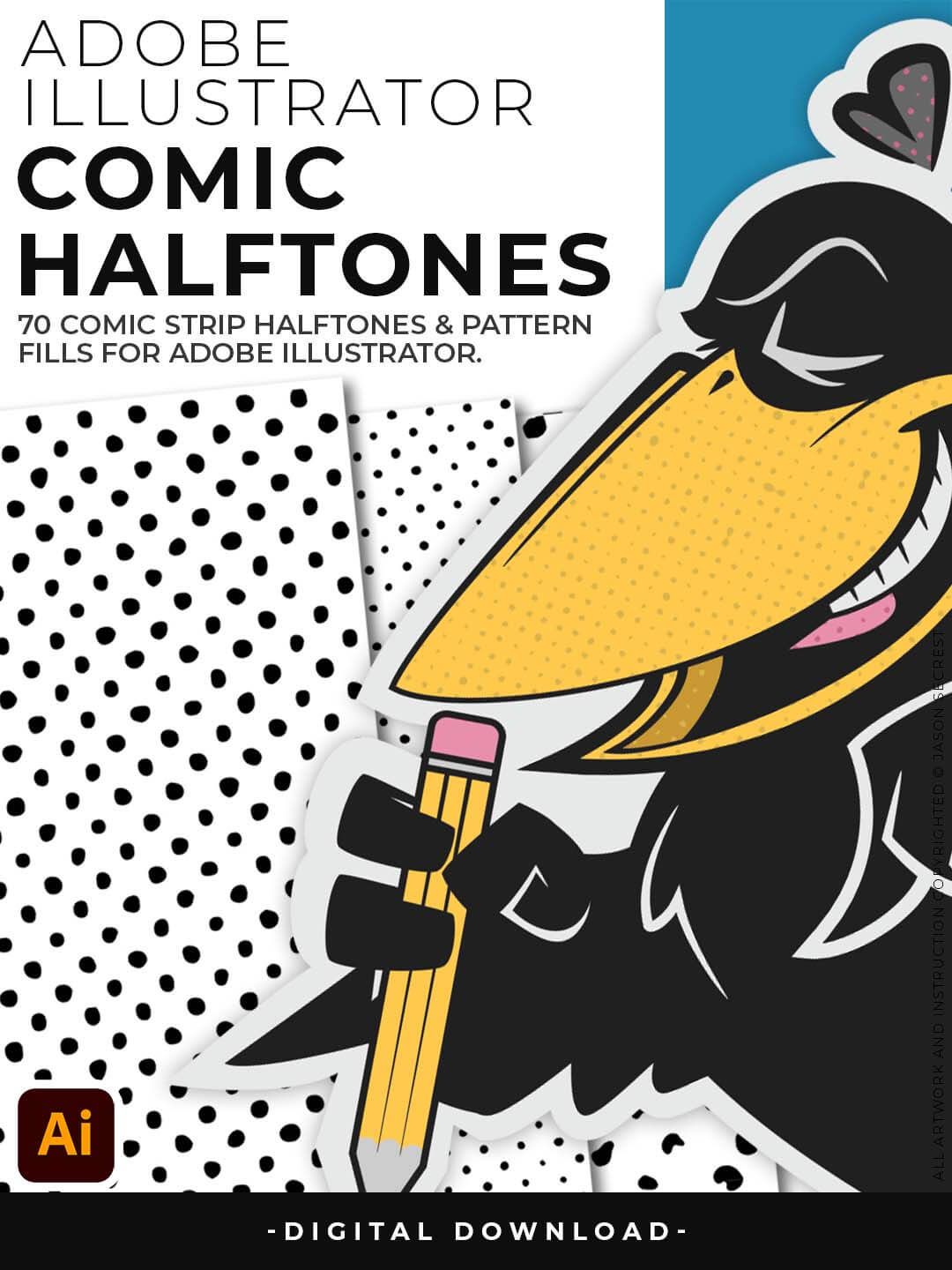
If you already have a value layer you can simply duplicate the Layer and Click on a Halftone Fill to apply Textures. The Halftones and Pattern Fills do have a transparent background. Patterns can be recolored in the Patterns Panel to match the desired look of your artwork. The Halftones and Pattern Fills do have a transparent background so that you can layer them with your Flat Color and Cast Shadow Layers.
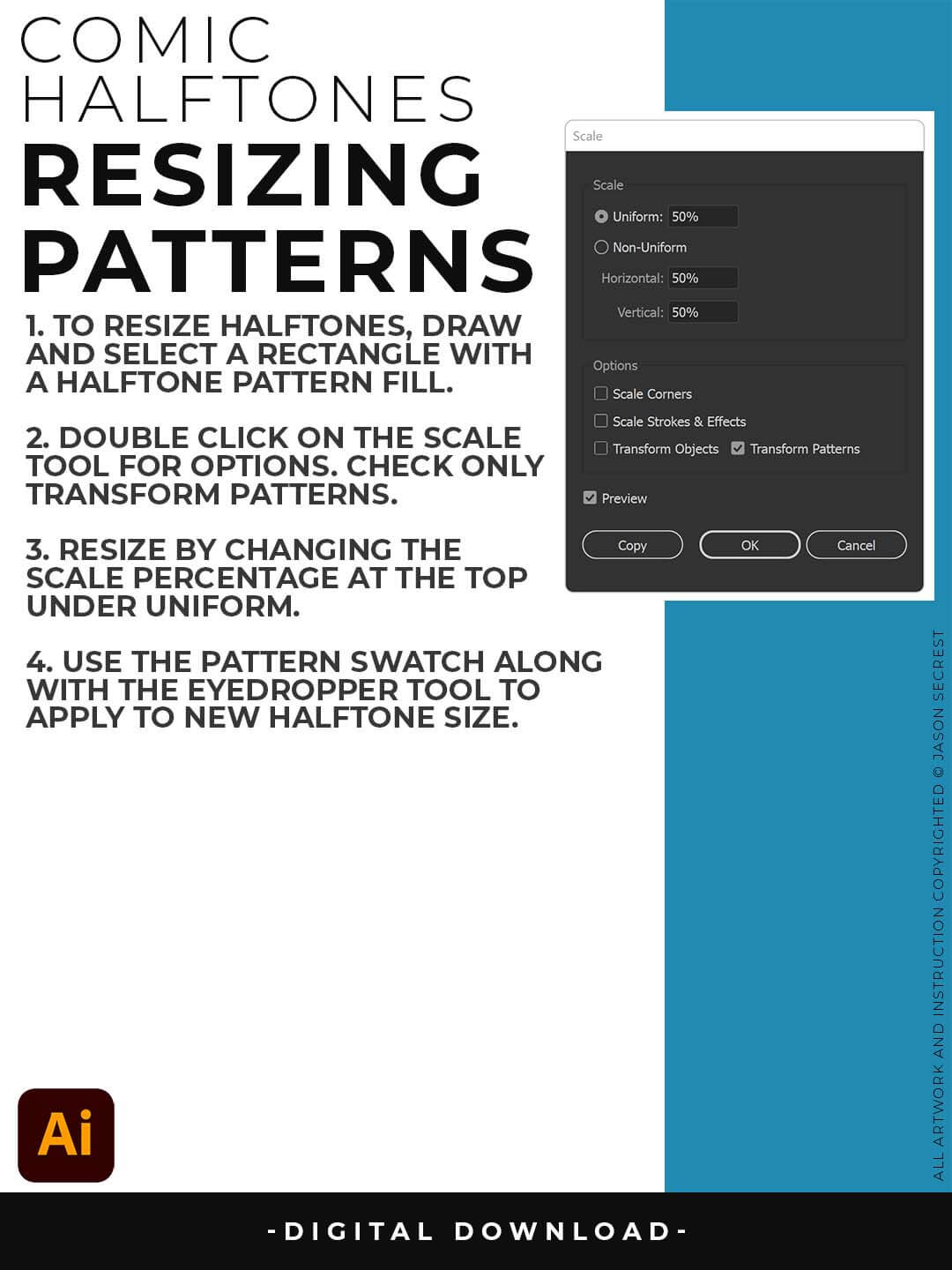
RESIZING HALFTONES: Draw out a rectangle and select a Halftone Pattern Fill from the Swatches Panel. With the Shape Selected, double click on the Scale Tool. Check Transform Patterns Only and adjust the Scale up or down under Uniform %.
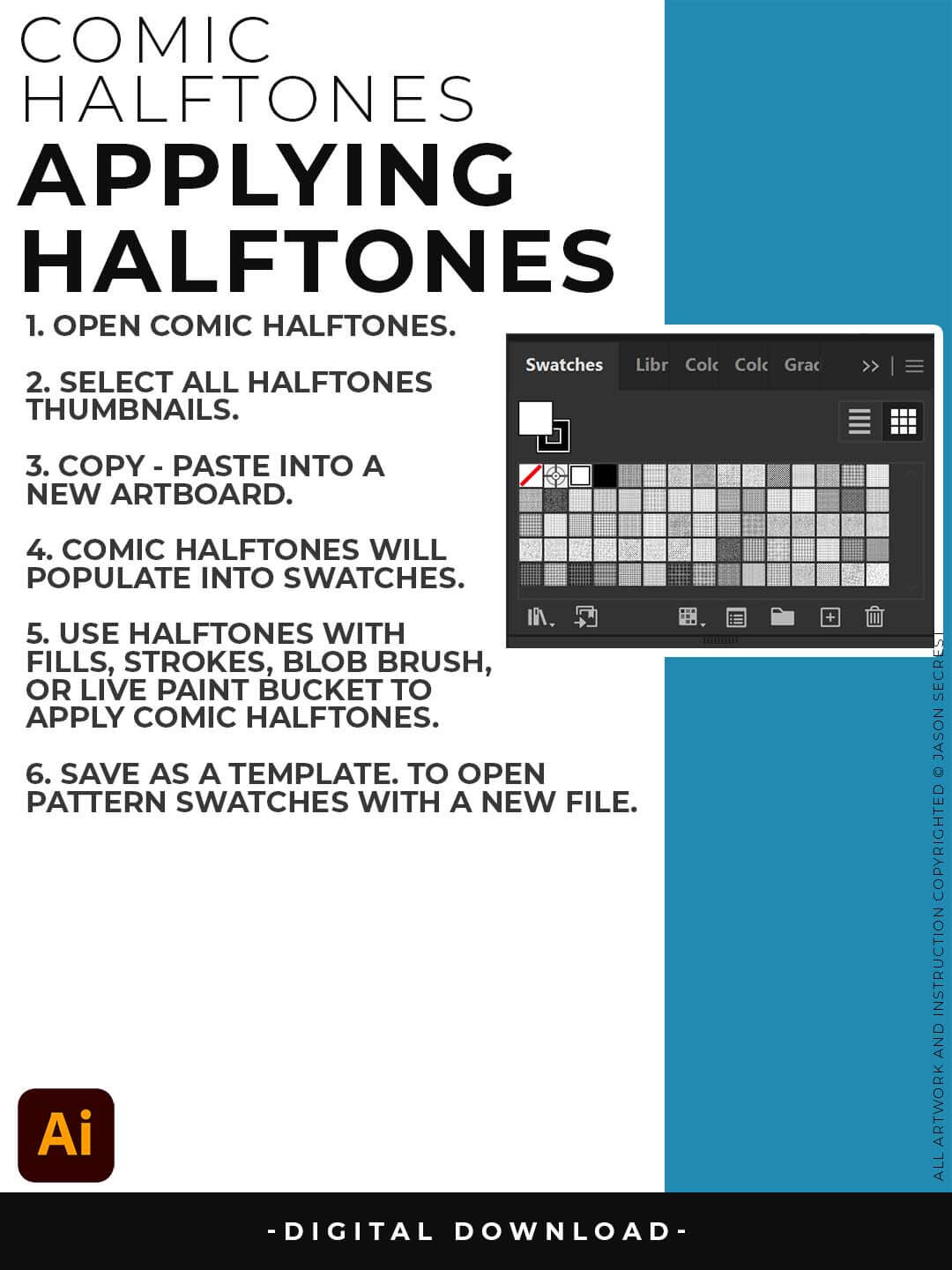
OPENING HALFTONES: Pattern Fills and Halftones are Adobe Illustrator Files. The goal is to Open + Copy + Paste the Swatches into the Working Artboard. The Pattern Fills (Swatches) will automatically populate into your Swatches once you Copy - Paste.
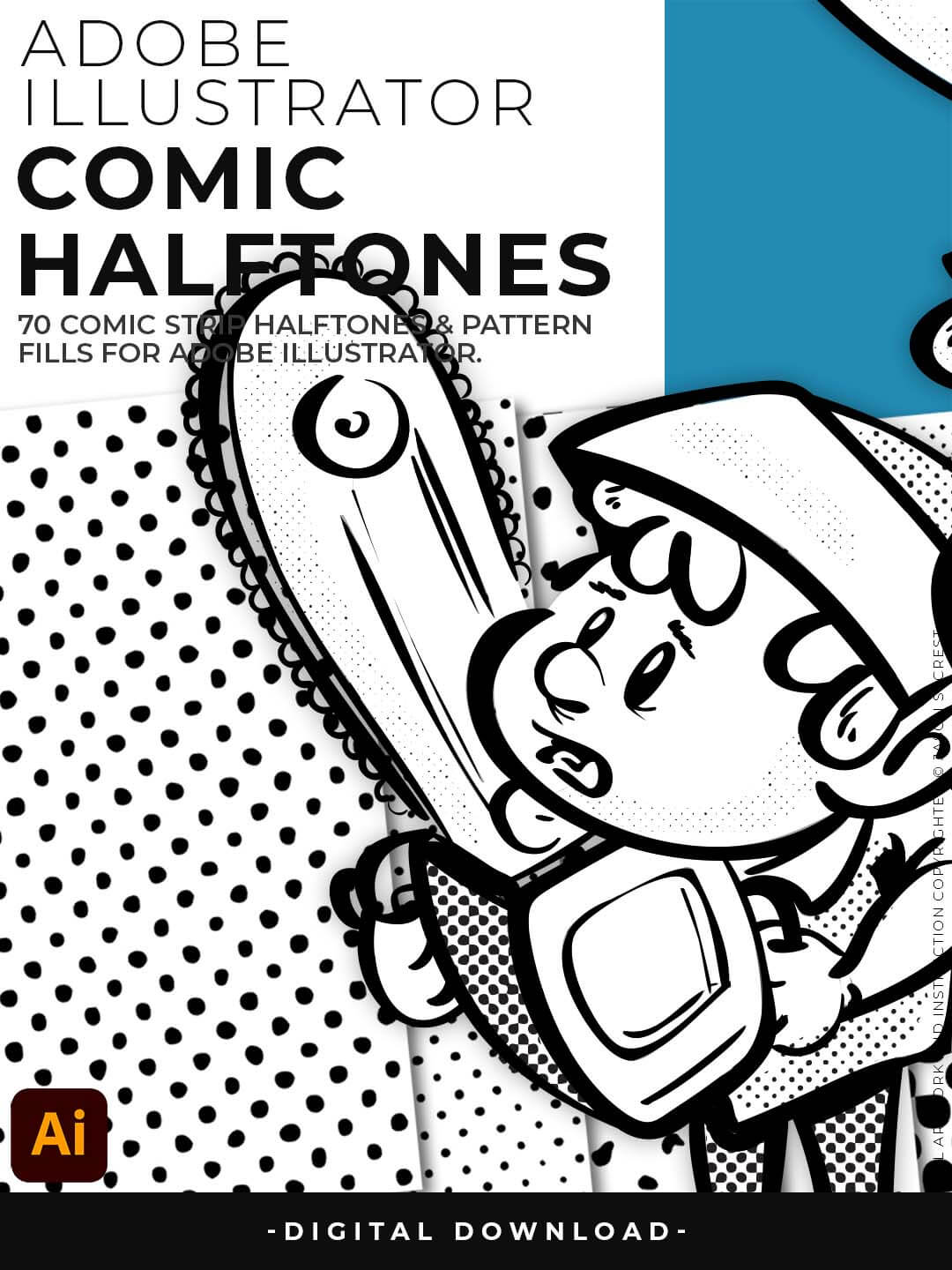
Halftone Textures and Pattern Fills to use in Adobe Illustrator to spot textures within your artwork or comics. They are designed for easy application just like any basic color fill but they have Halftones.
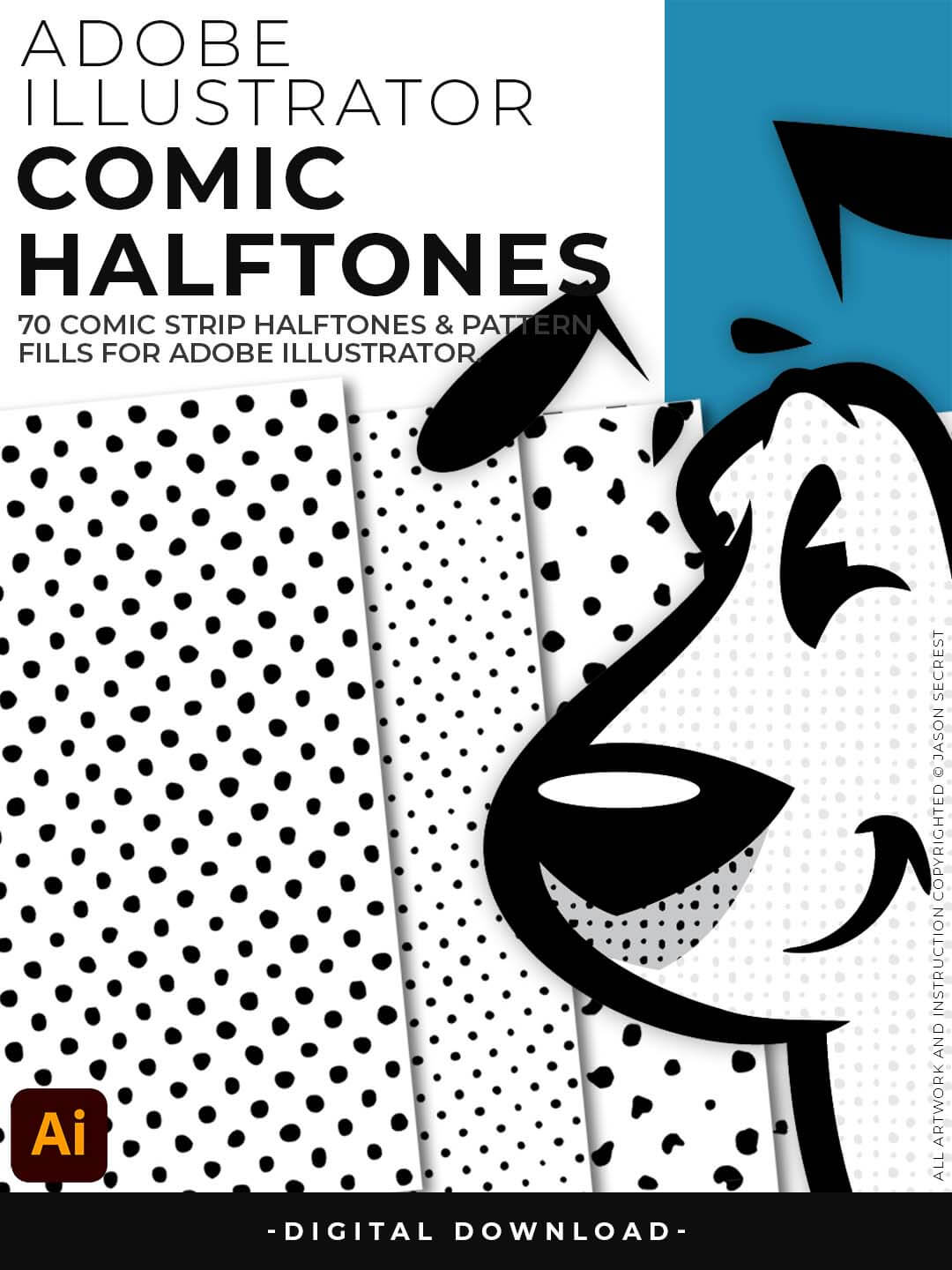
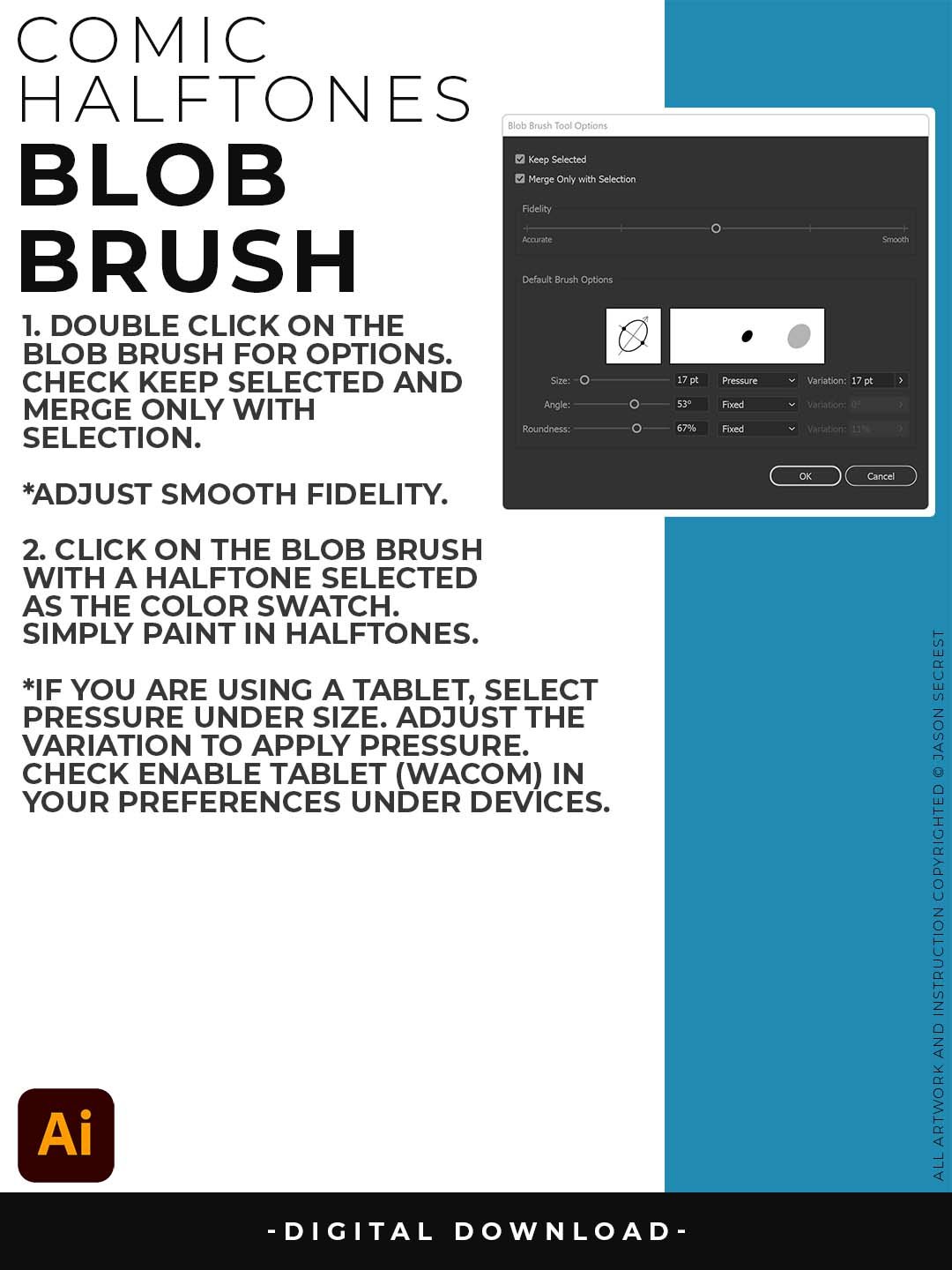
Apply the Halftones using the Blob Brush and Live Paint on your Designs or Comics. They are designed for easy application, so you can simply click on a Halftone Pattern Fill, just as you would with a regular Color Swatch.
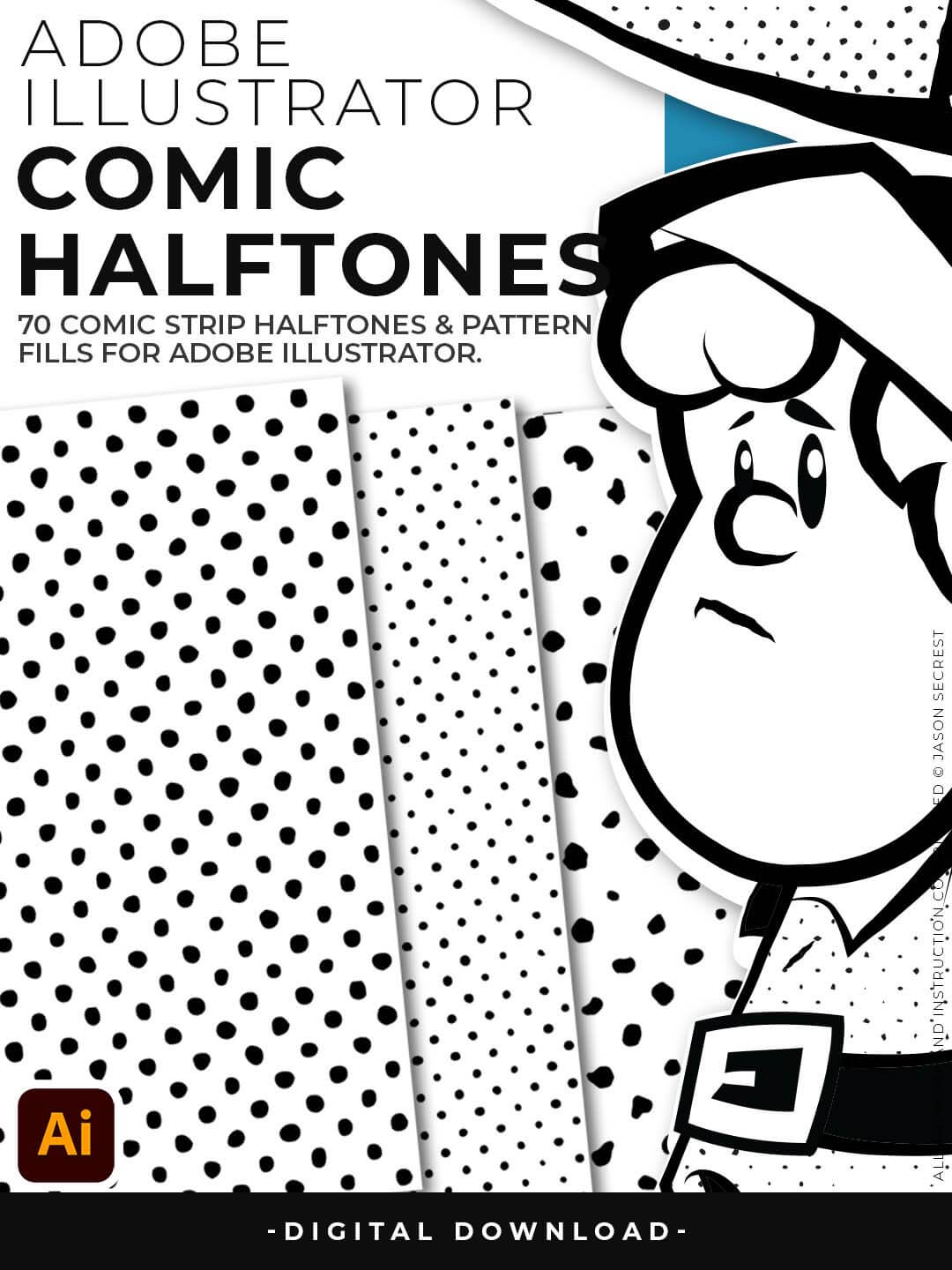
Comic Halftones can be recolored in the Patterns Panel to match the desired look of your artwork. Duplicate your Values Layer and Click on a Halftone Fill to apply Textures. The Halftones and Pattern Fills do have a transparent background.
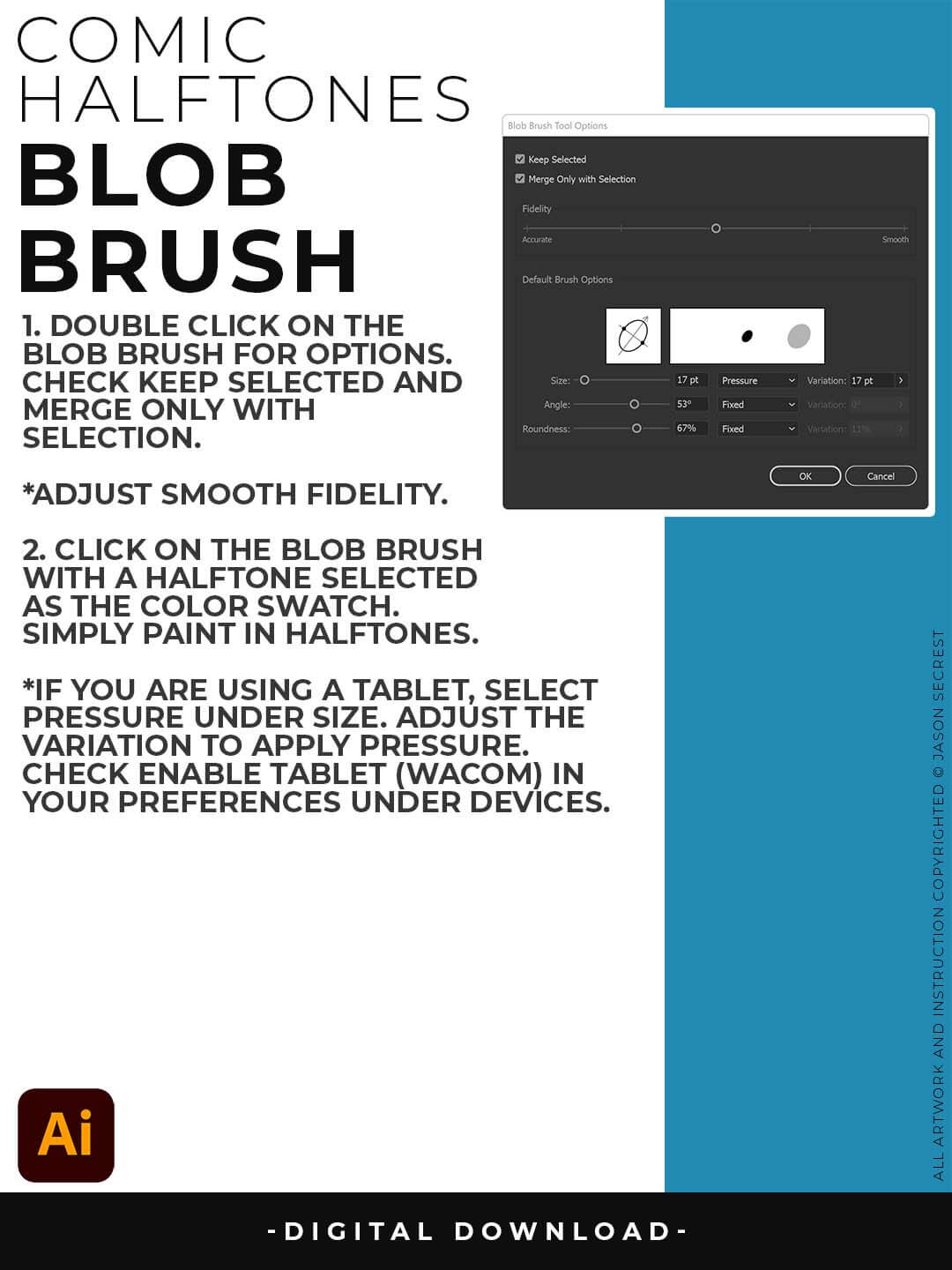
BLOB BRUSH: We will be using the Pattern Fills with the Blob Brush and your Tablet or Mouse. Double Click on the Blob Brush to Open the Options. Select Keep Selected and Merge with Selection. Both ON or Both OFF will be OK. Paint in Pattern Fills just like a coloring book with the Blob Brush. You can switch Halftones by clicking on a new Pattern Fill.
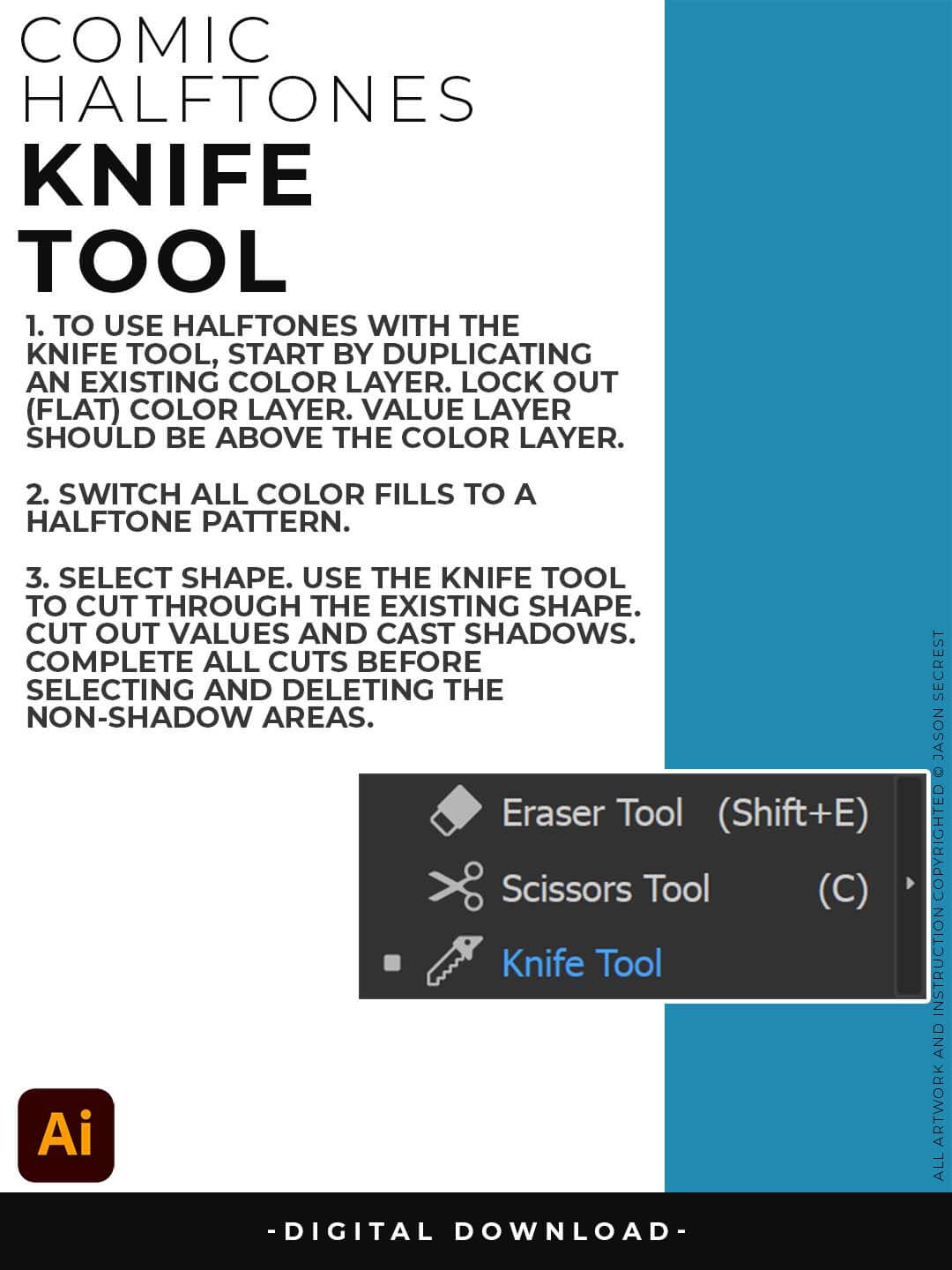
KNIFE TOOL: In the video before, we used the Blob Brush to apply Halftone Textures. What we will be doing is cutting the Basic Shape we created with the Knife Tool to create Values with our Halftones. Troubleshooting: 1. Select the Shape before Cutting. 2. Make sure you cut all the way through the shape (go long with cuts).