



Complete Texture Bundle for Adobe Illustrator
Every distress, overlay, and surface effect you'll ever need — one download, built for Illustrator. If you do any kind of apparel design, illustration, logo work, or brand identity in Adobe Illustrator, you need textures. Not one pack — all of them. Because the job dictates the effect: a vintage tee needs crack distressing, a craft logo needs grunge, an editorial illustration needs paper grain, and a poster needs paint energy. This bundle has all four covered.
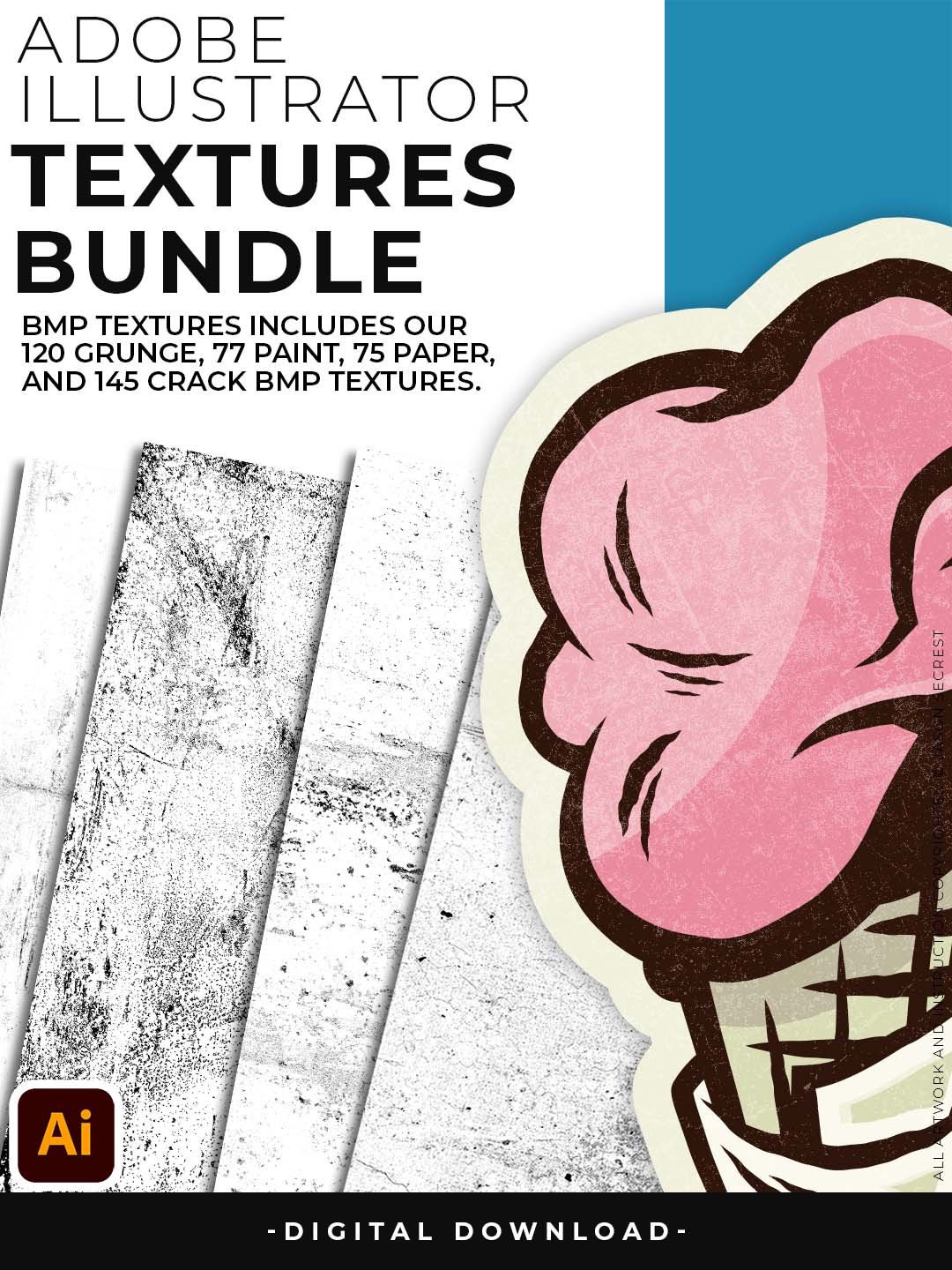
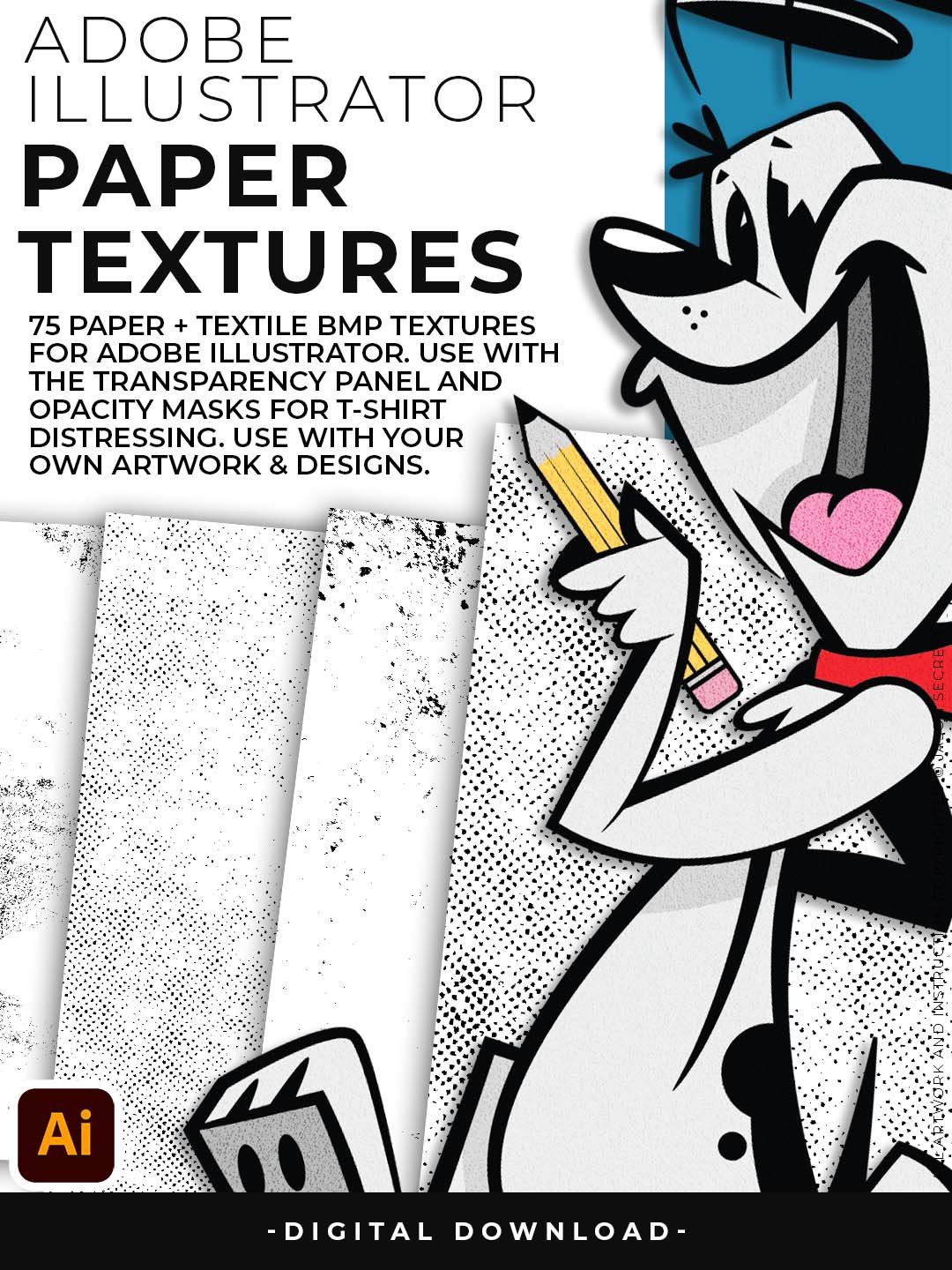
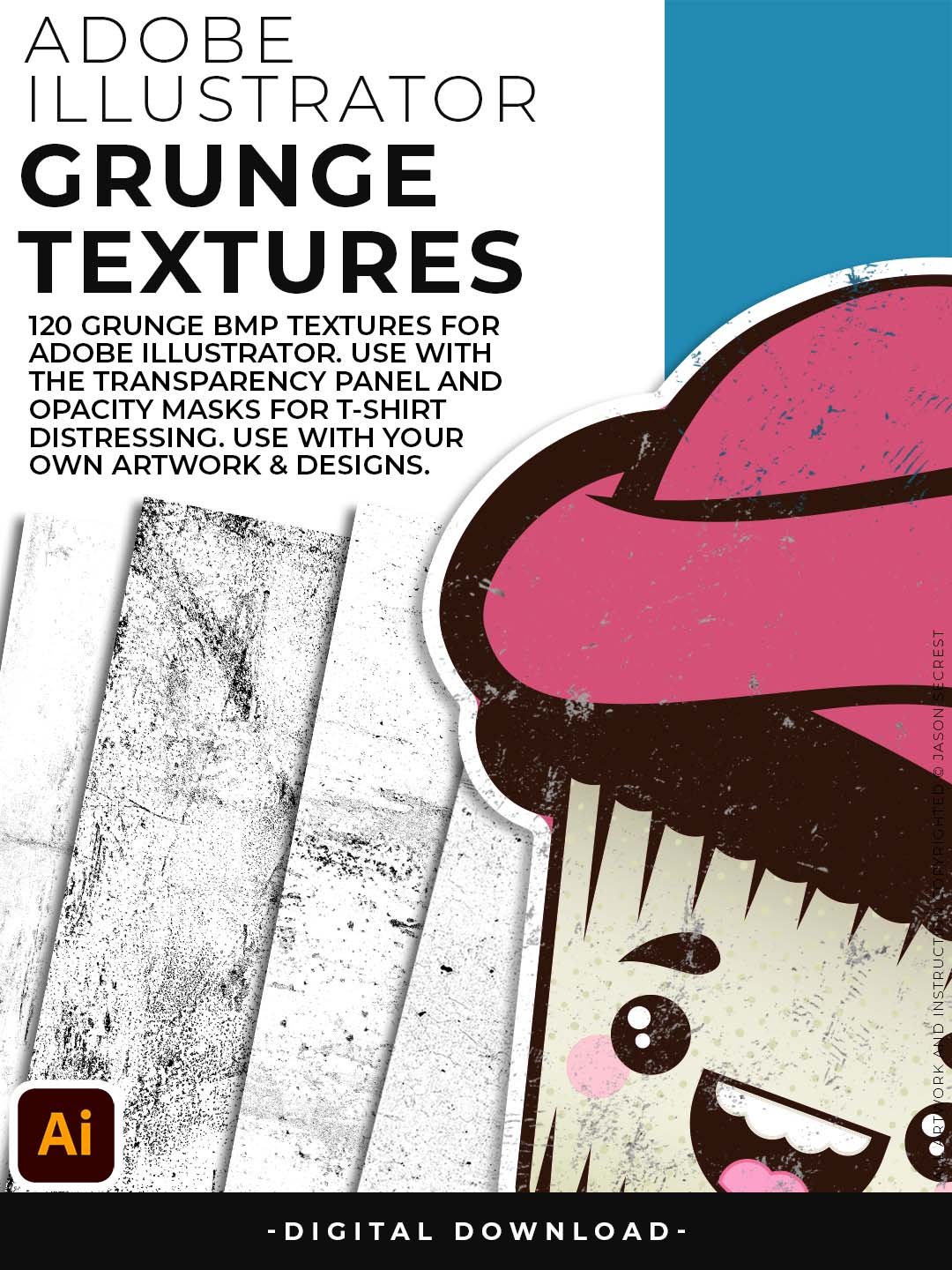
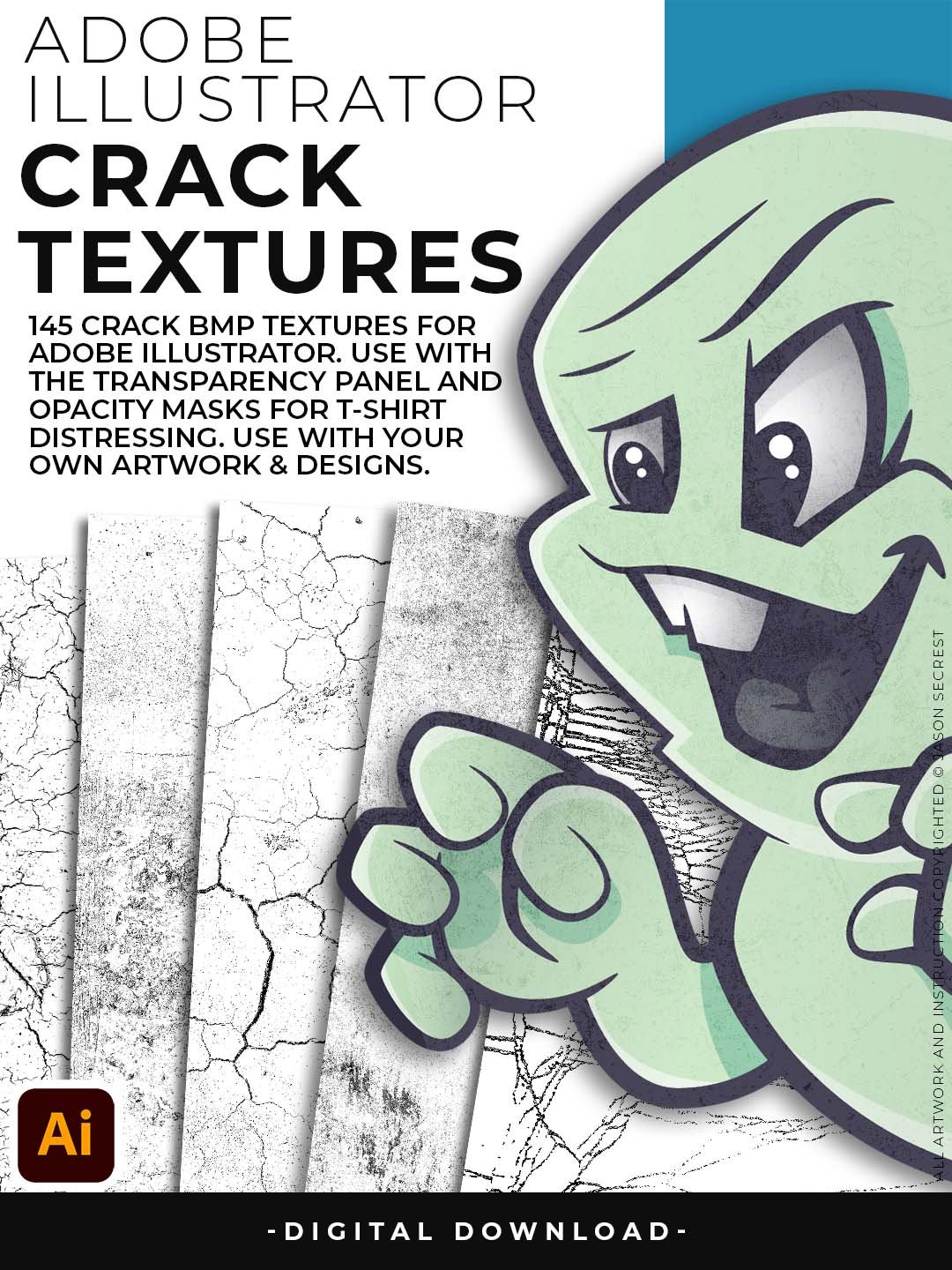
You get 145 Crack textures for t-shirt and screen-print distressing, 120 Grunge textures for heavy vintage and apparel treatments, 75 Paper textures for soft overlays on illustration and packaging, and 77 Paint textures for bold, expressive splatter effects. Every file is BMP-formatted and ready to use as an opacity mask directly inside Illustrator — no Photoshop, no conversion, no prep.
This is the exact texture library Jason teaches with in his YouTube tutorials. If you've ever watched one of his texture workflow videos and wondered what files he's using — these are them.
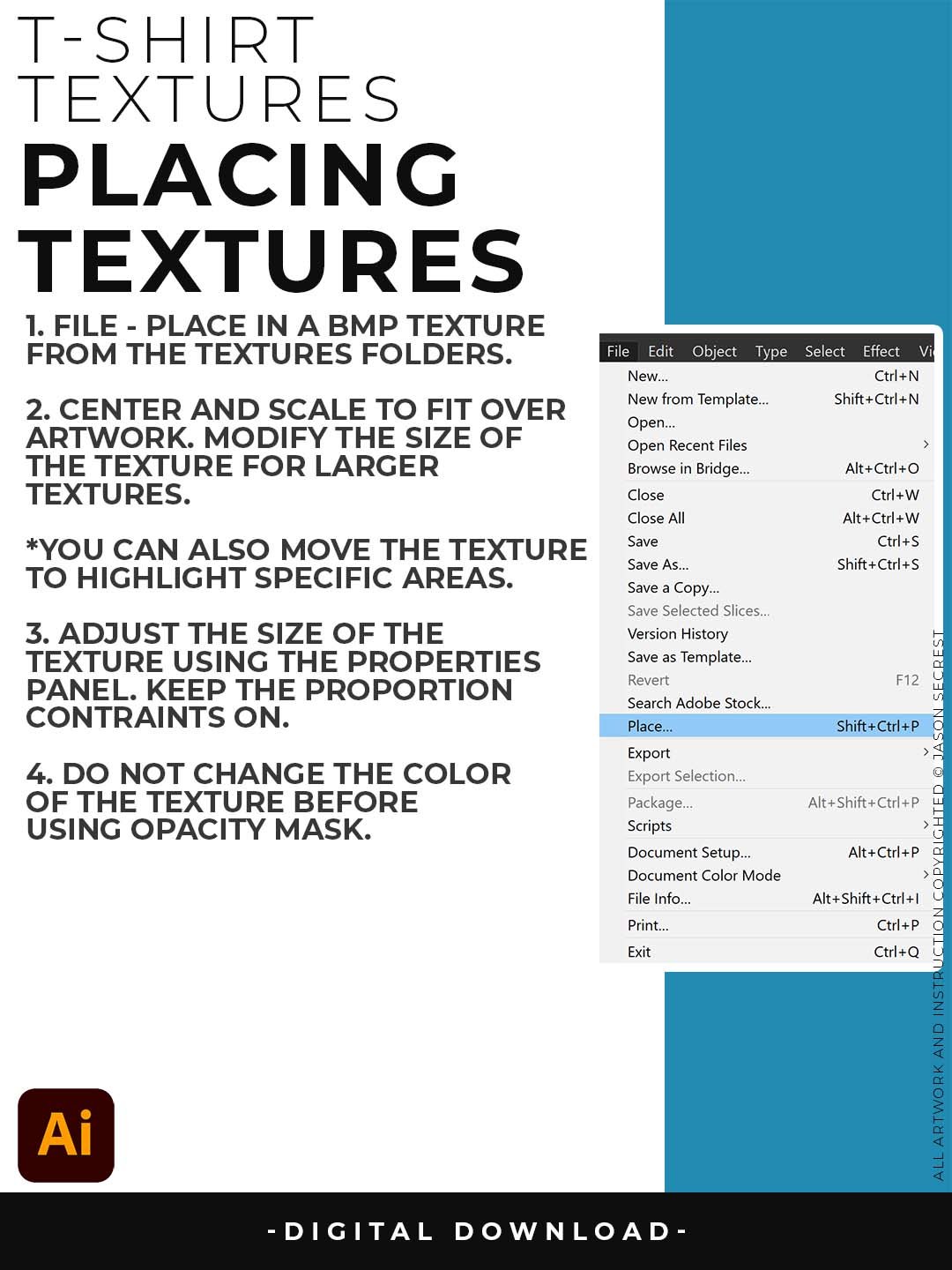
T-shirt Textures
- Adobe Illustrator BMP Textures will come to you as a Zipped Folders.
- Once you have downloaded and extracted the folders, Textures are ready to be used in Adobe Illustrator.
- File - Place Textures into Adobe Illustrator to use with Transparency Panel.
Buyer Benefits
- 417 textures across Crack (145), Grunge (120), Paper (75), and Paint (77) — the complete surface effects library
- One download covers t-shirt distressing, vintage logo aging, illustration warmth, and painterly energy
- Every texture is BMP-formatted and opacity mask-ready — no prep work, no format conversion
- Saves $15+ over buying each pack individually, with every file organized and labeled out of the box
- The texture library Jason uses in his own tutorials — so you can follow along with the exact same files
STEP #1:
Download our Cracks, Grunge Distressing, Paper, and Paint Splatter Textures. Adobe Illustrator Textures will come to you as Zipped Folders. Extract All before using in Adobe Illustrator.
STEP #2:
Once you have downloaded and extracted the BMP Textures, they are ready to be used in Adobe Illustrator. Save all files to an external hard drive or cloud-based storage.
STEP #3:
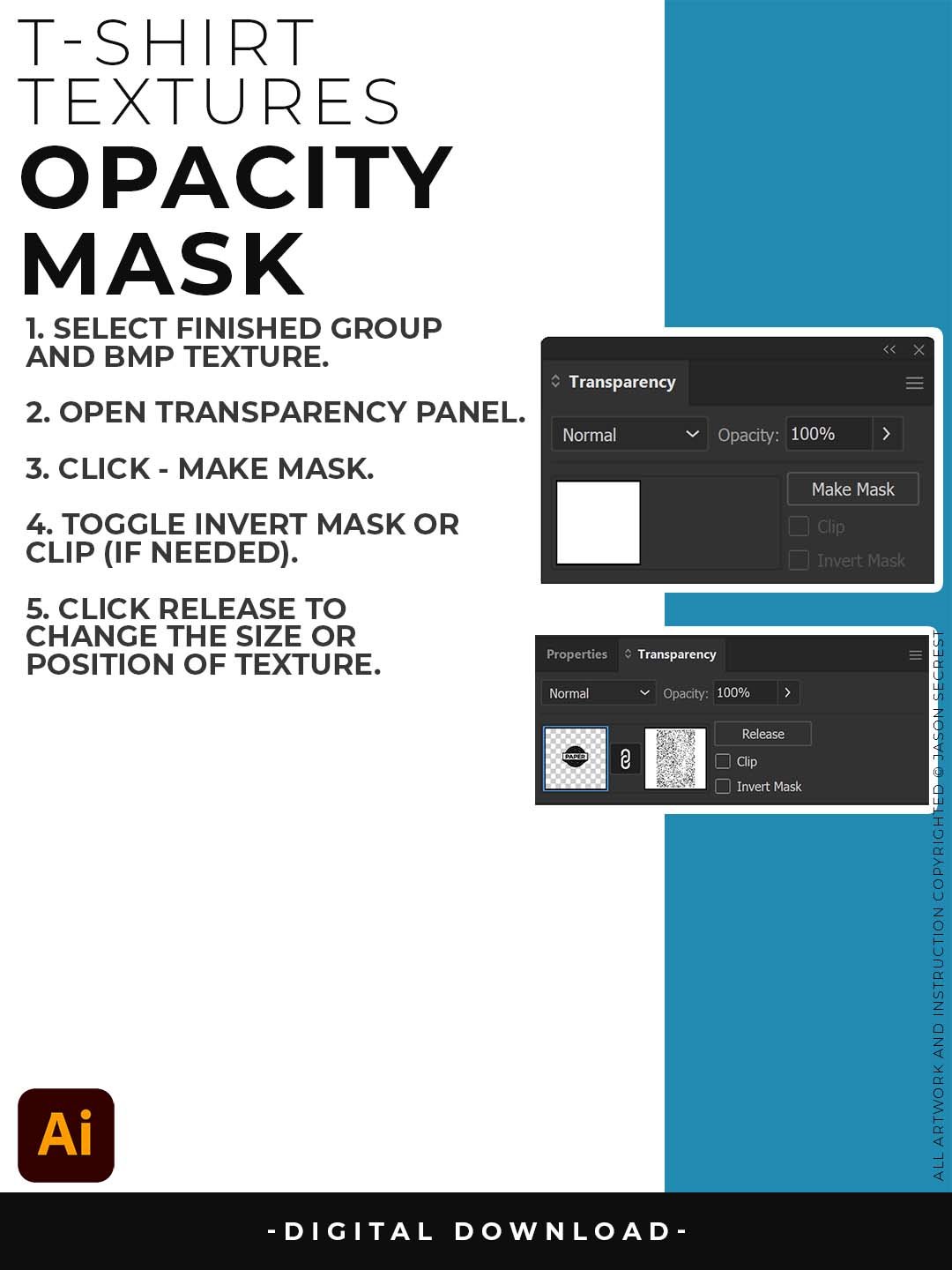
File - Place BMP Textures into Adobe Illustrator. use Opacity Masks to create T-Shirt Distressing. I recommend scaling the texture to fit over your completed artwork before you export or save.
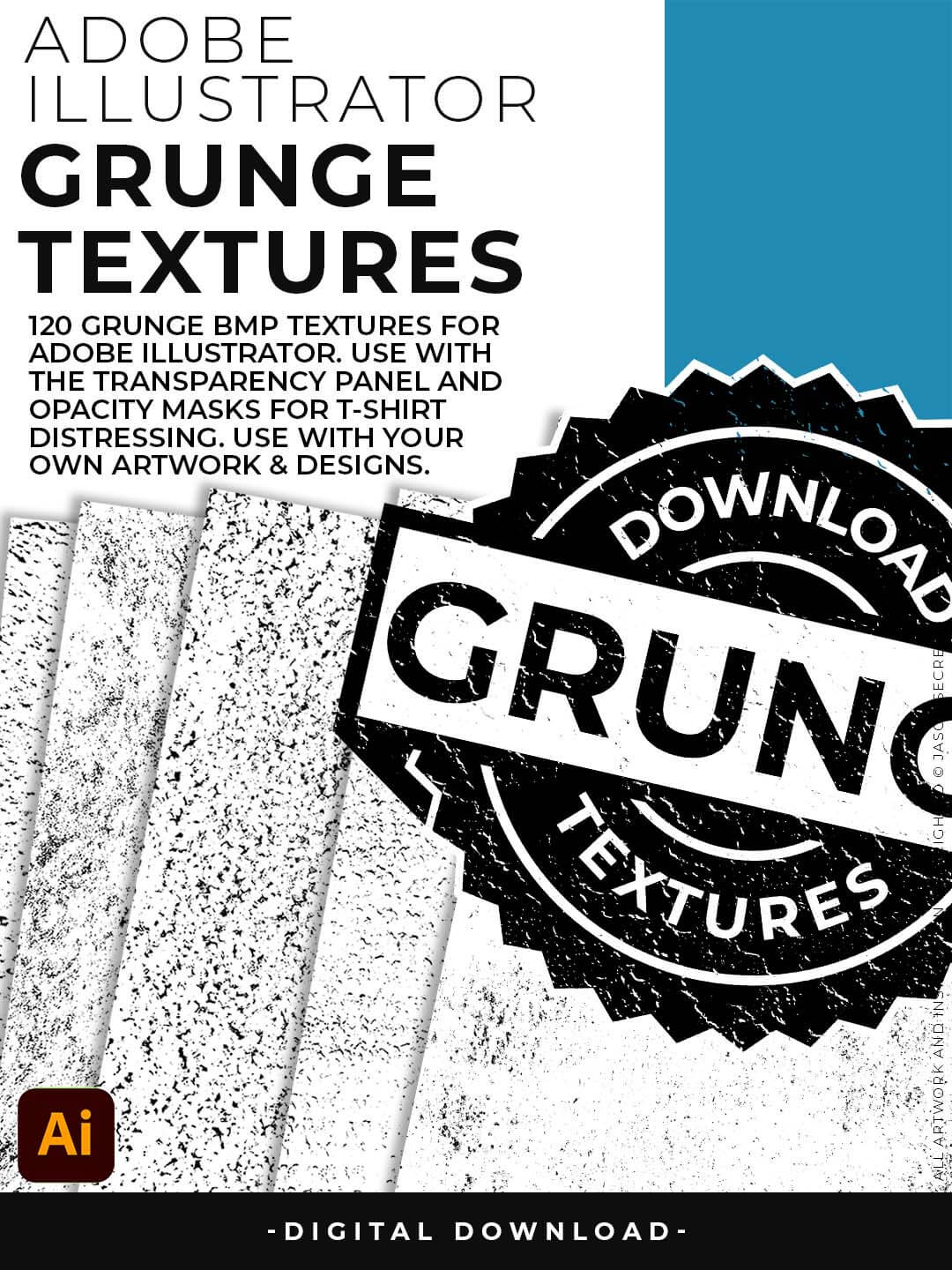
Grunge Distressing Textures to Apply Opacity Masks to your Own Original Artwork and T-shirt Designs. Use BMP Textures to apply Grunge and Distressing Effects to your Artwork and Designs to use with the Transparency Panel and Opacity Masks for Adobe Illustrator. Great for t-shirt distressing using BMP Textures and Opacity Masks to show the garment color on your Own Original Artwork.
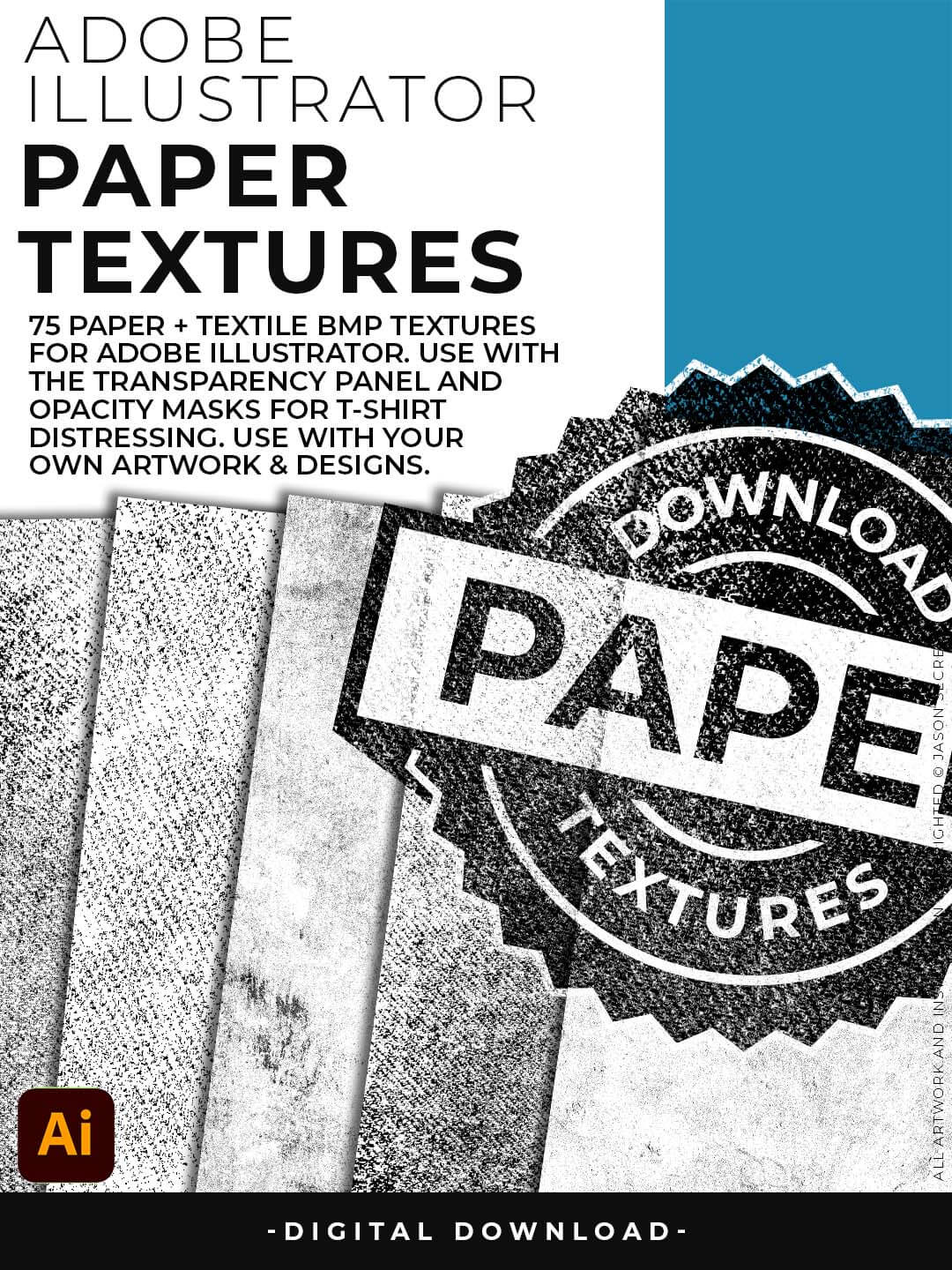
Paper Distressing Textures to use along with the Transparency Panel to create soft texture overlays for your own original artwork. This is great for those of you who are using Textures for Web, Print, and Social Media Sites. Use Textures with a combination of Color Swatches, Transparency, Blending Modes, and Clipping Masks to create a subtle texture overlay on your print or web exports.
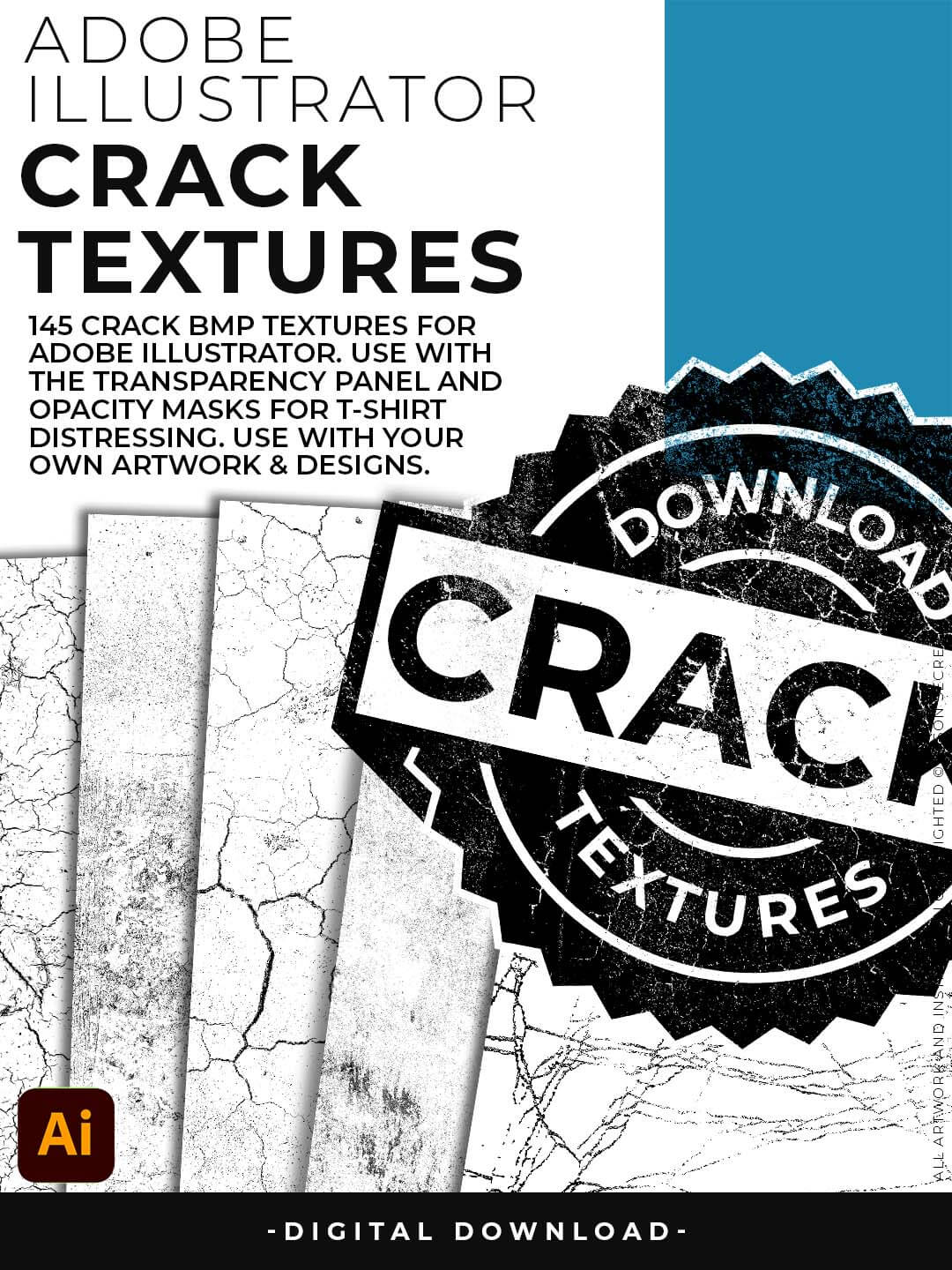
Crack Distressing Textures to Apply Opacity Masks to your Own Original Artwork and T-shirt Designs. Use BMP Textures to apply Cracks and Distressing Effects to your Artwork and Designs by Applying Opacity or Transparency Masks for Adobe Illustrator. Created for T-Shirt distressing using your own Original Artwork and Opacity Masks to show through to the garment color.
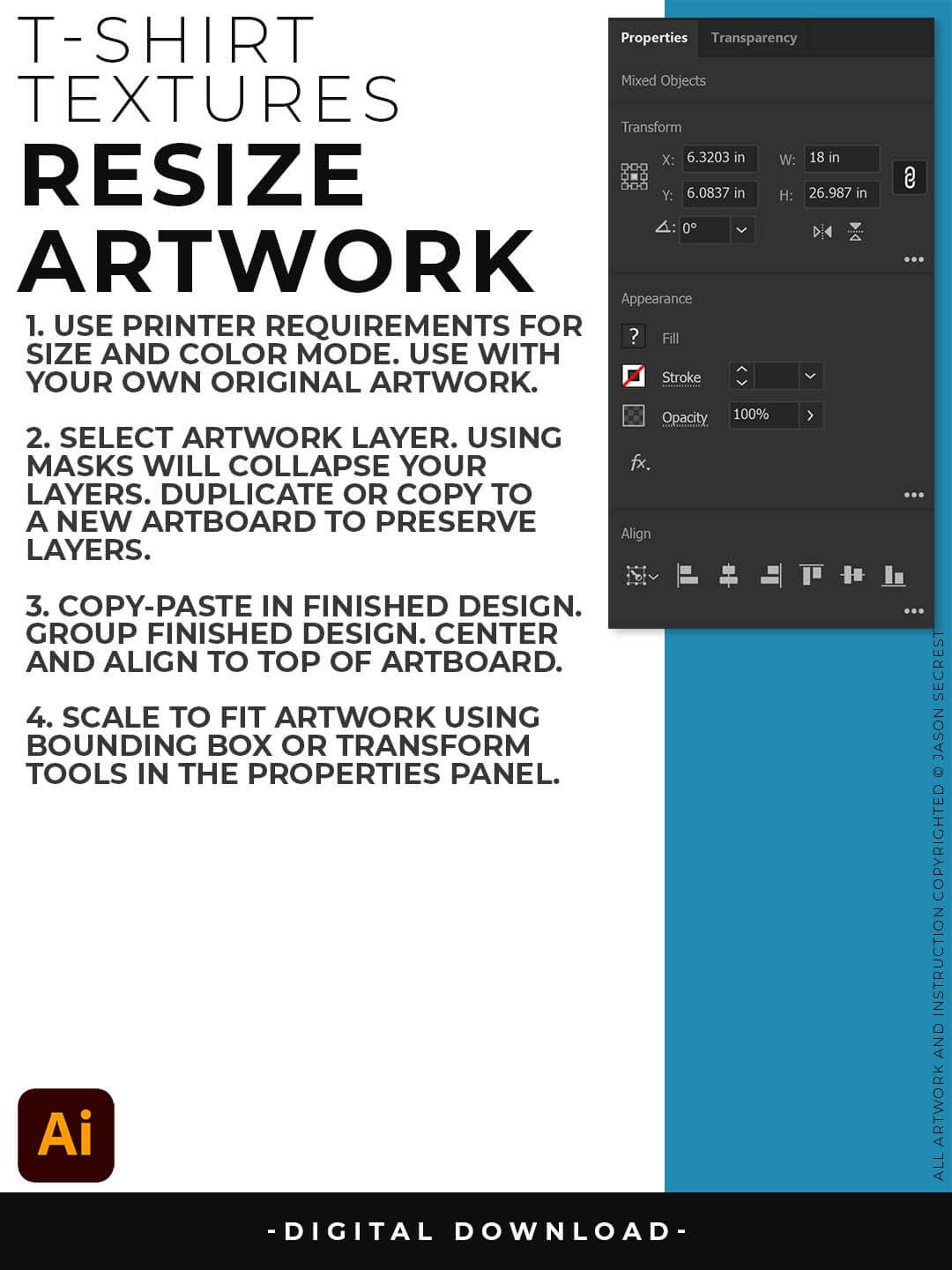
RESIZE ARTWORK: If you are building in a smaller scale you will need to resize your artwork before applying textures. I recommend duplicating the layer or copying and pasting to a new artboard. Select All - Group. Use the Properties Panel to transform your original Artwork or Design to fit Printer Requirements.

FILE - PLACE: Once you have grouped and resized (if needed) your own finished original artwork, you are ready to bring in the BMP Textures. Under File - Place Textures into your working Artboard. Scale to Fit over your entire design. To use Textures with Opacity Masks you will need to Group and Scale your Finished Artwork before Applying.
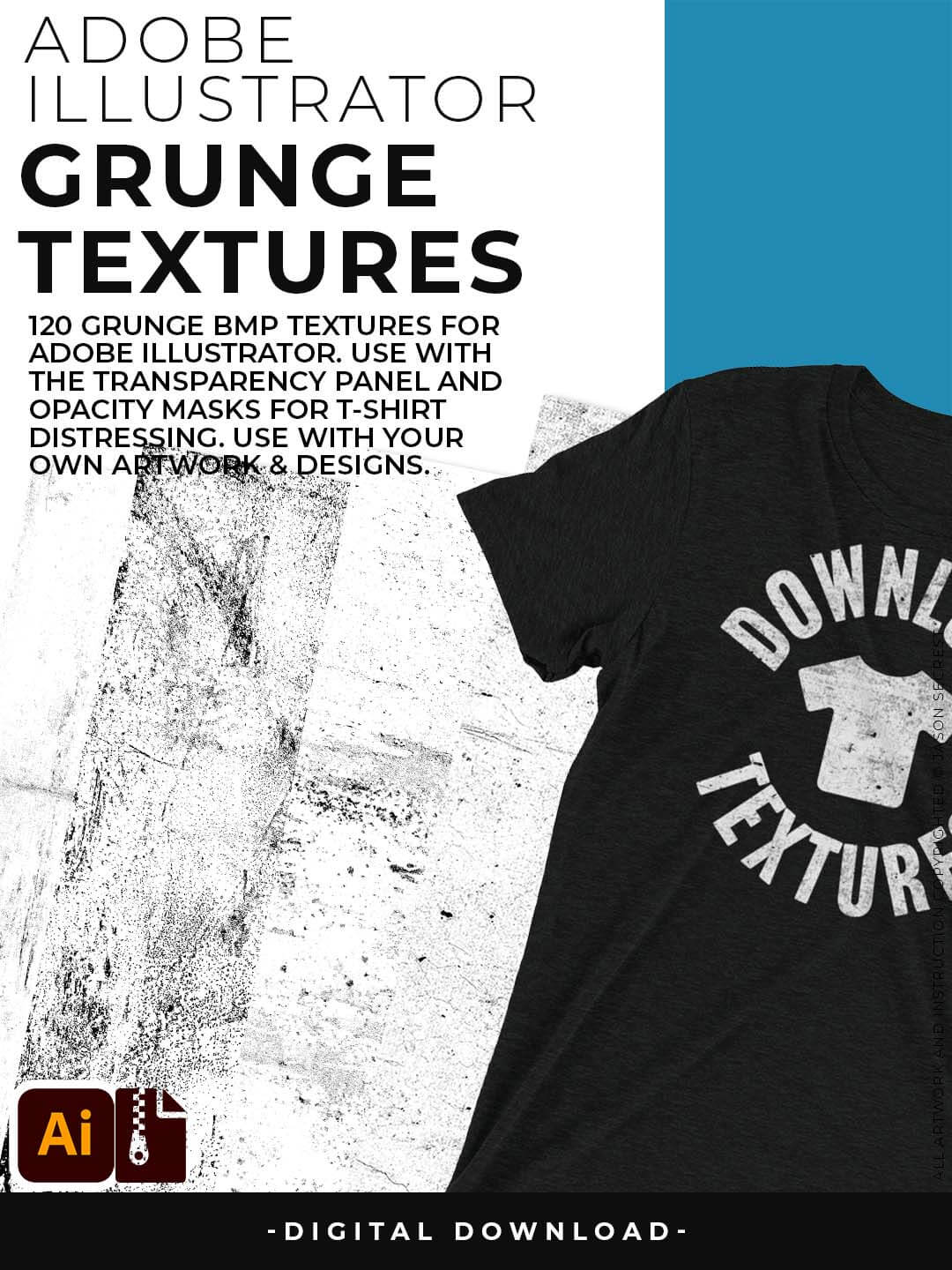
120 Grunge BMP Textures for easy T-Shirt Distressing Styles: Apply BMP Textures within Adobe Illustrator using Opacity Masks for T-Shirt Distressing.
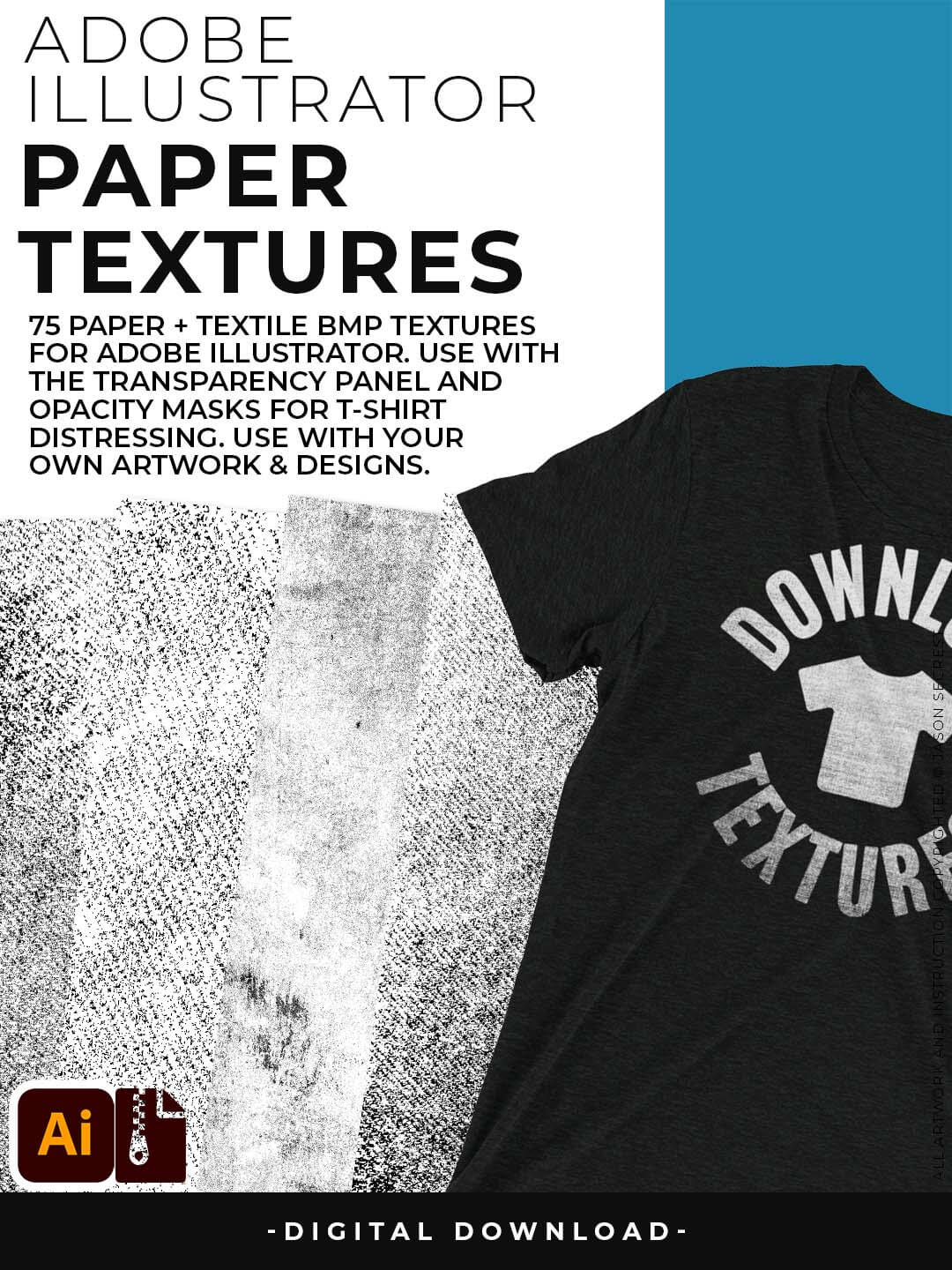
77 Paper Textures for Subtle or Messy Styles: Easily Apply, Change Colors, and Transparency of BMP Textures. Clipping and Opacity Masks are Non-Destructive.

145 Cracks and Distressing Textures for easy Vintage Styles: Apply BMP Textures with the Transparency Panel and Blending Modes for subtle Texture Overlays.
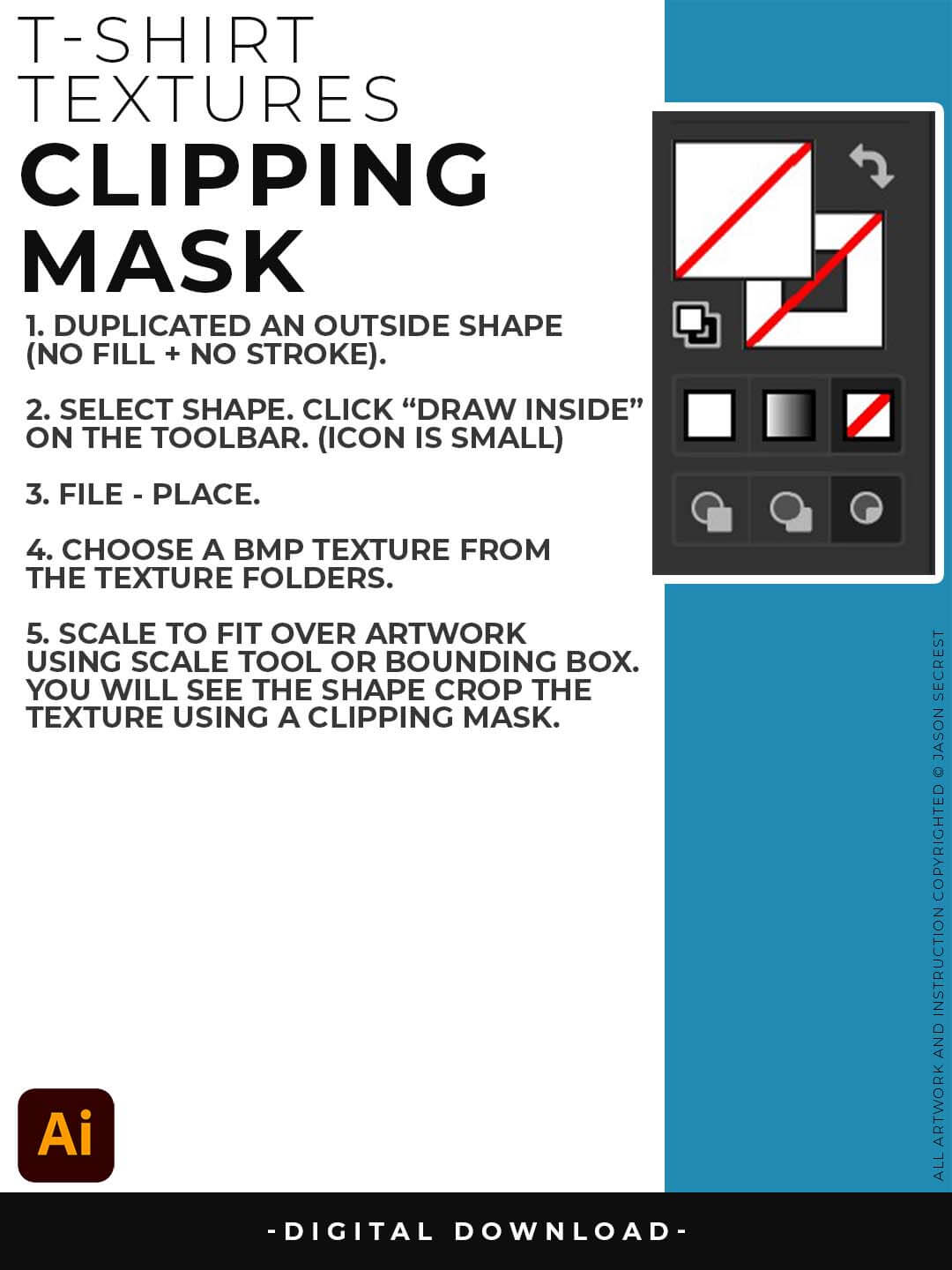
CLIPPING MASKS: Using the "Draw Inside" feature is an easy way to use Clipping Masks in Adobe Illustrator. Simply File - Place in the BMP Texture into the selected "Draw Inside" Shape.
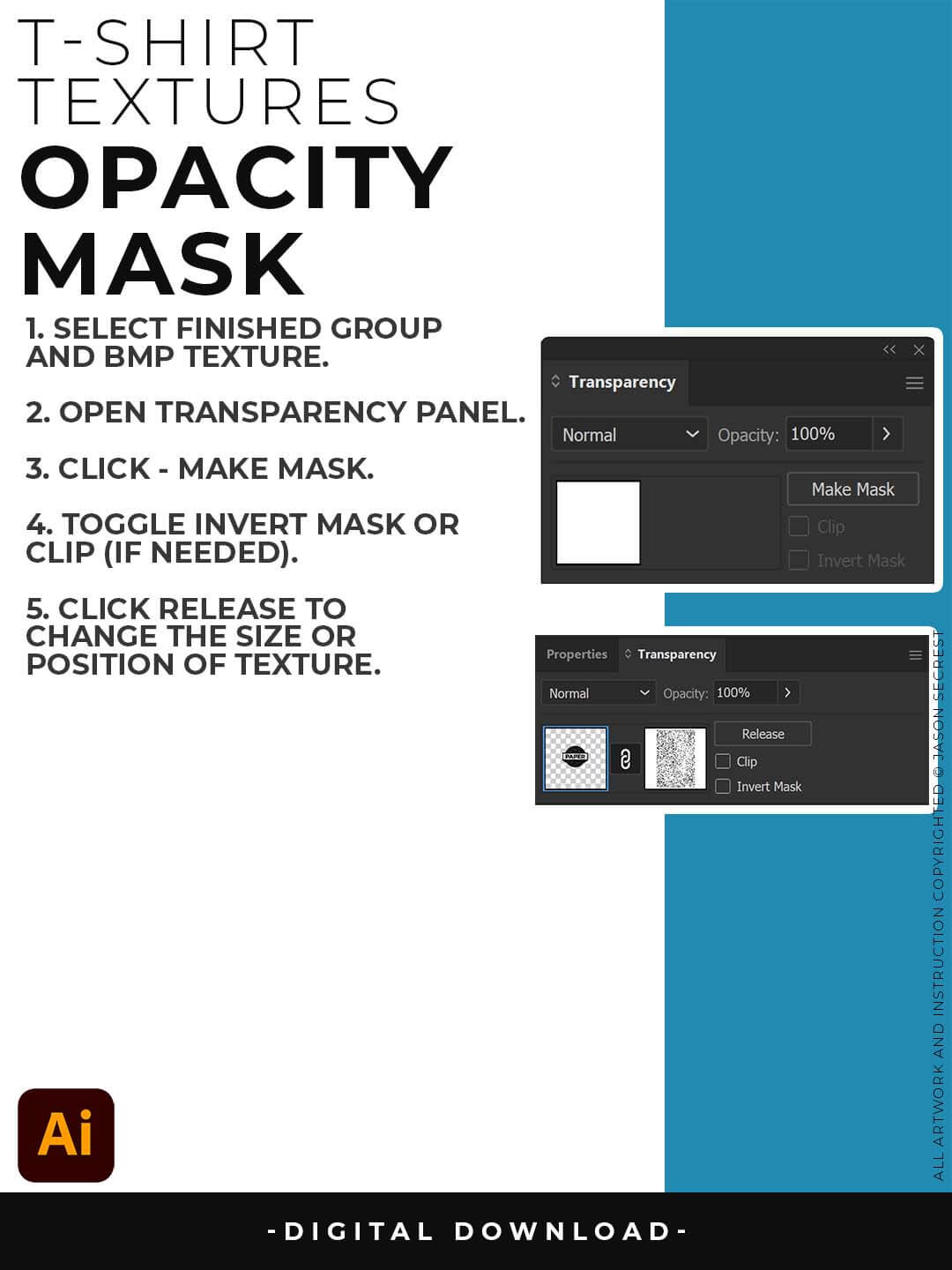
OPACITY MASKS: Using Opacity Masks in Adobe Illustrator is extremely fun. Click on "Make Mask" in the Transparency Panel. This will be for your own original artwork for T-shirt Distressing.